Since scheduled rules run automatically, no user intervention is necessary once they are created and enabled. Complete information on the scheduled rules process can be found in the Scheduled Rules section of this documentation. To utilize channel and category rules when adding products to a channel, there are three methods of executing the channel and category rules defined for a channel.
-
Auto assign to channel and category
-
Select channel and apply category rules.
-
Run Rules
Auto Assign to Channel and Category
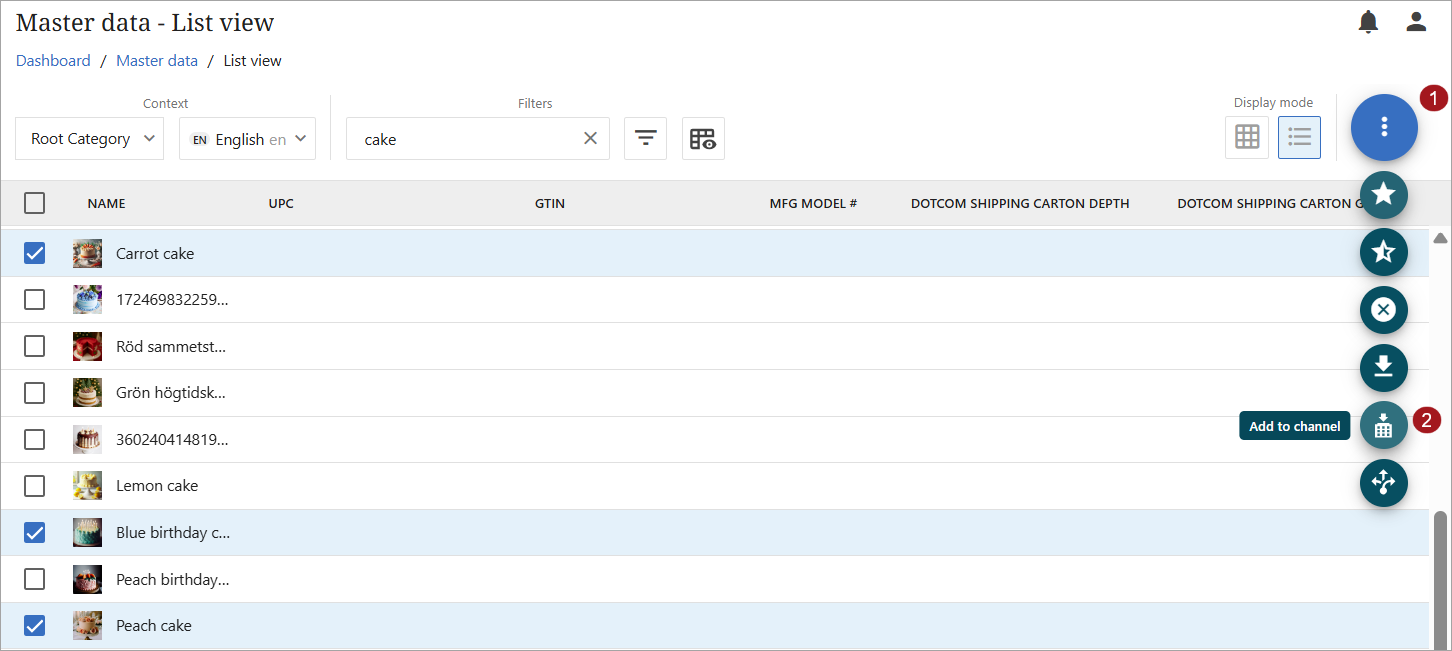
To use the Auto assign to channel and category' function available in master data, select all products to add. Click the kebab menu in the top right-hand corner to open a list of options. Click the 'Add to channel' ( ) icon.
Select the 'Auto assign to channel and category' option and click the 'Add products' button.
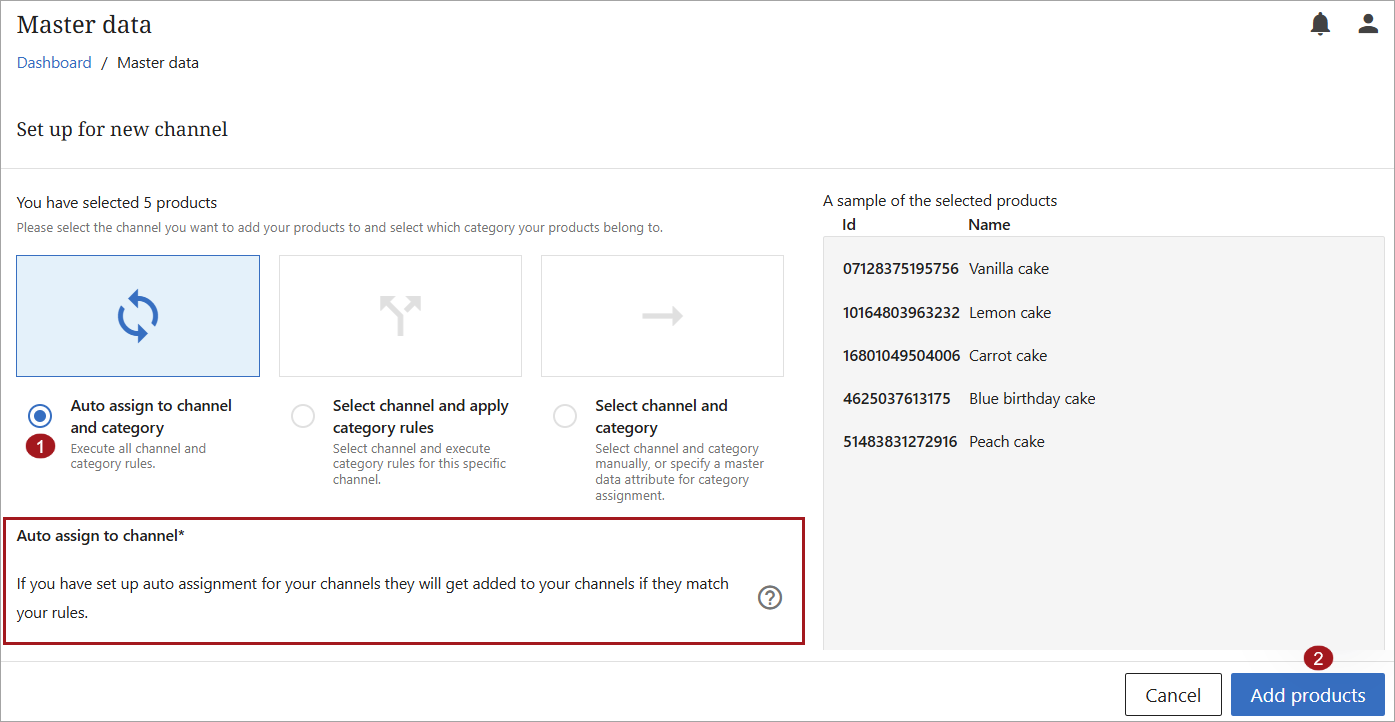
If products match a channel rule, they will get added to the specified channel. If you have set up category rules for the channels, they will be executed for products that match a channel rule. If no category rules match, the products will get added as uncategorized. For more information on channel and category rules, refer to the Channel Rules and/or Category Rules documentation.
Select Channel and Apply Category Rules
In this scenario, the user is manually choosing the channel but allowing any applicable category rules to execute automatically.
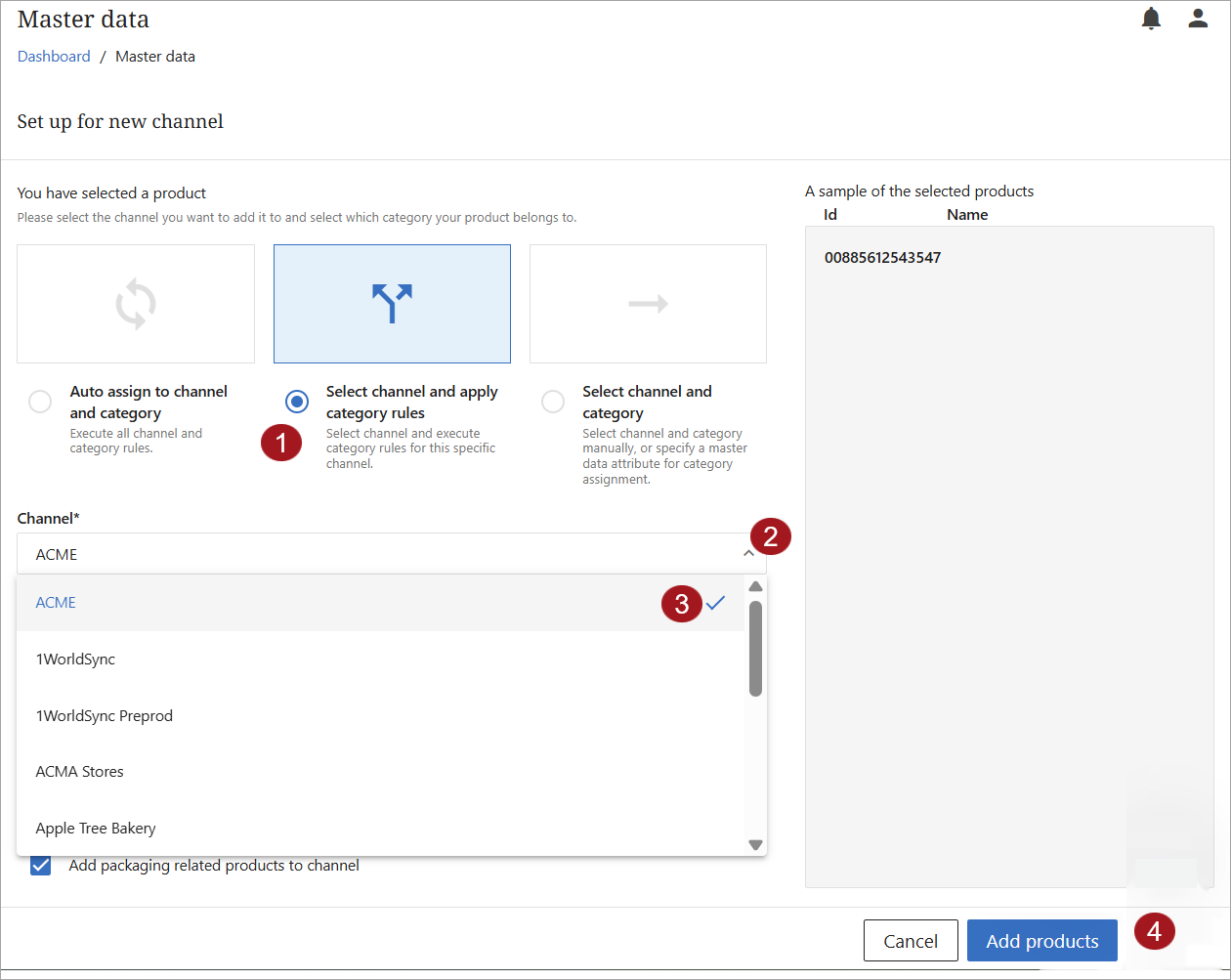
To use the 'Select channel and apply category rules' function available in master data, select all products to add. Click the kebab menu in the top right-hand corner to open a list of options. Click the 'Add to channel' () icon.
Choose the second option, 'Select channel and apply category rules.' A dropdown will appear to allow you to select a channel. Select the appropriate channel from the dropdown and click the 'Add products' button.
Run Rules
When 'Run rules' is enacted from Master Data, PDX evaluates the selected products against all enabled channel and category auto-assignment rules and automatically adds matching products to the appropriate channels and categories. PDX excludes scheduled rules, validations, and submission logic.
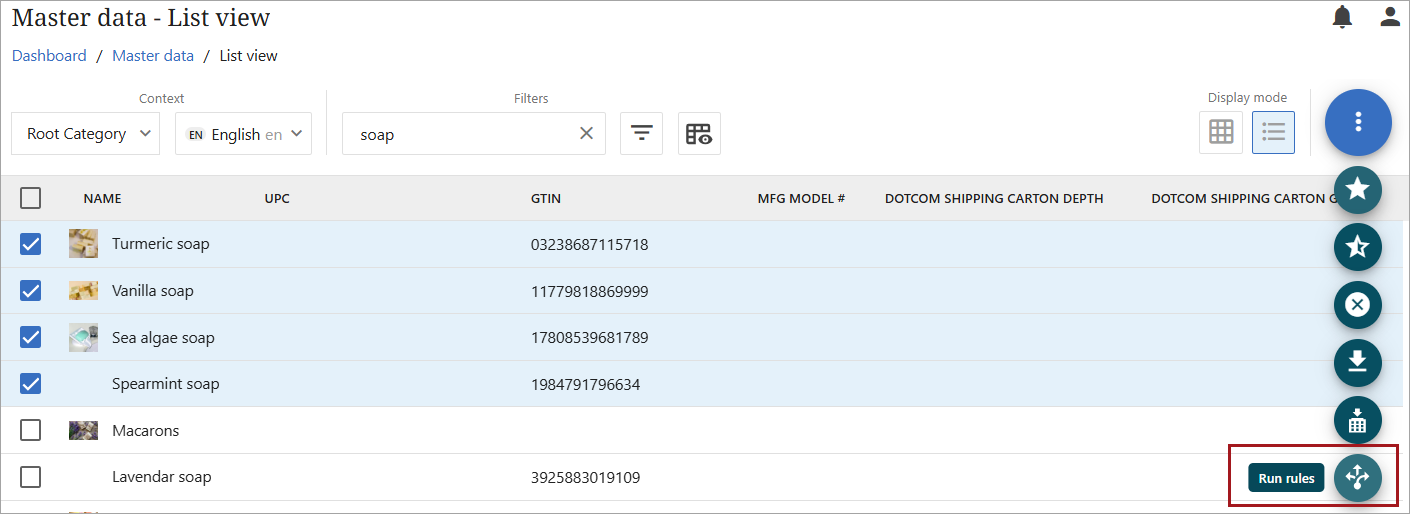
To execute 'Run rule,' in master data, select all products to add. Click the kebab menu in the top right-hand corner to open a list of options. Click the 'Run rules' ( ) icon.
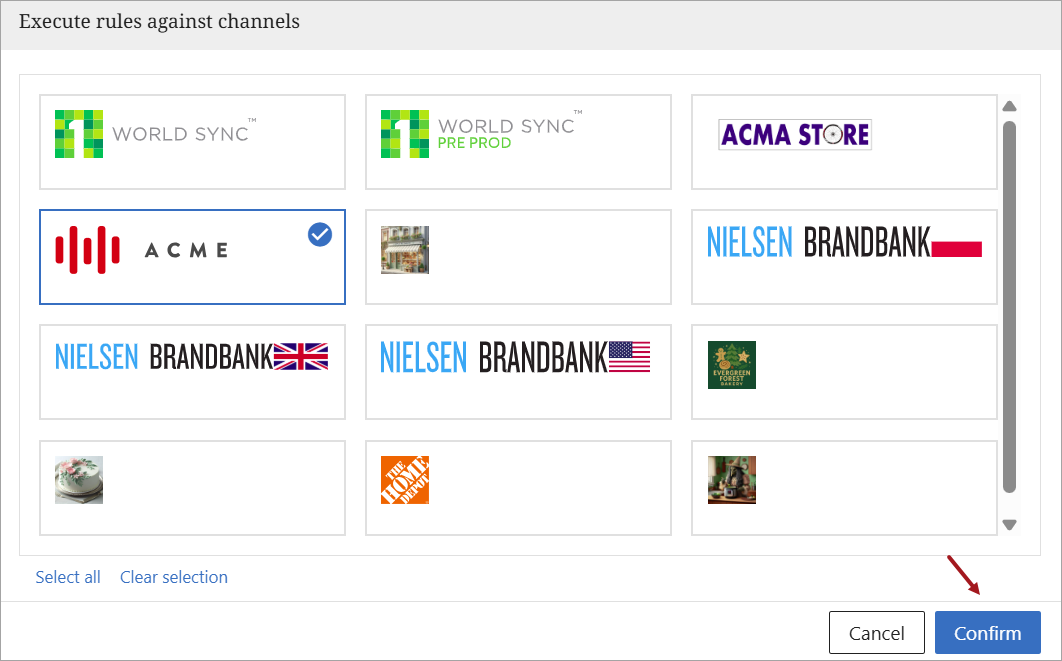
A popup will open to check the appropriate channel(s). All channels will be checked by default. Checks may be cleared individually or by using the 'Clear all' function to remove checks from all channels. If all checks are cleared, simply individually check the channels to receive the products. Once the relevant channels are checked, click the 'Confirm' button. The rules will run for all selected channels.