Scheduled rules run on all master data products on a daily basis, and check whether a date attribute meets a predefined condition, e.g., today is 7 days before the value of the attribute 'Sellable From.' If the master data product meets the condition, it will trigger the evaluation of the channel rules. Lastly, if the product meets the channel assignment criteria, the category rules will be evaluated to determine what category the product should be assigned to.
If multiple category rules exist, the first matching rule (by rule order) determines placement. For more information about Category rules, refer to the Category Rules topic.
Note: If no category rules exist, scheduled rules can still add products to a channel, but placement may default to the root or remain uncategorized.
Creating Scheduled Rules
Click 'Open details' in the Scheduled rules option. For the purposes of this documentation, both features of the Scheduled rules function (add products and remove products) have been disabled in order to show the complete processes of adding and removing products based on channel and category rules.
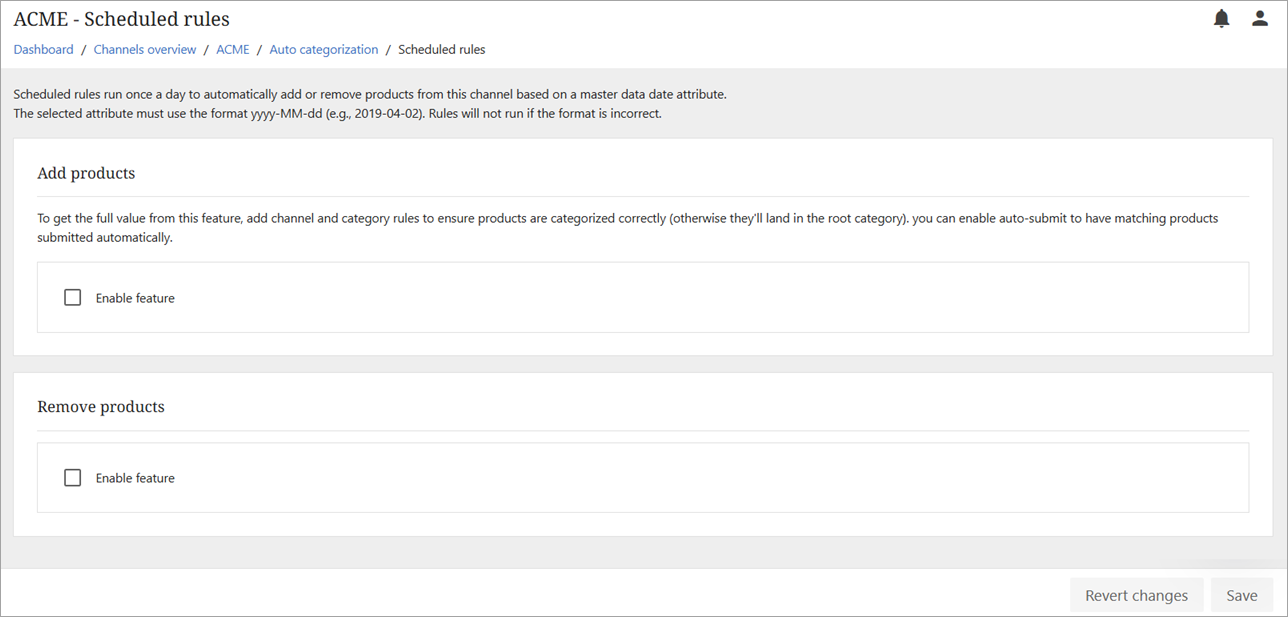
Note: Only one 'Add products' rule and one 'Remove products' rule can be created. Only attributes that are related to event dates for products are eligible to be used in a scheduled rule.
Add Products
When 'Add products' is enabled, scheduled rules will add a product to a channel if the scheduled rule condition is met and the channel rule criteria are met as well as attempt to categorize the product based on the defined category rules.
-
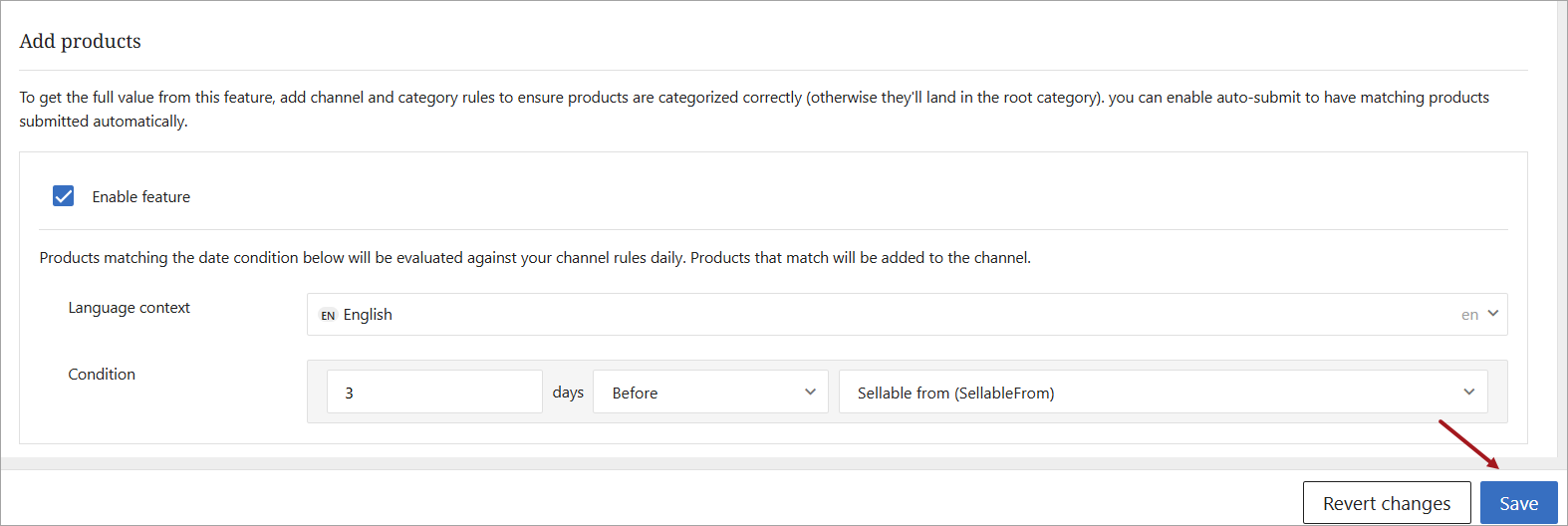
To activate the 'Add products' feature, check the 'Enable feature' box in the Add products section.
-
Options will be available to select the following:
-
Language context - Select the master language from the drop down.
-
Condition - determines the number of days before or after a product is added to the channel based on the date value of the defined attribute.
-
-
Click the 'Save' button.
The scheduled rule will be saved and run once a day. All products with a 'Sellable from' attribute will be automatically added to the channel three days before the date that is listed as the value in the 'Sellable from' attribute. For example, a product with a 'Sellable from' value of 2026-05-29 will automatically be added to the channel on May 26, 2026. A product with a 'Sellable from' value of 06-18-26 will be added to the channel on June 15, 2026. The rule will have no effect on products in master data that do not have a 'Sellable from' attribute.
Important: The selected attribute must use the format yyyy‑MM‑dd (e.g., 2019‑04‑02). Rules will not run if the format is incorrect.
Remove Products
When 'Remove products' is enabled, scheduled rules will remove a product from a channel if there is a matching value in a product attribute.
-
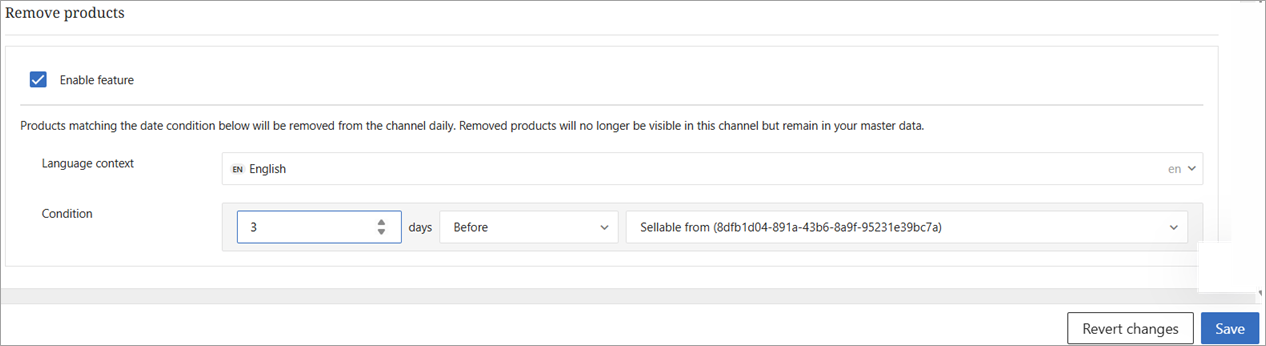
To activate the 'Remove products' feature, check the 'Enable feature' box in the Remove products section. Options will be available to select the following:
-
Language context - Select the master language from the drop down.
-
Condition - determines the number of days before or after a product is added to the channel based on the date value of the defined attribute.
-
-
Click the 'Save' button.
The scheduled rule will be saved and run once a day. In the example above, all products with a 'Sellable from' attribute will be automatically removed from the channel three days before the date that is listed as the value in the 'Sellable from' attribute. For example, a product with a 'Sellable from' value of 2026-05-29 will automatically be removed from the channel on May 29, 2026. A product with a 'Sellable from' value of 26-06-15 will be removed from the channel on June 15, 2026. The rule will have no effect on products in master data that do not have a 'Sellable from' attribute.
Important: The selected attribute must use the format yyyy‑MM‑dd (e.g., 2019‑04‑02). Rules will not run if the format is incorrect.