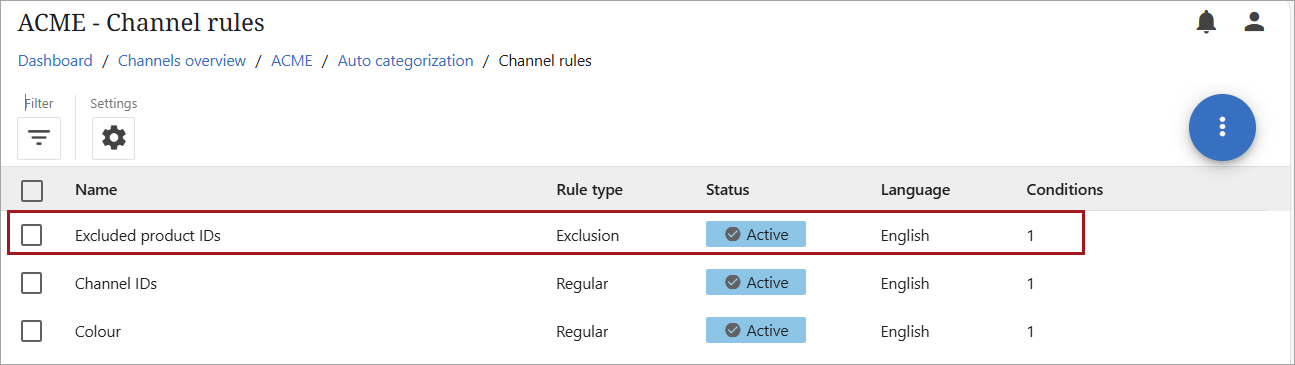
Channel rules determine how products are routed to a specific channel based on the criteria selected (defining value and attribute) when a rule is created. A user can create and activate multiple channel rules.
Creating Channel Rules
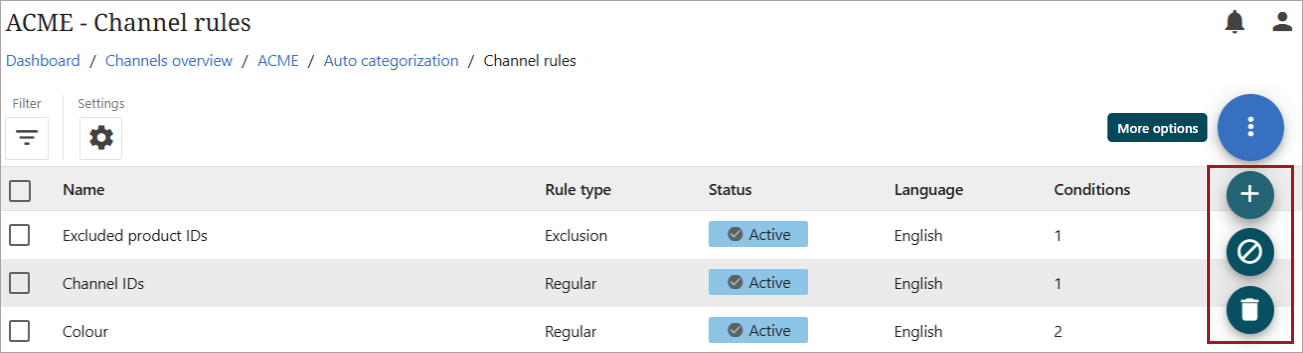
Click 'Open details' in the Channel rules option. Any existing rules will display, along with the function to add a new rule, create an exclusion rule, or delete a rule permanently.
As shown in the screenshot below, hover over the kebab menu ( ) to present 'More options." Click directly on the menu to open the functions to create a regular rule (
 ), create an exclusion rule (
 ), or delete a rule permanently (
 ).
).
Create Regular Rule
To create a regular rule, follow the below steps.
-
Click on the 'Create a regular rule' icon (
). A popup will open to allow the user to create a new regular rule.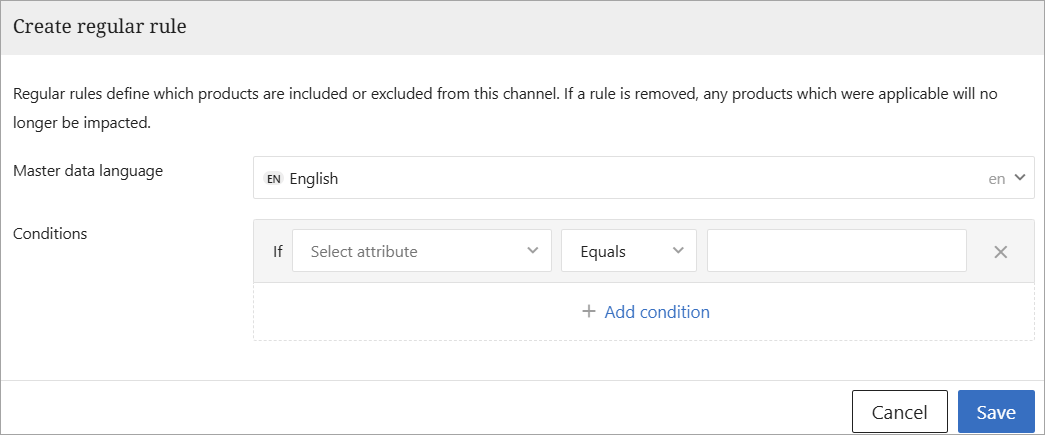
-
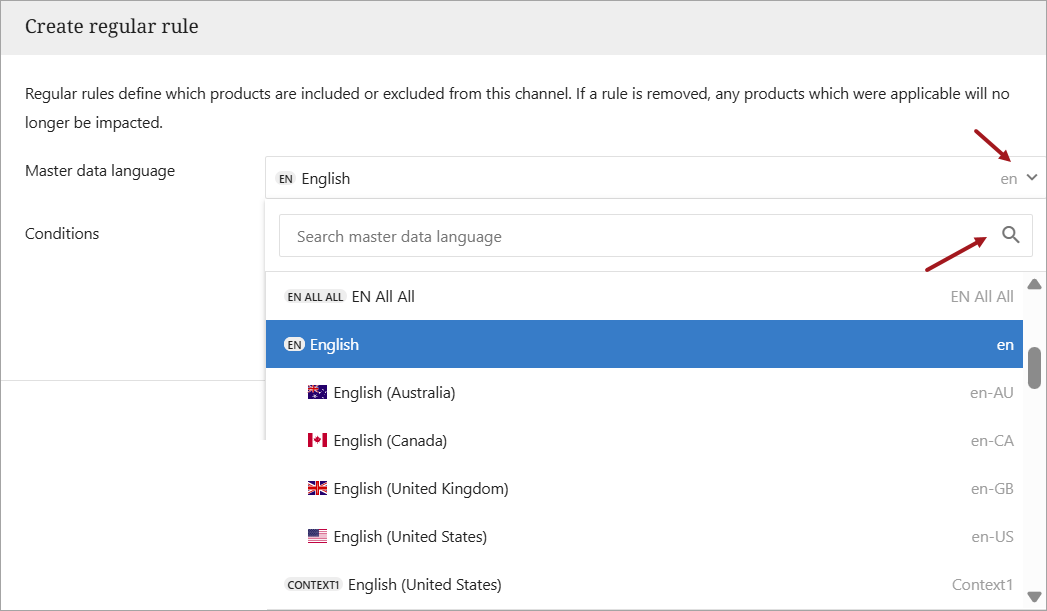
Select the Master data language (English will be the default). A user can change the master languages in the dropdown and search for a language by using the 'Search master data language' function.
-
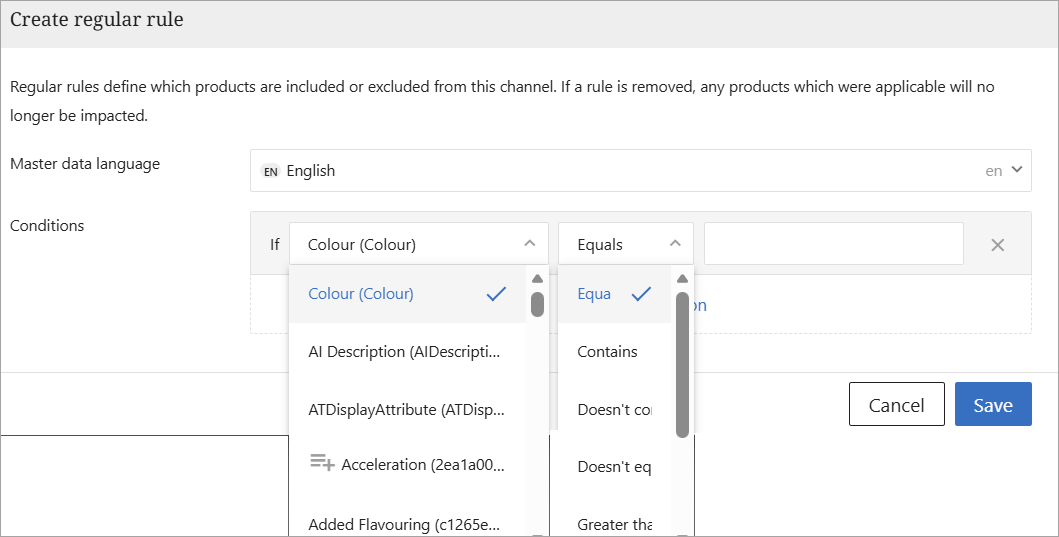
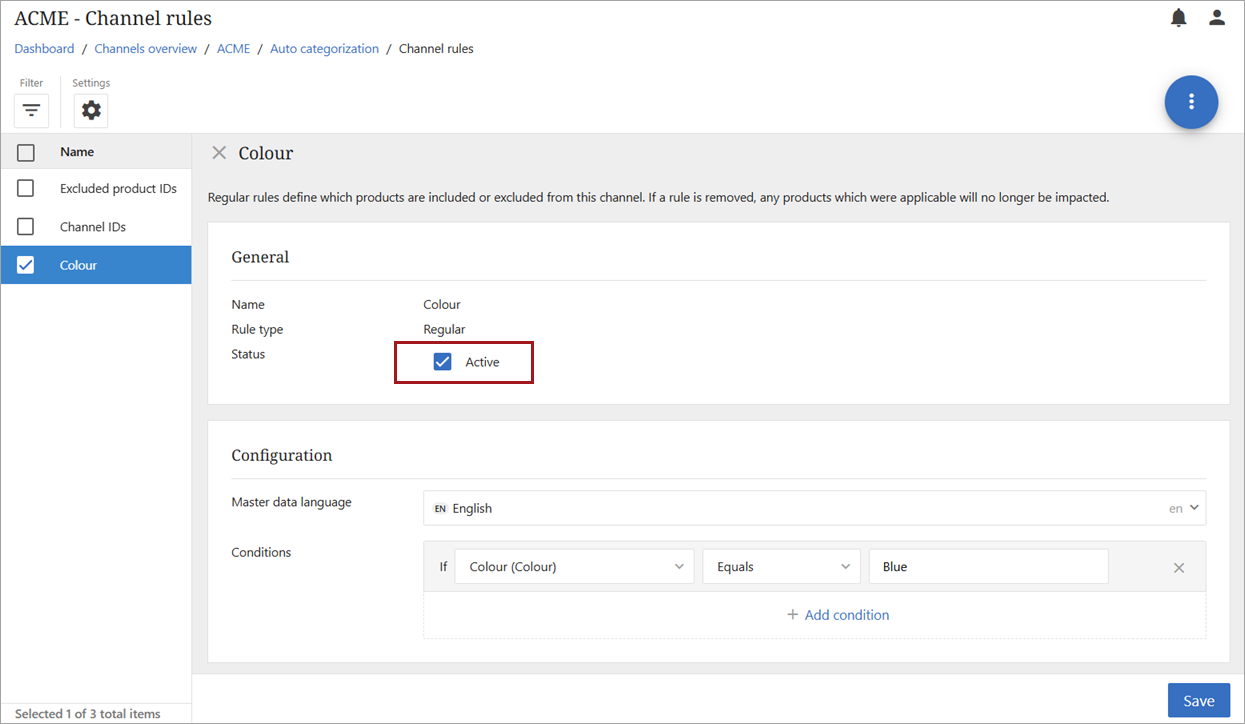
Select a condition. Multiple conditions can be included in one rule. In the below screenshot, the attribute 'Colour' has been selected with a condition of 'Equals.' Both attributes and their conditions offer a dropdown menu with multiple options.
-
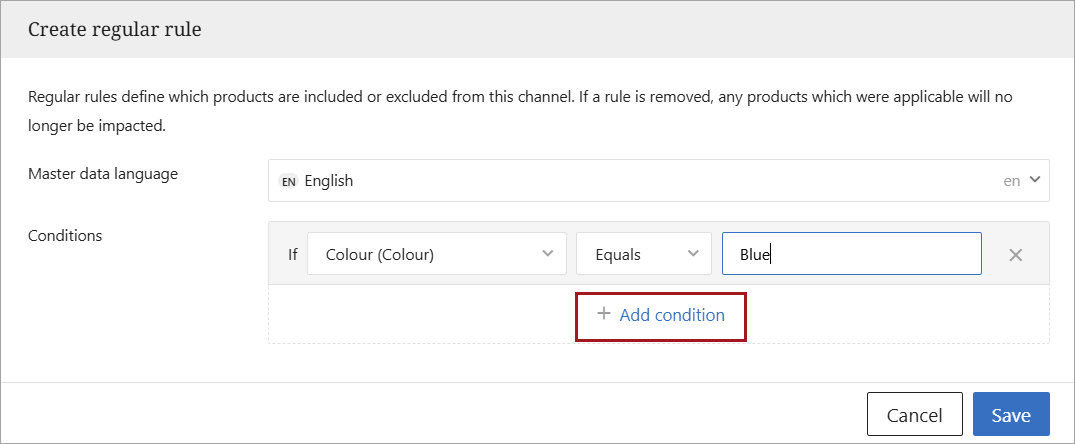
Once an attribute and its corresponding condition have been selected, enter the desired value in the free text field. In the below screenshot, 'Blue' has been entered to create a condition of 'If colour equals Blue.'
-
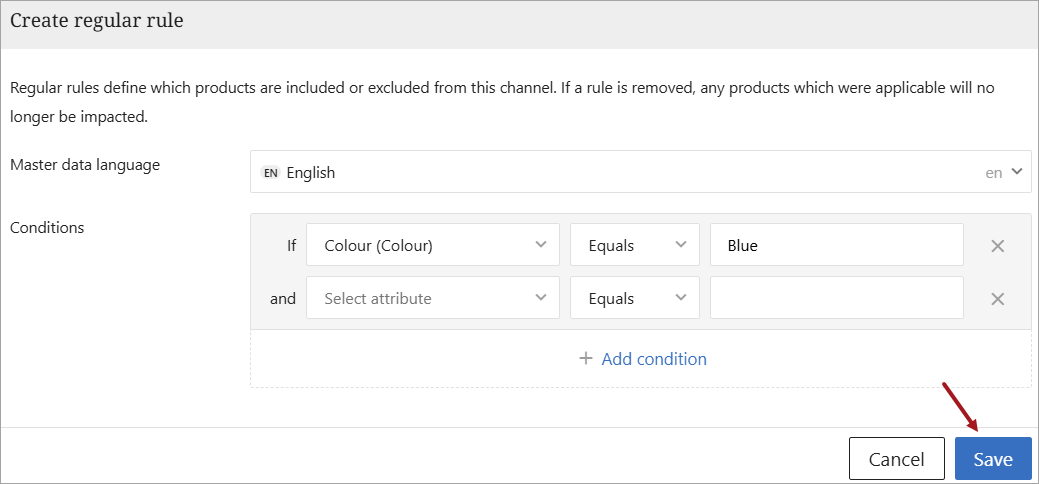
Once all desired conditions have been added, click the 'Save' button.
-
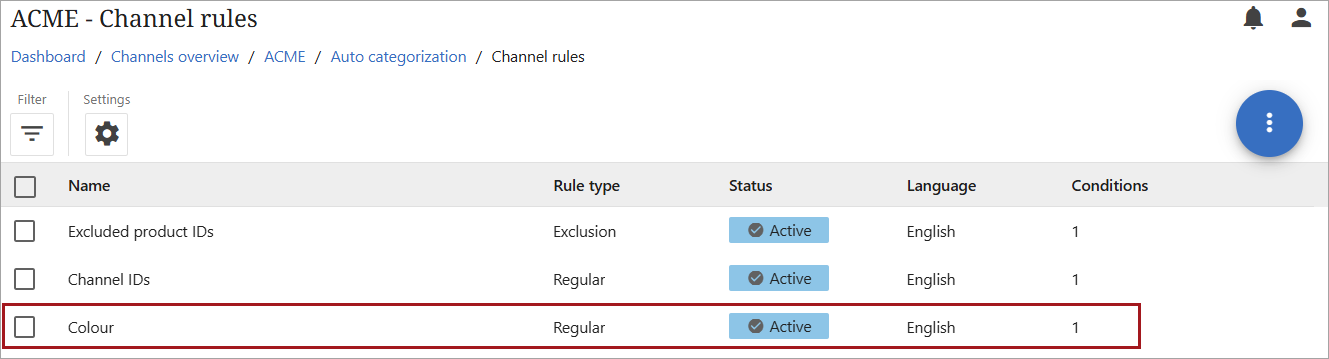
The new rule will now appear in the list of rules for the channel.
-
Once a rule has been created, it can be modified or removed. To modify, open the rule and follow the previous steps. Remember to save once the changes have been applied.
Additionally, a rule can be deactivated by unchecking the 'Active' box in the rule's data. A deactivated rule will remain in the list of channel rules but will not apply to the channel when rules are run. To reactivate a rule, recheck the 'Active' box, and the rule will be included the next time rules are run for the channel.
Create Exclusion Rule
An exclusion rule allows a user to identify one or more Product ID's that should not be added to a channel. It takes priority over other rules and is limited to one rule per channel. Follow the steps below to create an exclusion rule.
-
Click on the 'Create an exclusion rule' icon (
). A popup will open to allow the user to create a new exclusion rule.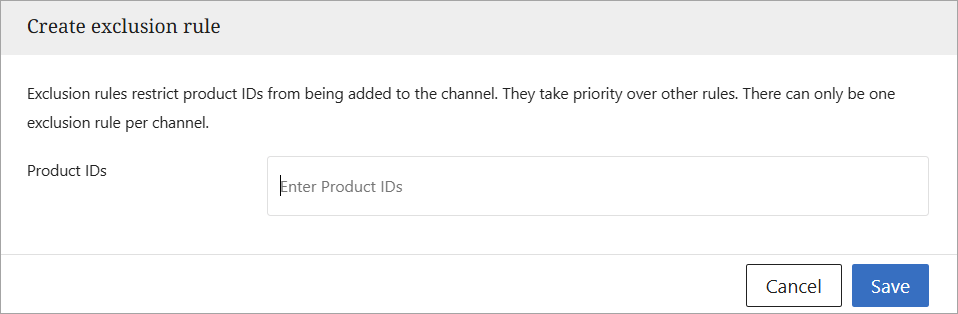
-
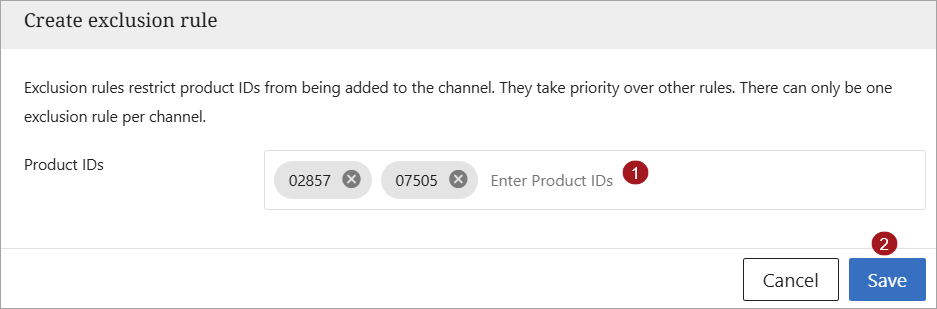
Enter the Product ID(s) that should not be added to the channel. Click the 'Save' button after adding the ID(s).
-
Once the rule has been saved, it will appear in the list of rules for the channel. To modify the rule, such as adding additional IDs or removing ID's, open the rule. Follow the steps above to add additional IDs. To remove an ID, click the
 next to the ID. As with regular rules (defined above), exclusion rules can be deactivated and reactivated through the 'Active' check box.