PDX users can now clone an entire channel's configurations to create a duplicate configured channel. Additionally, channel configurations from a channel can be copied separately to an existing channel.
Cloning a Configured Channel
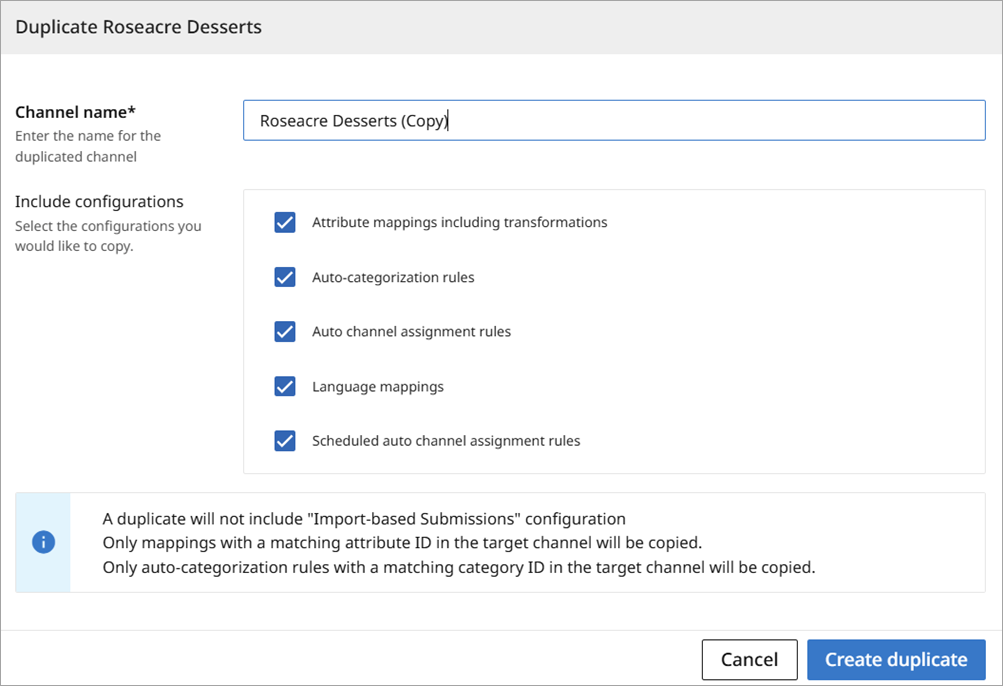
PDX provides the ability to clone an existing configured channel to create a new configured channel. This function also allows the user to pick and choose any or all of the configurations of the existing channel to be included in the new channel: Attribute mappings including transformations, Auto-categorization rules, Auto channel assignment rules, language mappings, and Scheduled auto-submit configurations.
The new (duplicated) channel will be cloned with the following exceptions:
-
A duplicate will not include any 'Import-based Submission' configurations.
-
Only mappings with a matching attribute ID in the target channel will be copied over.
-
Only auto-categorization rules with a matching category ID in the target channel will be copied over.
Steps
-
Open the Channels dropdown from the sidebar.
-
Select 'Channels management.'
-
Click the Configured Channels tab.
-
Select the channel you want to duplicate using the kebab icon (vertical ellipsis) and select 'Duplicate configured channel.'
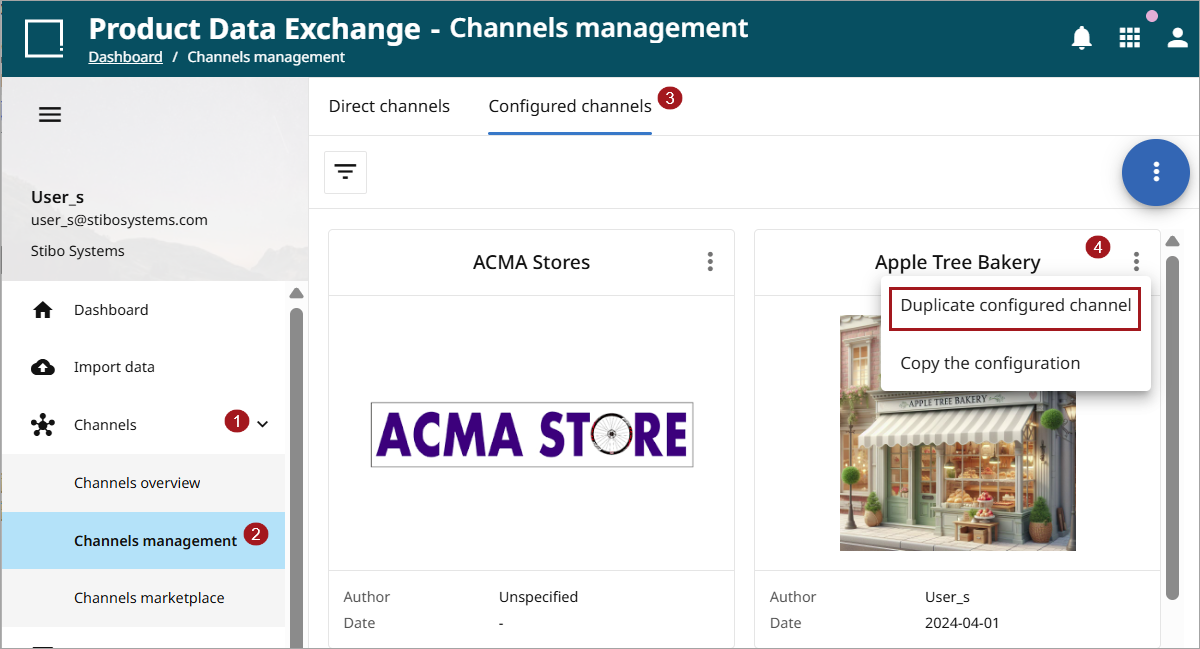
Cloning the channel
When the 'Duplicate configured channel' option is clicked, a popup will open to manage the settings for the duplicated channel.
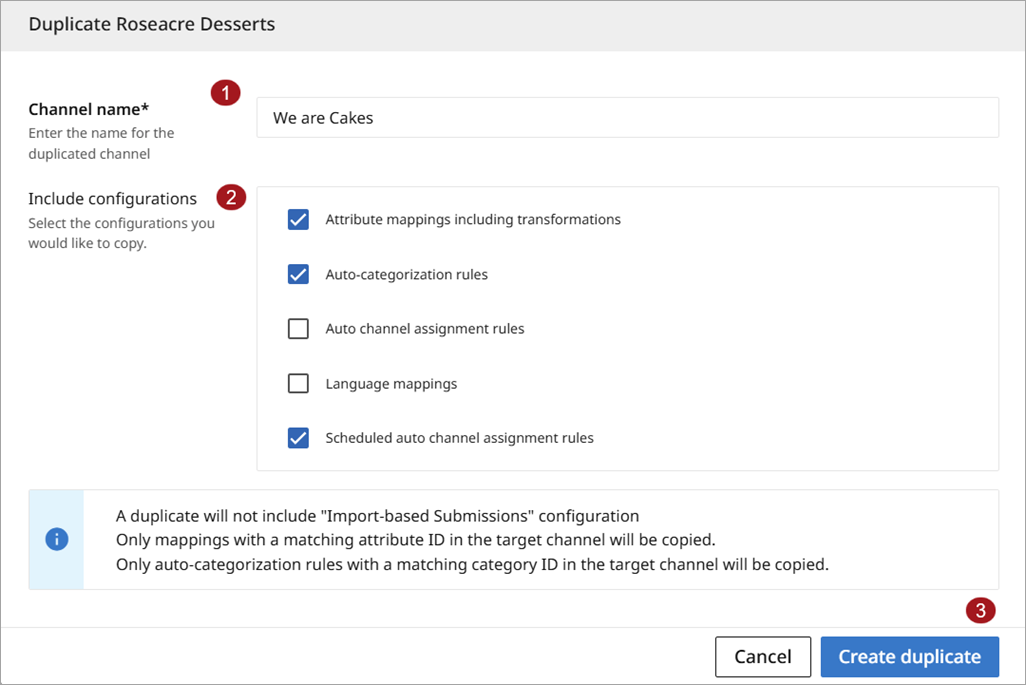
Follow the below steps to complete the duplicated channel creation.
-
Enter the new channel name.
-
Check desired configurations.
-
Click 'Create duplicate button' to complete the process.
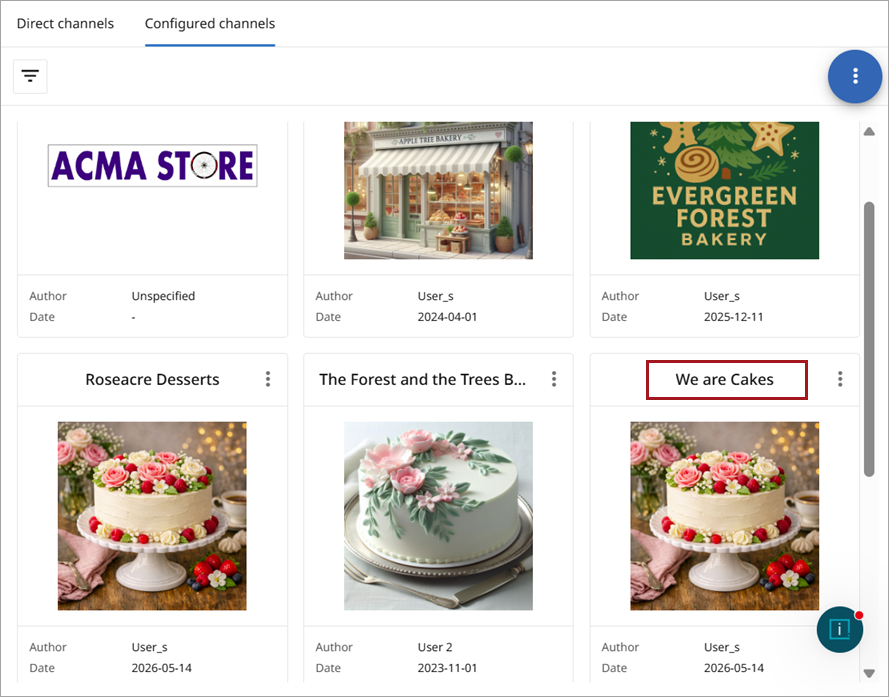
The new channel will now be available. To made additional changes to the channel, such as renaming the channel or changing the logo, refer to the documentation for Creating Configured Channels.
Copying Channel Configurations
A channel's configurations also can be copied to an existing channel without creating a new channel. This allows a user to pick and choose configurations to copy from one channel while also keeping some existing configurations in the other channel.
As with the cloning process, the configurations will be copied using the following protocols:
-
A duplicate will not include 'Import-based Submissions' configuration.
-
Only duplicates with a matching attribute ID in the target channel will be copied.
-
Only auto-categorization rules with a matching category ID in the target channel will be copied.
Steps
-
Refer to steps 1-3 in Accessing the channel above.
-
Select the channel for which you want to copy configurations using the kebab icon and select 'Copy configuration.'
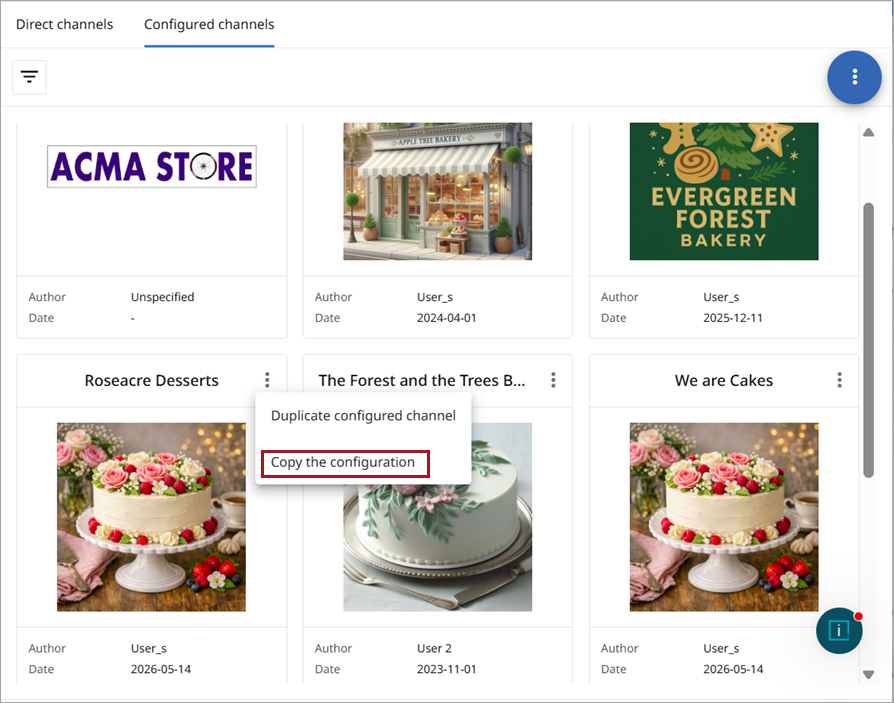
-
A new popup window will open with options to select the channels to receive the copied information and to select which configurations to include. The configurations can be checked or unchecked.
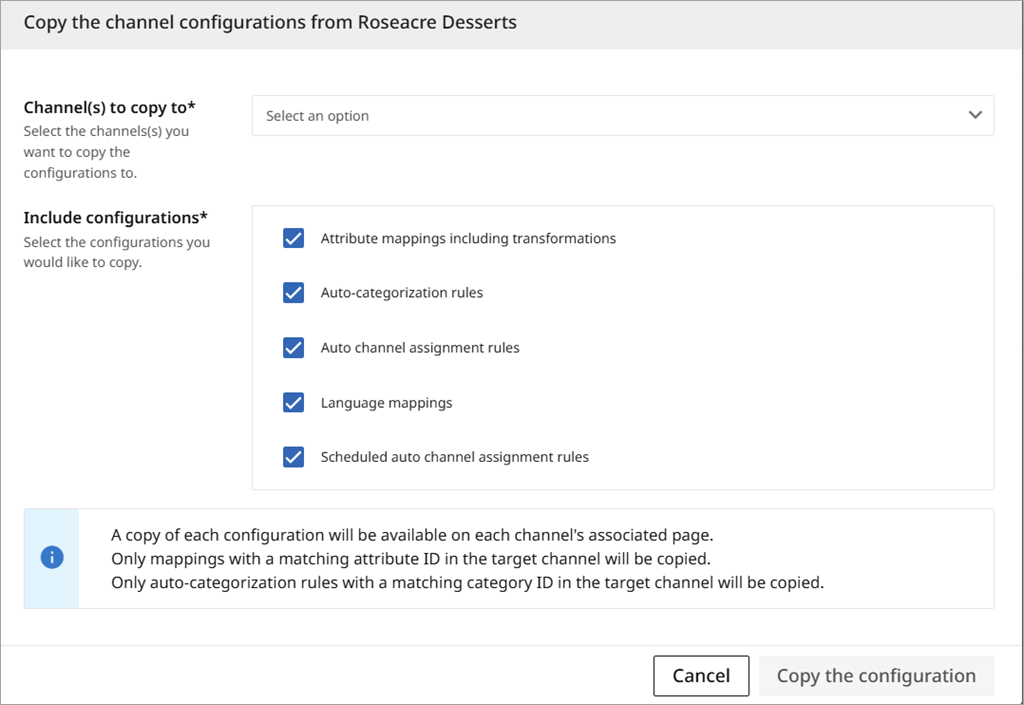
The 'Channel(s) to copy to' option contains a dropdown window to select the recipient channels.
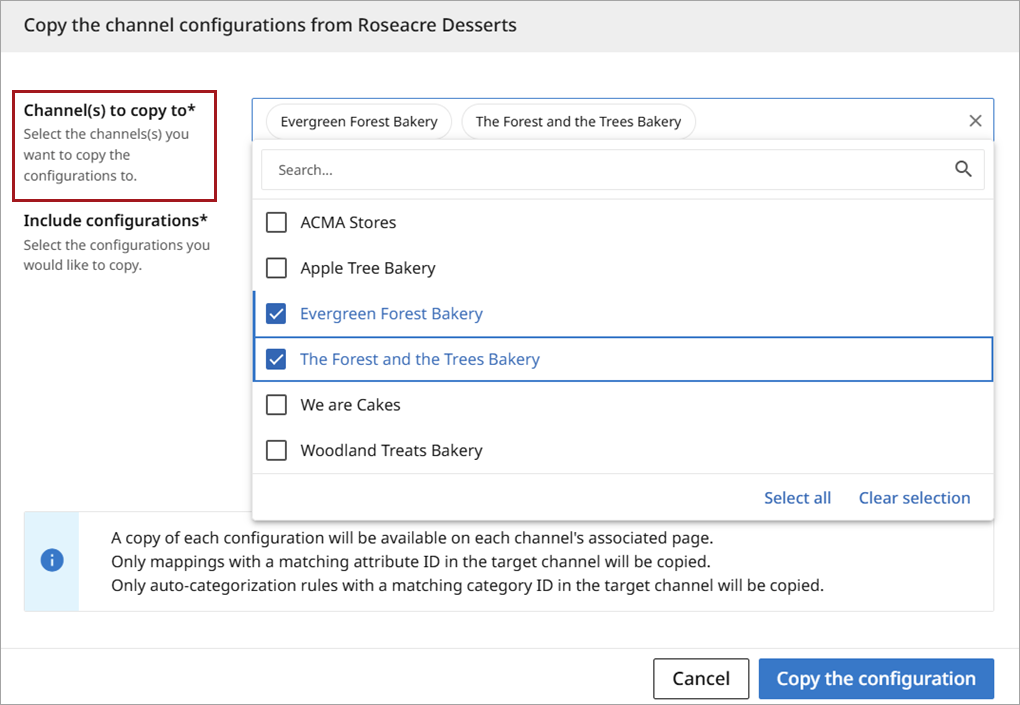
-
Once selections have been made, click the 'Copy the configuration button. Once the copy process has completed, the below message will appear at the bottom of the screen.
