Once products have been added to a channel and you are familiar with the different views and how to filter, the next step in the process for syndication is to map your master data (the data that has been imported into PDX) to the attributes in the channel. As you are mapping, you will need to work through the following tasks:
-
Ensure there are values in all required fields.
-
Ensure all formats match, with no errors on the attributes.
-
Prepare, if applicable, to add additional attributes that may not be required but are normally sent to the retailer site.
Mapping can be performed from the grid view in a channel to map one attribute at a time or from a mapping screen for a quick way of mapping all attributes within a category.
Note: Attribute mapping does not apply to all language layers when first set, only the master language. Mapping for language attributes must be completed in a separate process for each applicable language.
Mapping Through Product View
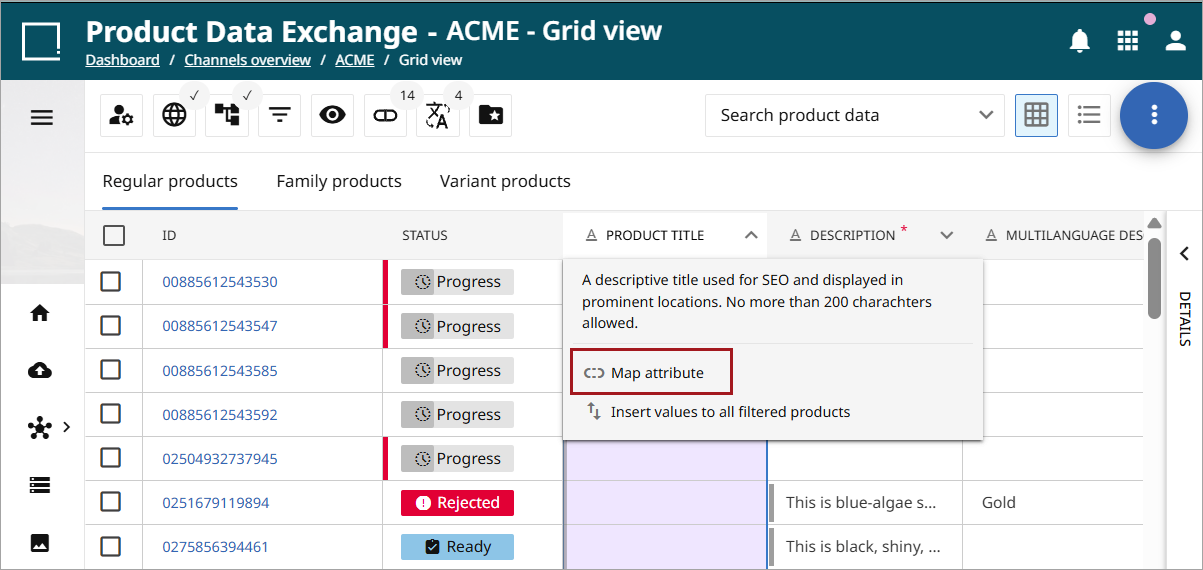
After opening a channel in grid view, click the down arrow by the selected attribute to open the dropdown menu and select Map attribute.
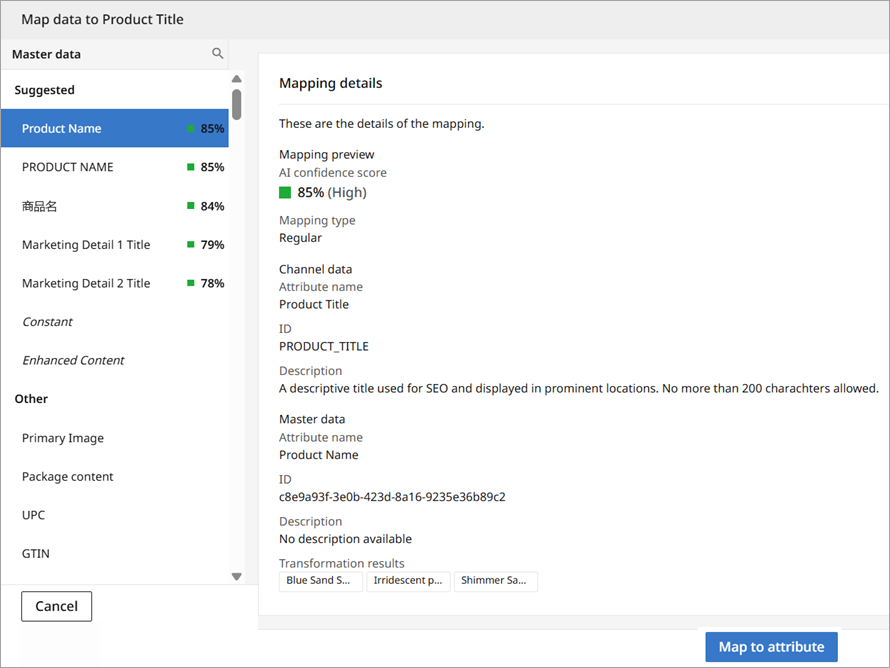
 When 'Map attribute is selected,' a popup window will open. Suggested options for selecting a mapping value will be offered, with the system's preferred options at the top. These options will also include a percentage for each, which indicates the system's confidence level in a particular option. A user can opt for a suggested option, scroll down the menu for other options, or use the magnifying glass to search for a specific name.
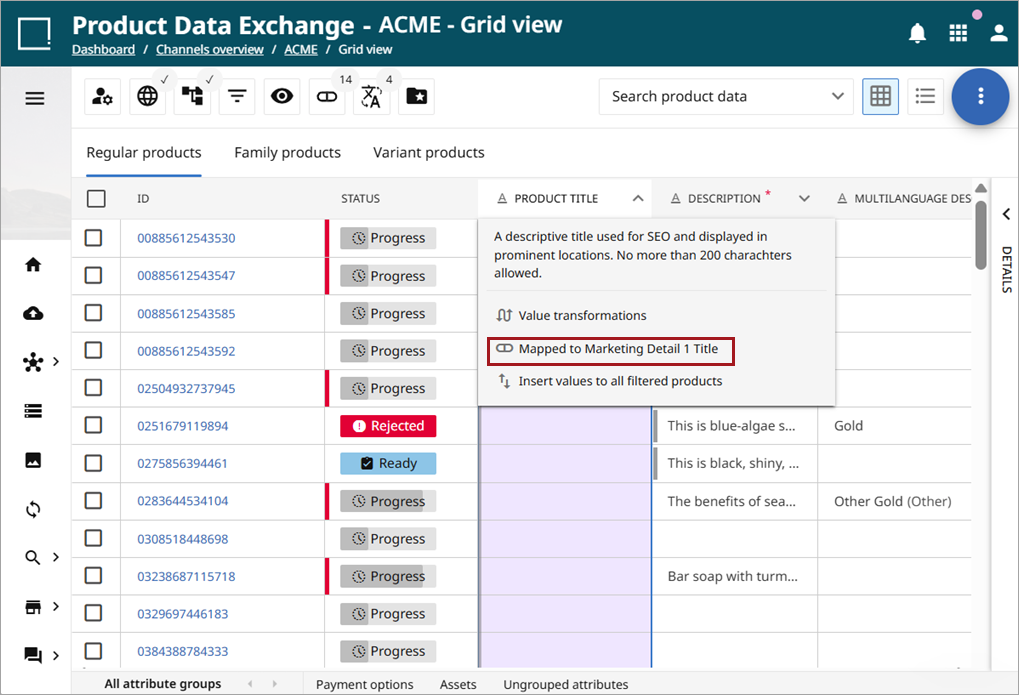
Once an attribute has been mapped, it will now show in the dropdown for that attribute and the master data values will be populated into the cells of the channel attribute.
Mapping Through Mapping Screen
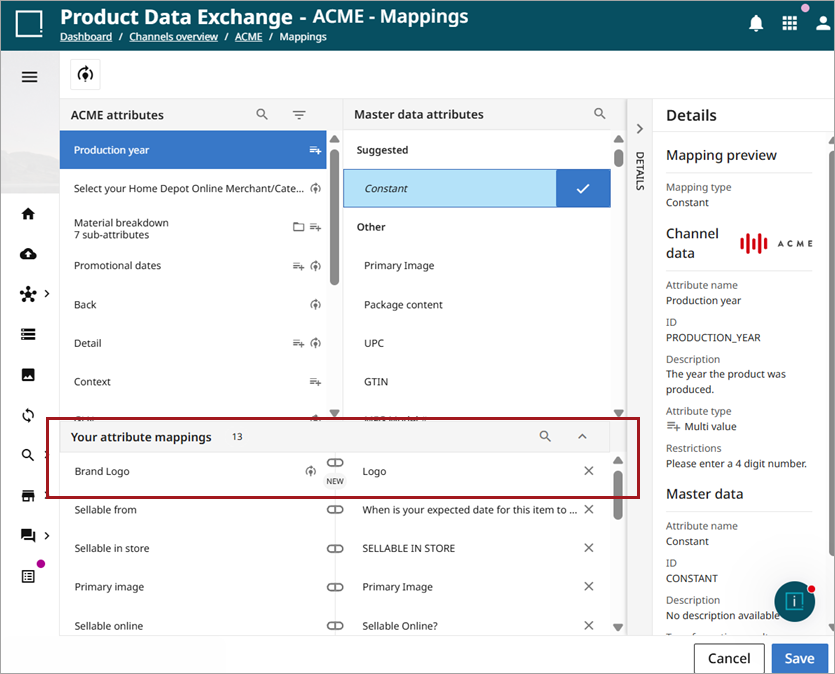
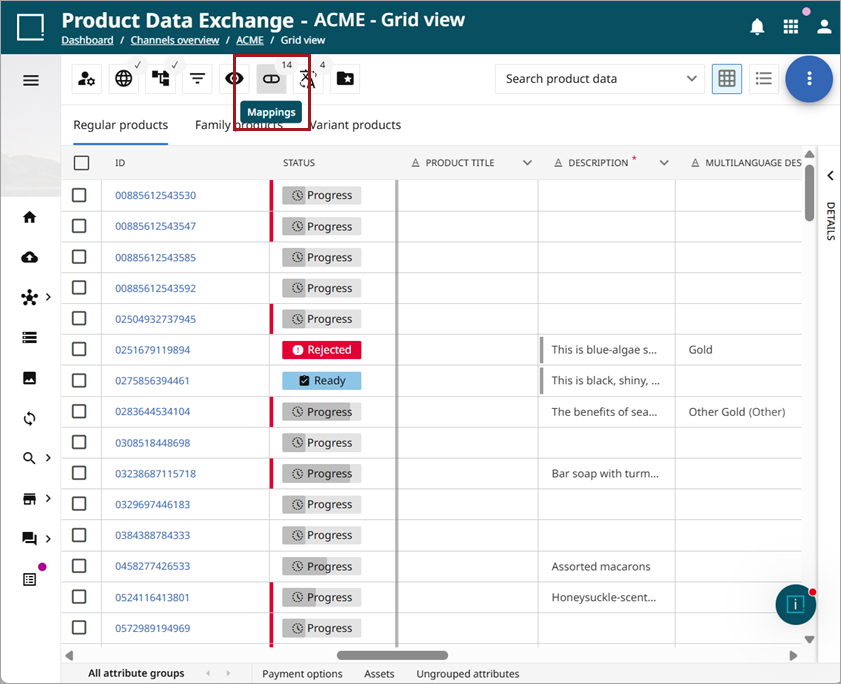
To open the mapping screen for a channel category, click on the 'Mappings' icon as in the screenshot below. This icon is available in both the list view and the grid view.
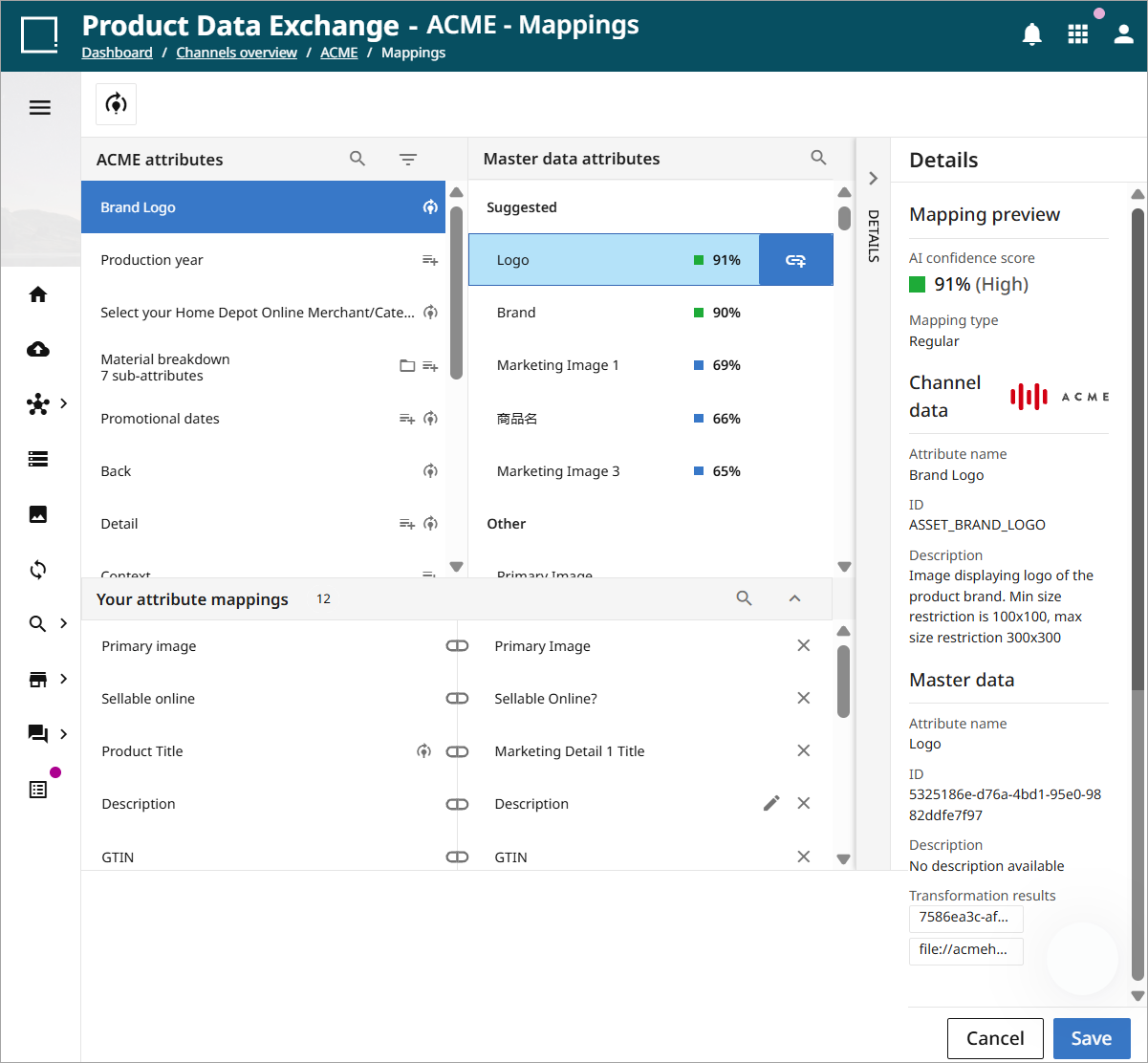
This will open the main mapping screen, which shows the following:
-
Column of channel attributes
- Attributes not mapped
- Your attribute mappings
-
Column master data attributes
-
Suggest master data attributes available for mapping to channel attributes with percentage of suggested accuracy included
-
Master data attributes currently mapped to channel attributes
-
-
Details side panel (collapsible) providing descriptions of the channel attribute selected and the master data attribute selected.
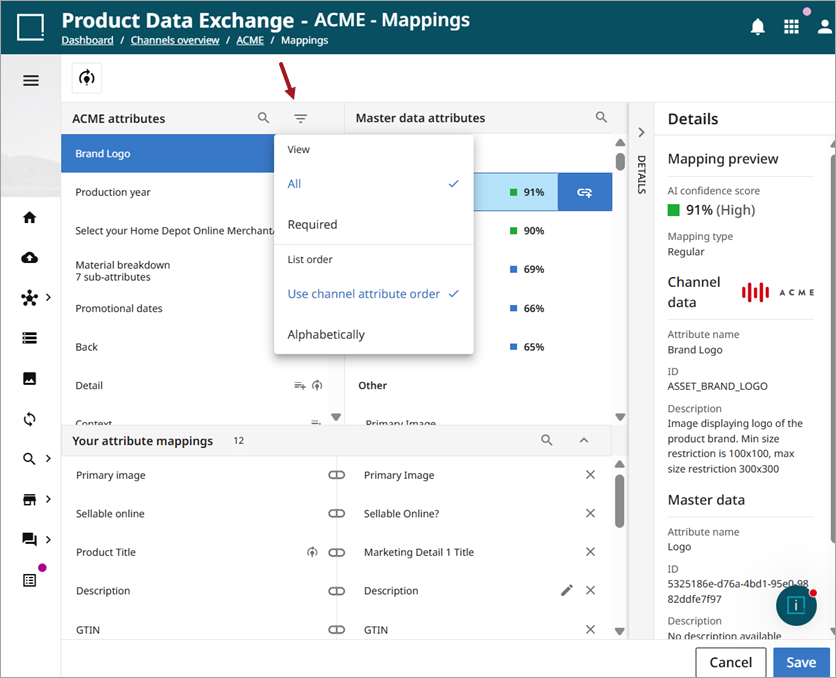
Both the channel and the master data columns have a search option, which can be opened by clicking  . The channel search also contains a filter, which is helpful in narrowing search results.
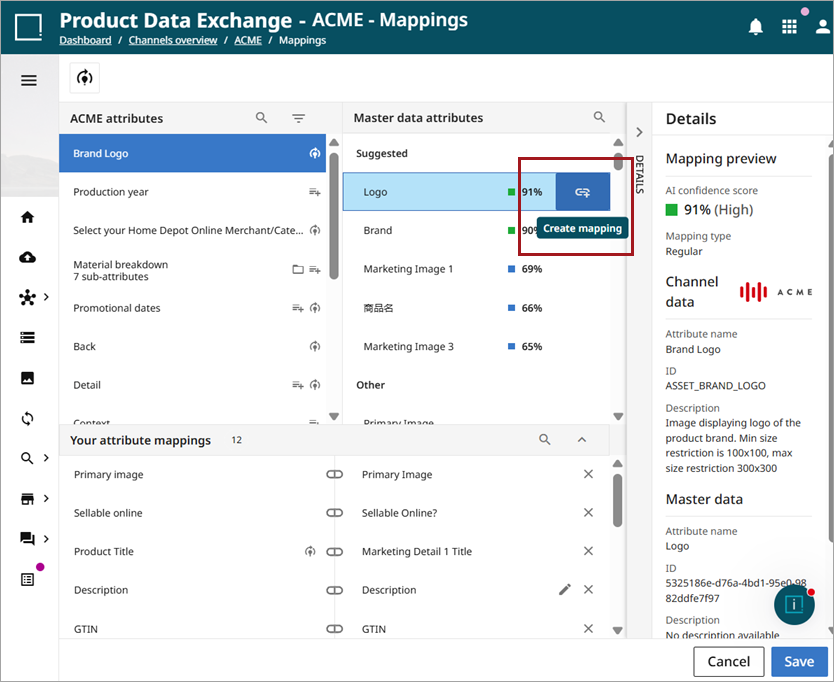
To map channel and master data attributes, select the pair to link. Then click the mapping link to the right of the value in the master data column. Click 'Save' to complete the mapping.
Once the mapping has been created, it will appear in the 'Your mappings' section of the mapping screen. Click 'Save' once more. A mapping can be removed by clicking the  next to the master data value.