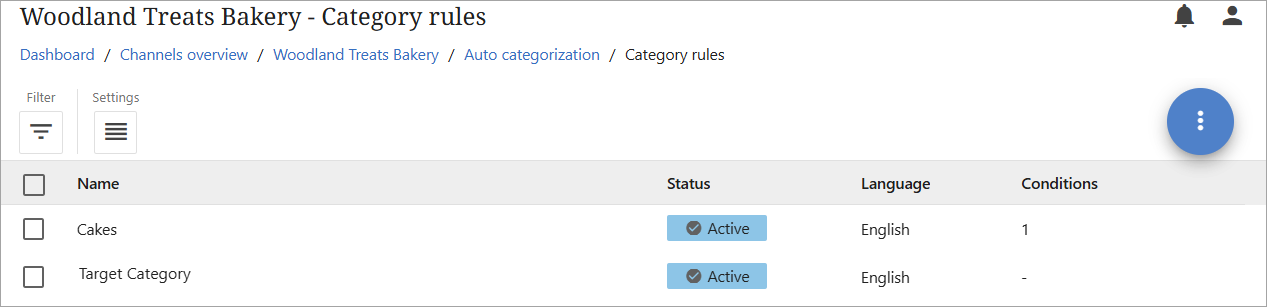
There are two approaches to setting up category rules. If a product attribute is available in master data defining which category of a given channel that it should be assigned to, then this can then be leveraged by the category rules to appropriately assign all products to the correct categories using the 'Defined in attribute'option as the category target.
As category IDs tend to differ from one channel to another, this approach requires a product attribute per channel to be available and maintained in master data.
For example, a product with ID 'P-100508,' and attribute 'Amazon Category' has the value 'HEADPHONES.' As the value of the attribute matches the ID of the category in the Amazon US channel, the category rule will assign the product to the 'Headphones' category.
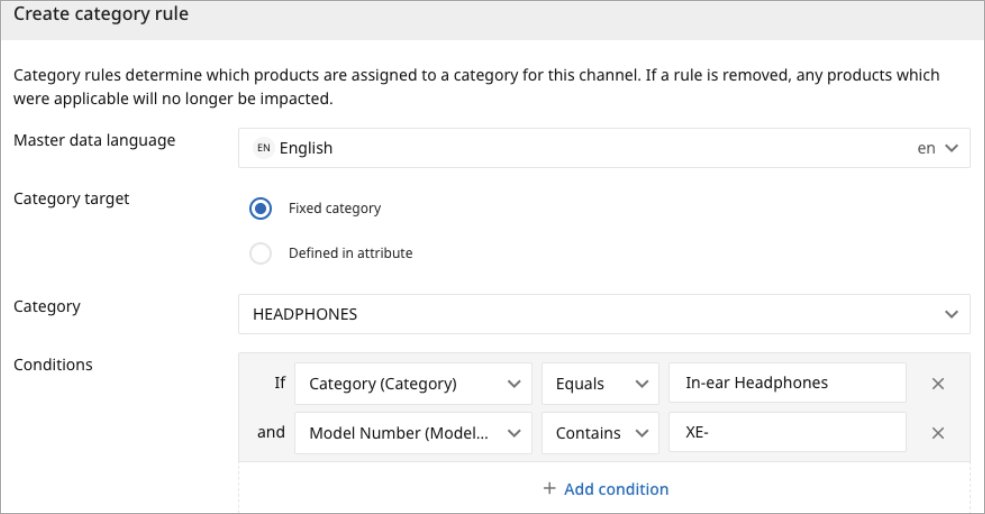
Another approach is to define the characteristics a product should have be assigned to a specific channel category. This can be achieved by selecting the 'Fixed category' as the category target of the rule. Users would be required to setup a category rule for each channel category in which one or more products should be assigned. The below screenshot is an example.
Note: Products added to a channel that cannot be categorized using the category rules will be added to the 'root category.'
Create Category Rule
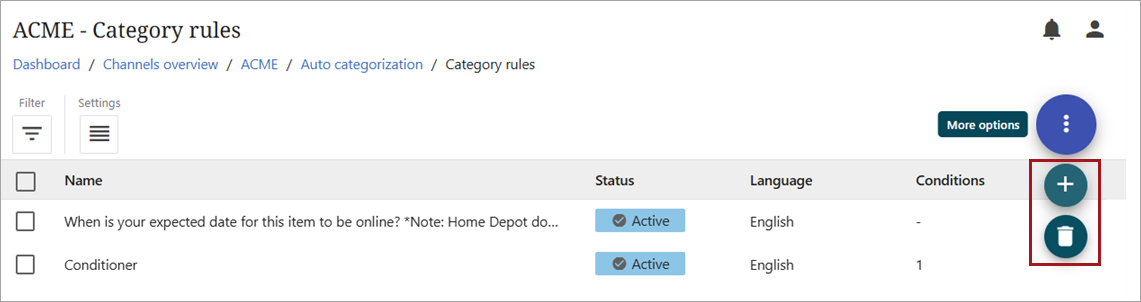
Navigate to the category rules by Click 'Open details' in the Category rules option. Any existing rules will display, along with the function to add a new rule or delete a rule permanently.
As shown in the screenshot below, hover over the kebab menu ( ) to presents 'More options.' Click directly on the menu to open the functions to create a category rule (
 ) or delete a rule permanently (
 ).
).
Category rules can be created using a 'Fixed' category target or a 'Defined in attribute' category target.
Fixed Category
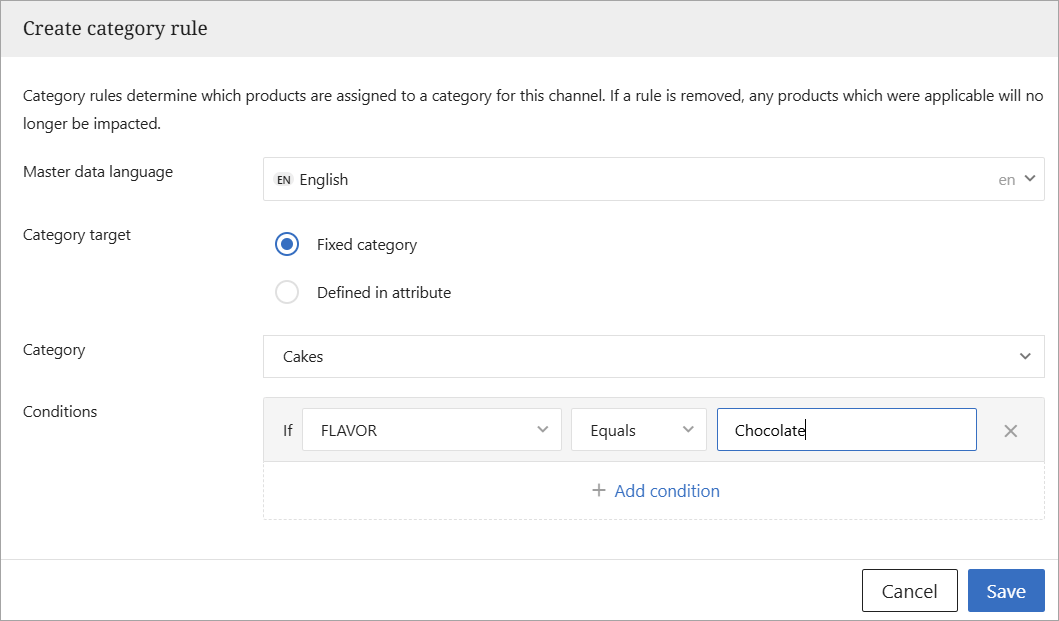
A 'Fixed' category is specifically defined in the rule itself. A product that matches the rule conditions (set separately) will be assigned to the exact category selected in the rule. In this example, 'Cakes' is used as the category target. To create a 'Fixed' category rule, follow the below steps.
-
Click on the 'Create a category rule' icon (
). A popup will open to allow the user to create a new regular rule.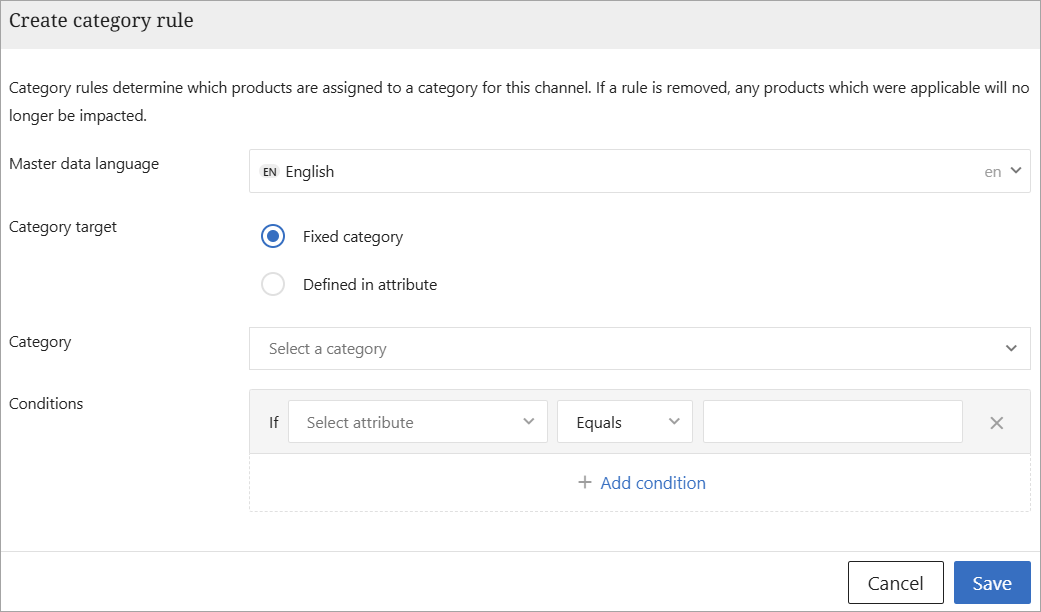
-
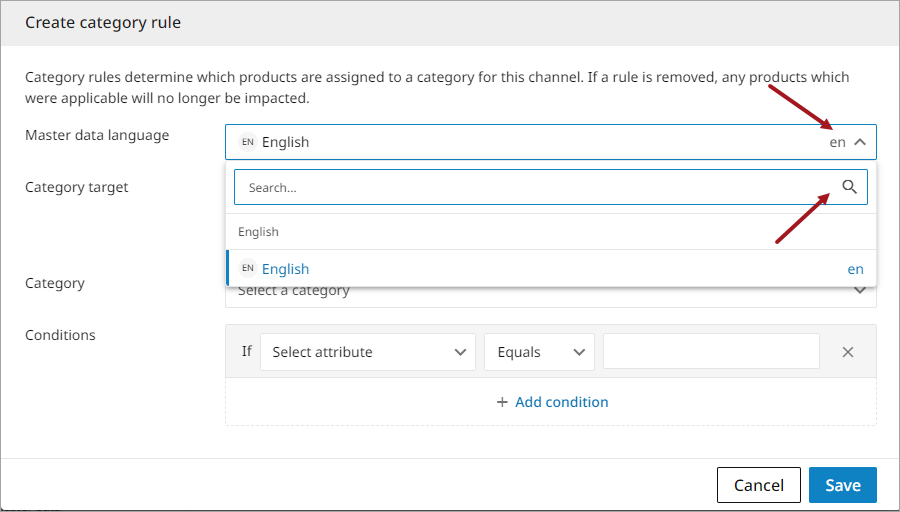
Select the Master data language (English will be the default). A user can change the master languages in the dropdown and search for a language by using the 'Search master data language' function.
-
Select a category target and select a condition. Multiple conditions can be included in one rule. Both attributes and their conditions offer a dropdown menu with multiple options. The value field is free text.
-
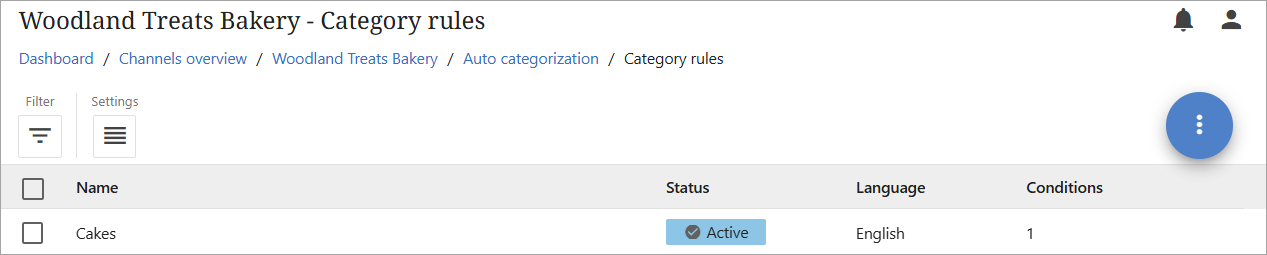
Click the 'Save' button to save all changes. The new rule will appear in the list of rules for the channel.
Defined in Attribute Category
A 'Defined in attribute' target category points to a product attribute that contains one or more category identifiers. PDX will look for this attribute in the product data and place the product into the category identified in the attribute. Different products matching the same rule can be categorized into different categories, i.e., if multiple category IDs are present in the attribute, the product is categorized into each of them.
This type of rule does not specify a category. Instead, it points to a product attribute that contains one or more category identifiers.
In the example below, 'Target Category' has been selected as the attribute that contains the category ID. Follow the below steps to create a 'Target category' rule.
-
Click on the 'Create a category rule' icon (
). A popup will open to allow the user to create a new regular rule. Since 'Fixed category' is the default, the user will need to select 'Defined in attribute' as the category target. This will allow the user to then select the attribute that contains the category ID.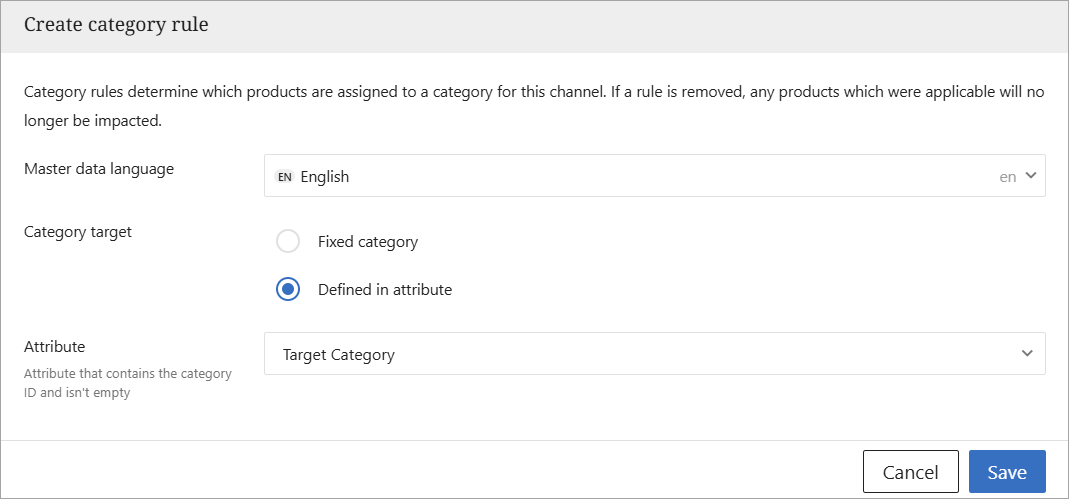
-
Click the 'Save' button to save all changes. The new rule will appear in the list of rules for the channel. PDX will look for this attribute in the product data and place the product into the category identified in the attribute. Different products matching the same rule can be categorized into different categories, i.e., if multiple category IDs are present in the attribute, the product is categorized into each of them.