The overall purpose of Master data products is to serve as the central location where all products can be maintained (manually or via imports) and from here distributed (manually or via rules) to the relevant channels. As part of this process, the product data attributes available in Master data must be mapped to channel specific attributes that represent the data requirements from the downstream receivers of product data. Therefore, Master data becomes a 'neutral' area from where data is maintained and then fed into the channels and the subsequent target systems.
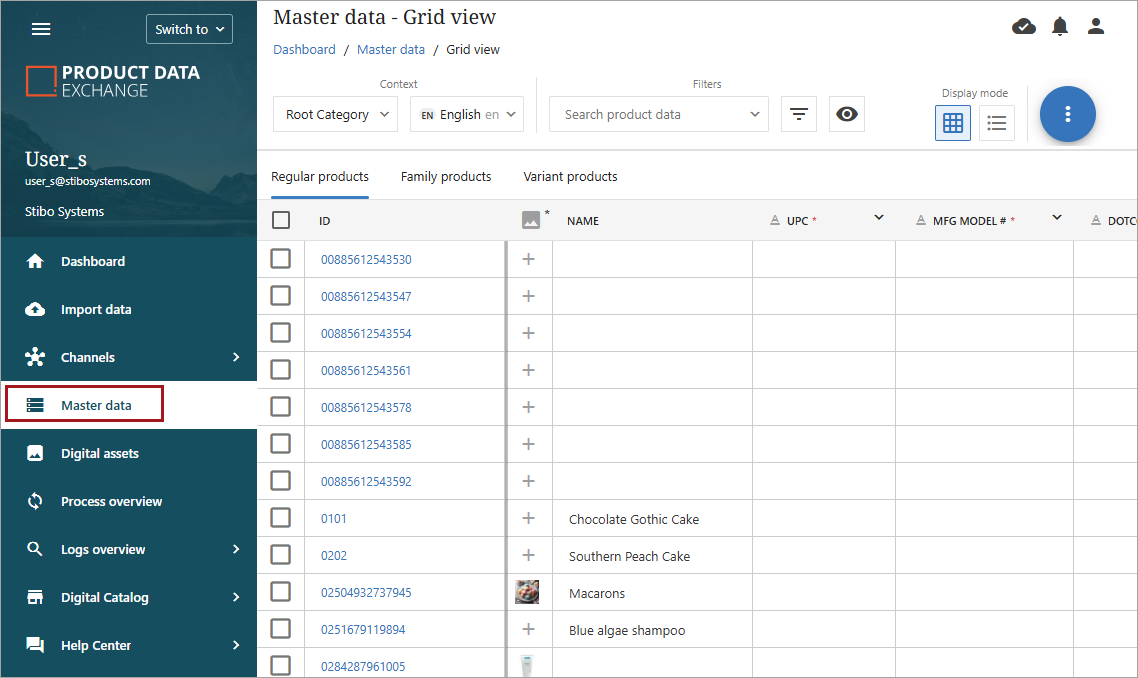
Selecting the Master data screen opens the list of all products currently loaded into the Master data section.
Tip: Many users find that opening PDX in multiple browser tabs streamlines their workflow. Consider keeping Master data open in one tab while simultaneously working on your current channel in a second tab. This approach eliminates the need to navigate back and forth between pages within a single tab.
When products and their data are sent or imported to PDX (regardless of import method), that information is stored in the Master data section, and the product is represented by a unique ID.
-
Products sent from PMDM will retain the STEP ID. The attributes attached to the products will be the same as the PMDM attributes and their corresponding attribute IDs.
Note: STEP (Stibo Systems Enterprise Platform) is a Master Data Management (MDM) solution that centralizes and governs product data. It serves as the backend system where product attributes, categories, and relationships are defined, maintained, and validated.
-
If the products are coming from spreadsheets or other upstream systems, that unique ID, along with the attributes, will be the value specified on import.
Products must be present in Master data before they can be added to a channel. The original upload to master data is not channel specific. Once the products are available in master data, they can be added to one or more channel and then mapped to the appropriate channel structure.
Master Data Views
The Master data views show products and data in a format similar to a spreadsheet: one product per row with individual attributes and values as columns. Control of view and products and attribute filtering options are at the top, and actions are available under the blue kebab menu..
Grid View
The Grid view allows the user to view all product attribute fields, including images. The grid view can be accessed by clicking the 'Go to Grid' icon  . The scroll bar at the bottom of the screen can be used to move through the attribute fields. Clicking the
  icon in the grid view opens a dropdown menu that provides a 'Find attribute' search option, the option to 'View attributes' by empty or not empty, and the option to lock specific attribute fields during scrolling.
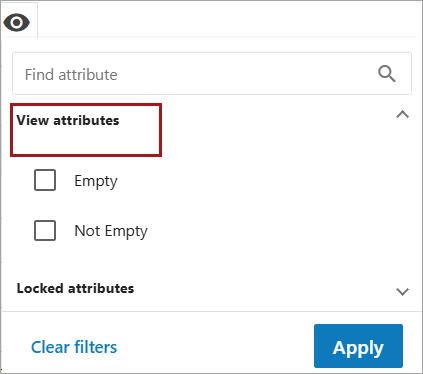
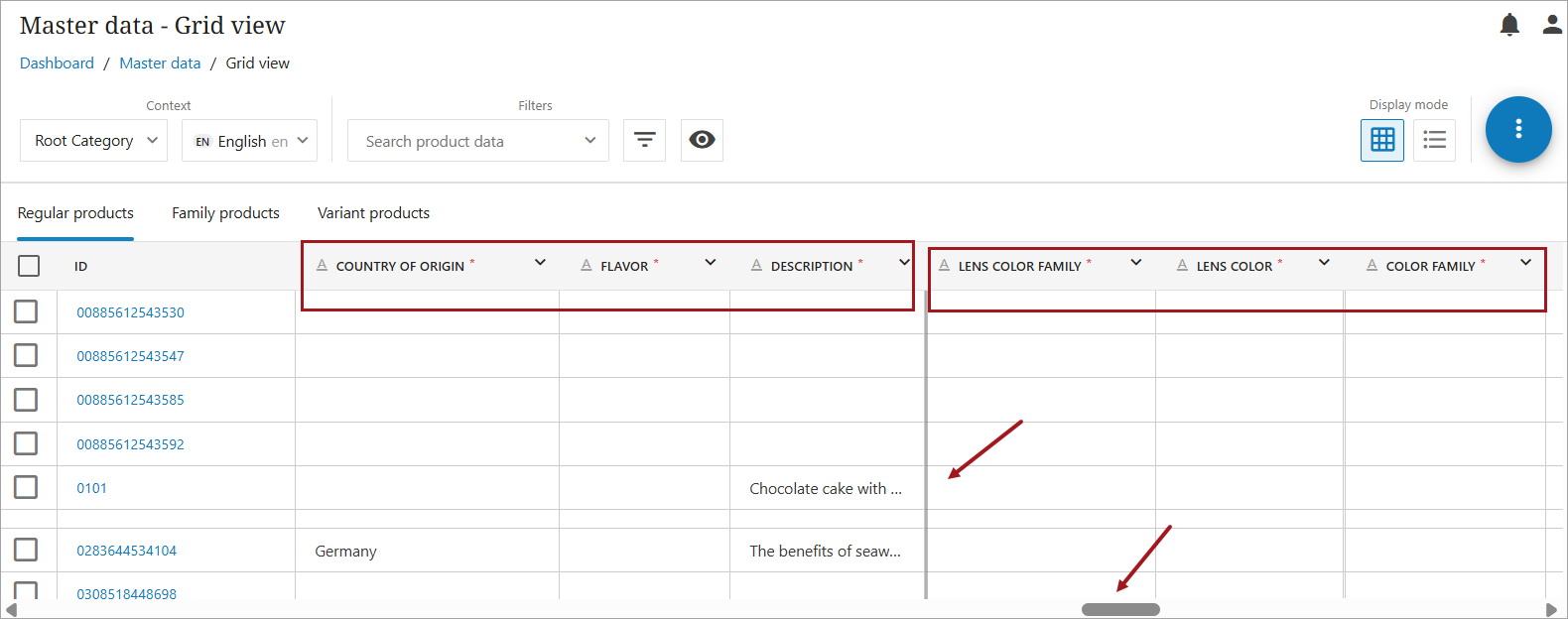
The 'Locked attributes' function allows the user to select certain attributes to always appear in the grid view.
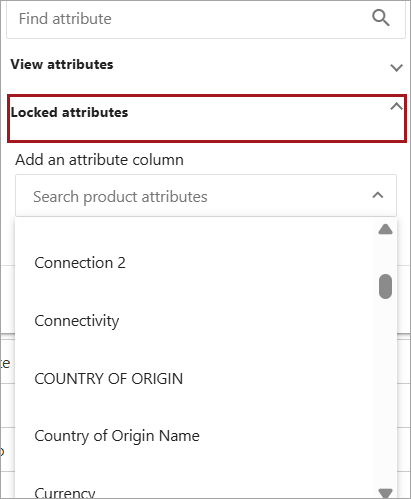
Users can select from a dropdown to choose one or multiple attributes to lock in the grid view.
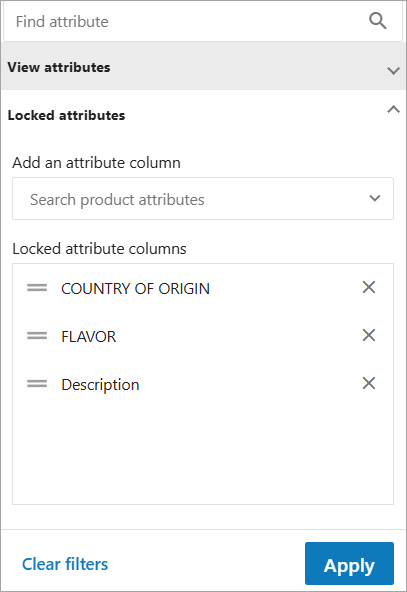
Once attributes are added to the 'Locked attribute columns,' they will always appear first in the grid view. Other attributes can still be viewed by scrolling, but the locked attributes will remain at the beginning. Only attributes outside of the locked area and to the right of a vertical bar will be scrollable.
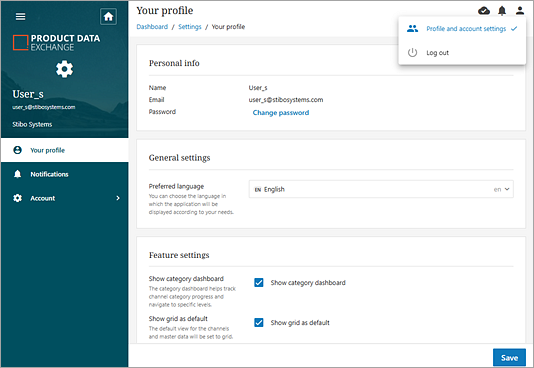
To set Grid view as the default view when users access Master data, click the user icon ( ) to open Profile and account settings. Check the Show grid as default box under feature settings, and click the
  button.
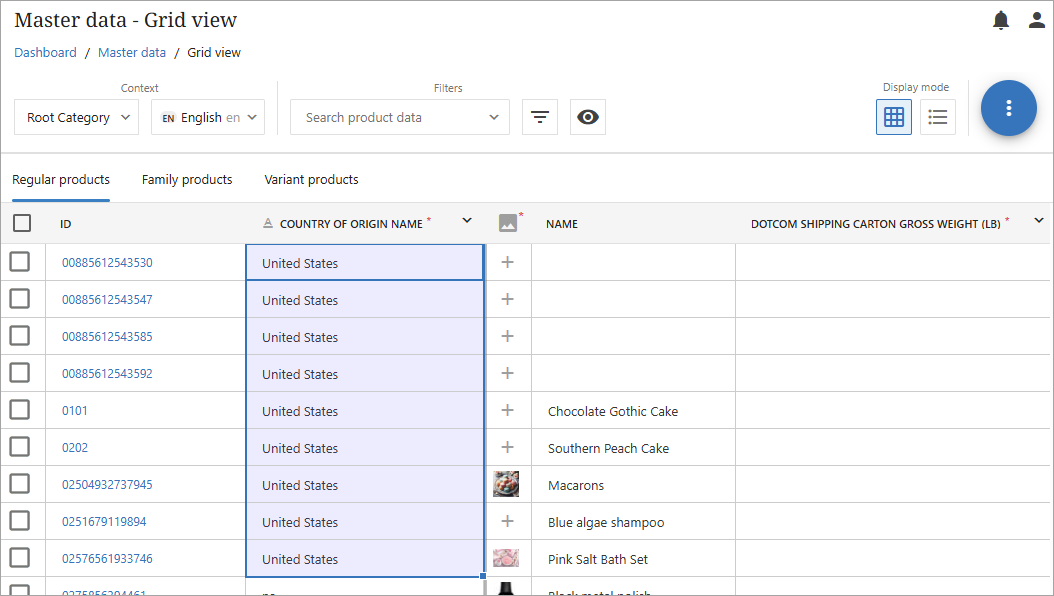
Users can edit products directly in the Grid view, and they can also use 'dragging to fill' functionality to bulk edit attributes.
-
Regular products: are individual, standalone products that exist as single entities without variations or complex relationships. These are products that do not need to be grouped into families or broken down into variants.
-
Family Products: are used to manage and distribute product information efficiently across multiple channels and trading partners. Family Products are groupings of related products that share common characteristics or belong to the same category.
-
Variant Products: handle the complexity of products that come in multiple versions or configurations while maintaining their relationship to a family product. Variant products are different versions of the same base product that share core characteristics but differ in specific ways. They represent the individual SKUs that customers can actually purchase.
Family and variant products work together cooperatively. These groupings allow for efficient management of large product catalogs by treating related items as a cohesive unit rather than managing each SKU individually. In the below examples, the t-shirt, book, and laptop are the family products. The differences, such as the size, color, and format, are the variants of the original family item.
-
T-shirt available in different sizes (Small, Medium, Large) and colors (Red, Blue, Green)
-
Book available in different formats (Hardcover, Paperback, eBook, Audiobook)
-
Laptop model with different processor and RAM configurations.
The concepts of families and variants become important in those channels that support families and variants. In such channels, there will be product data validations such as the following:
-
Some specific channel attributes must be the same within all products in a family (e.g., material)
-
Other channel attributes must differ (e.g., size and color).
Such validations do not apply in master data but will become active in the channel.
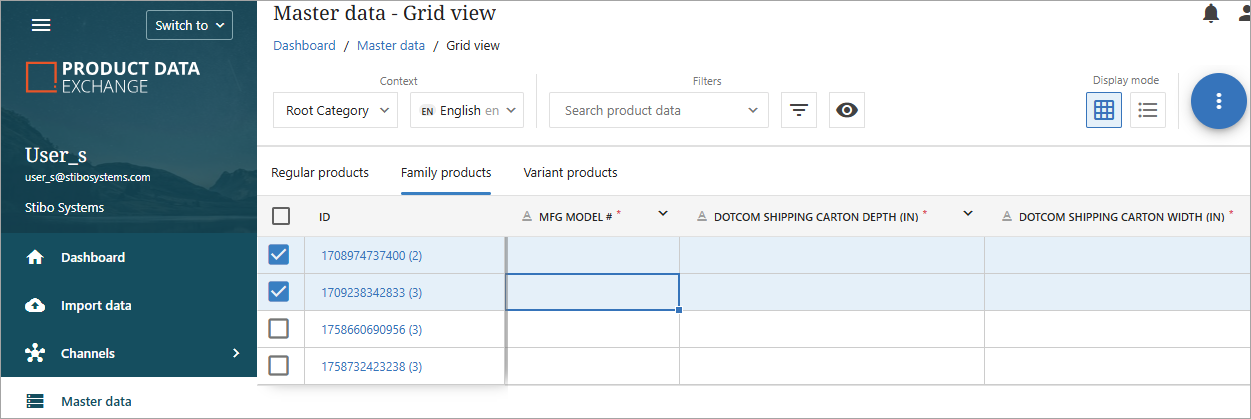
The screenshot below of the Family products tab provides a list of family products and their corresponding ID's.
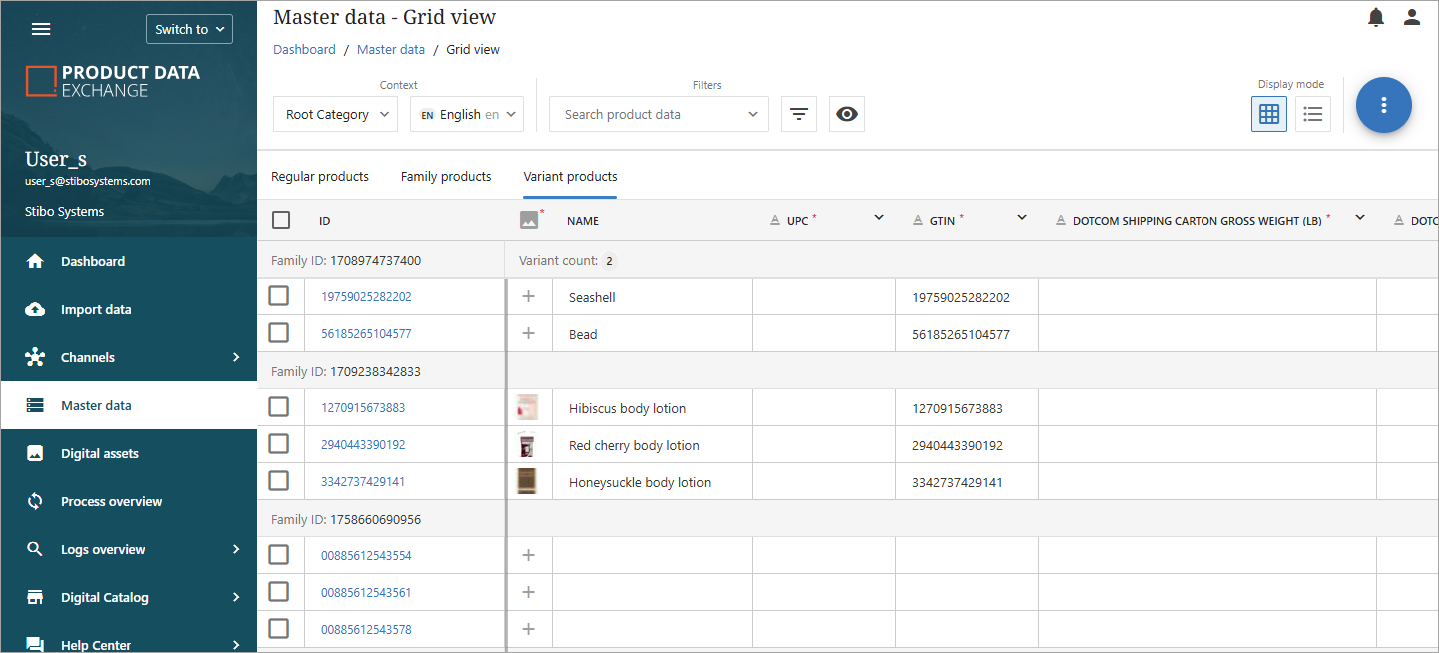
The screenshot below expands the family products into the individual variant products that are part of each family.
List View
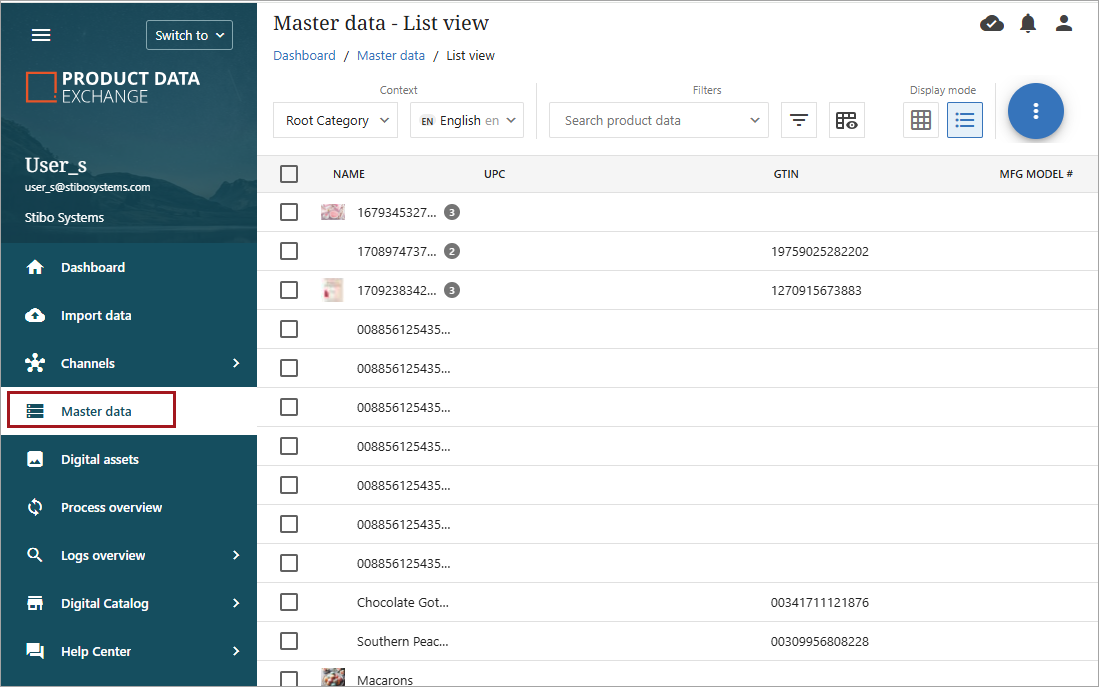
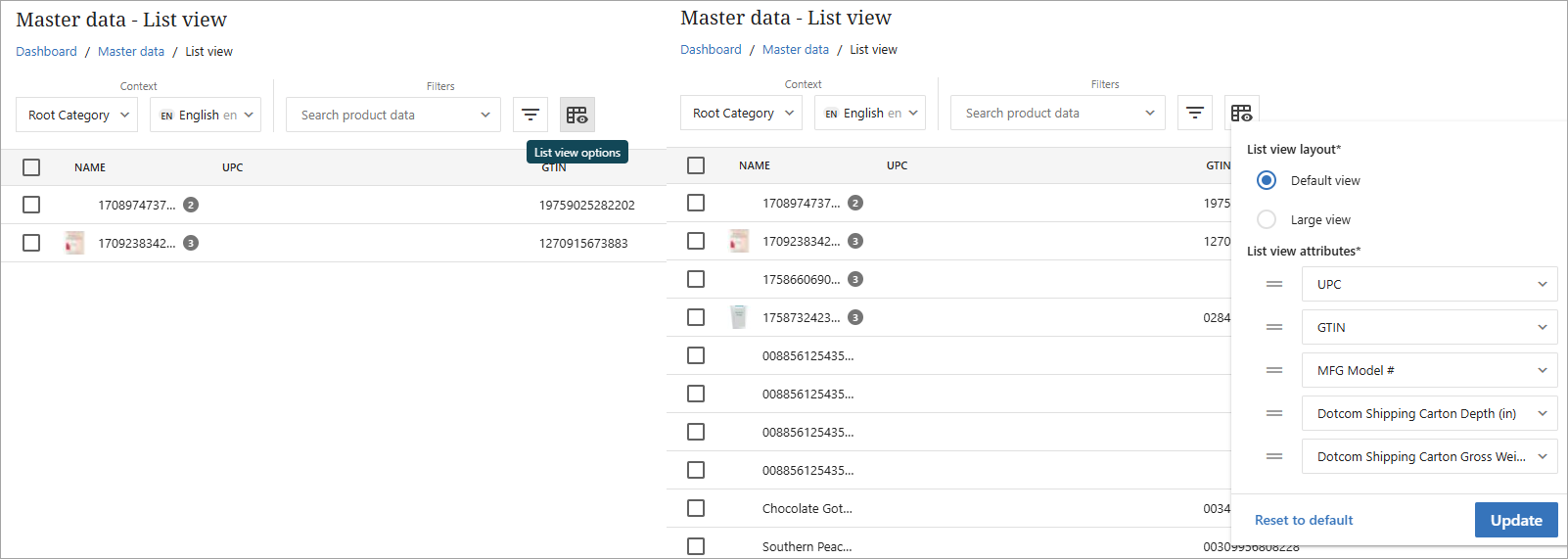
The List view contains six columns of attributes. The Name attribute is constant, but the other five columns can be selected as needed by the user.
This view can also be set to Default or Large. The attribute and size view dropdown menu can also be accessed by clicking the  icon.
icon.
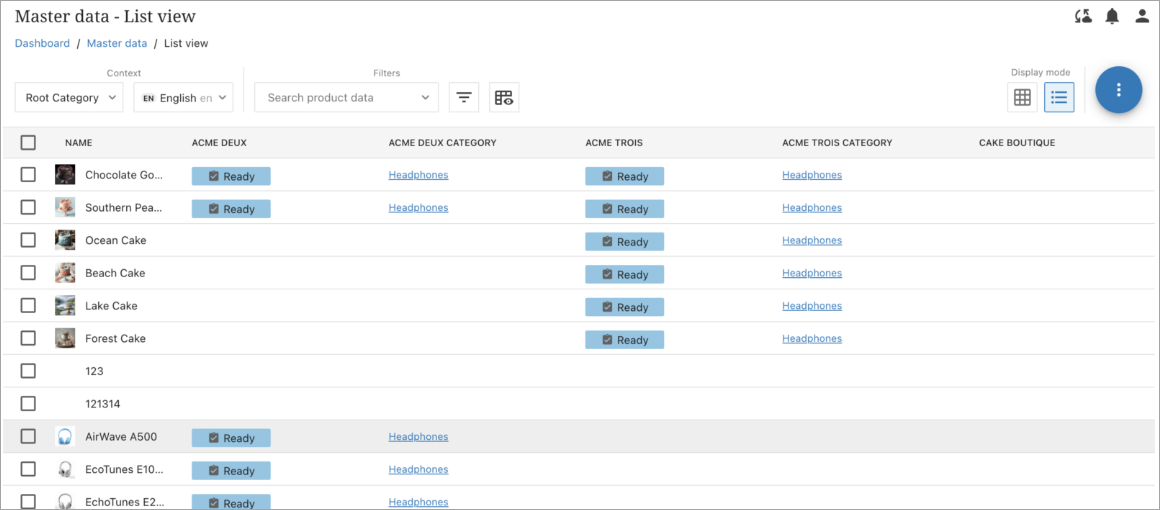
There are also certain attributes that are available only in List view. For each channel, there is a category field that can be added, and for each channel, channel Market, or channel receiver, there is a status field that can be added. This gives users an overview of categories and statuses across channels.
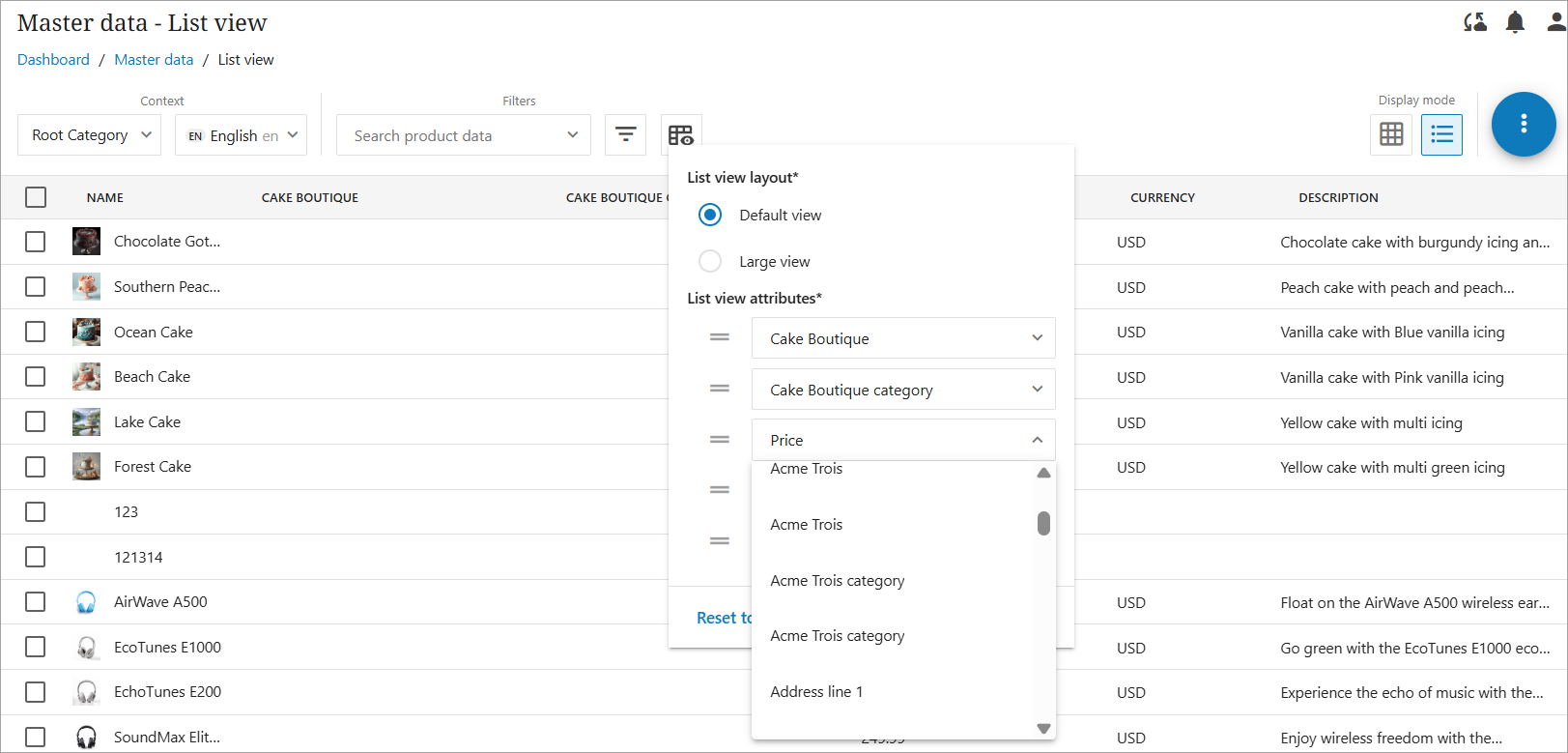
The below screenshot shows additional category and status fields added.
Master Data Attributes
Attributes are comprised of the data and assets associated with a product. An attribute's type is defined by how the attribute is configured in PMDM or PIM. Composite, string, and asset are a few examples of attribute types. A composite attribute is one with values that can be further divided into meaningful sub-parts. String attributes are flat attributes and could include color, size, and style. An image associated with a product, such as the primary image, would be classified as an asset attribute.
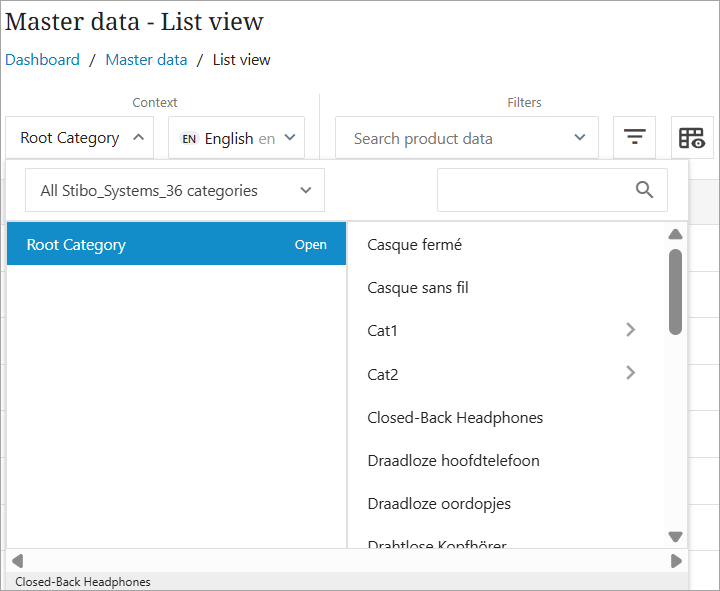
Users can also choose a specific category from the available categories in Master Data.
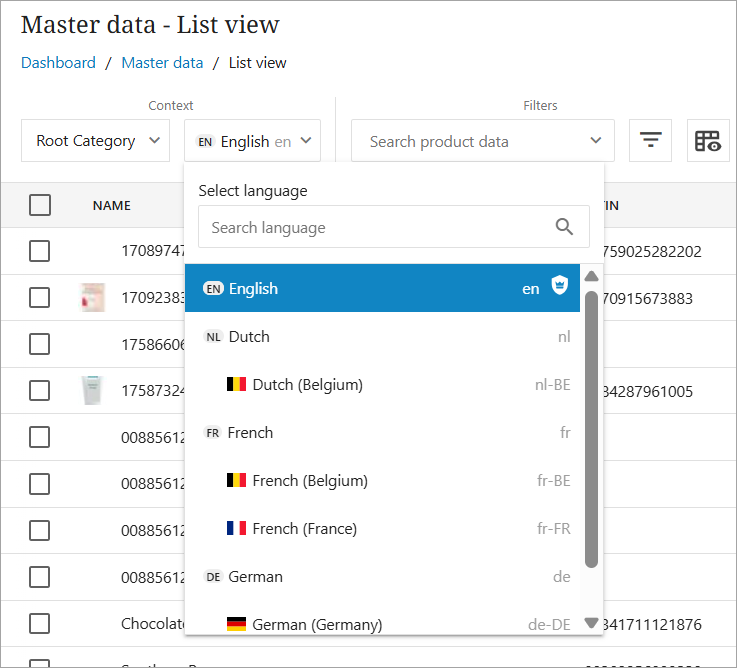
Users can also select attributes for products in specific language by selecting a language from the available languages in the dropdown.
For more information on how attributes, categories, and languages are added to Master data, refer to the Import Data Screen topic.
For more information on how attributes and languages can be removed, refer to the Profile and Account Settings topic.
Master Data Search Filtering
Multiple search filtering options are available in both the List view and the Grid view. The options are the same in both views. The example below is taken from a List view, but the product filters would be identical if accessed from the Grid view.
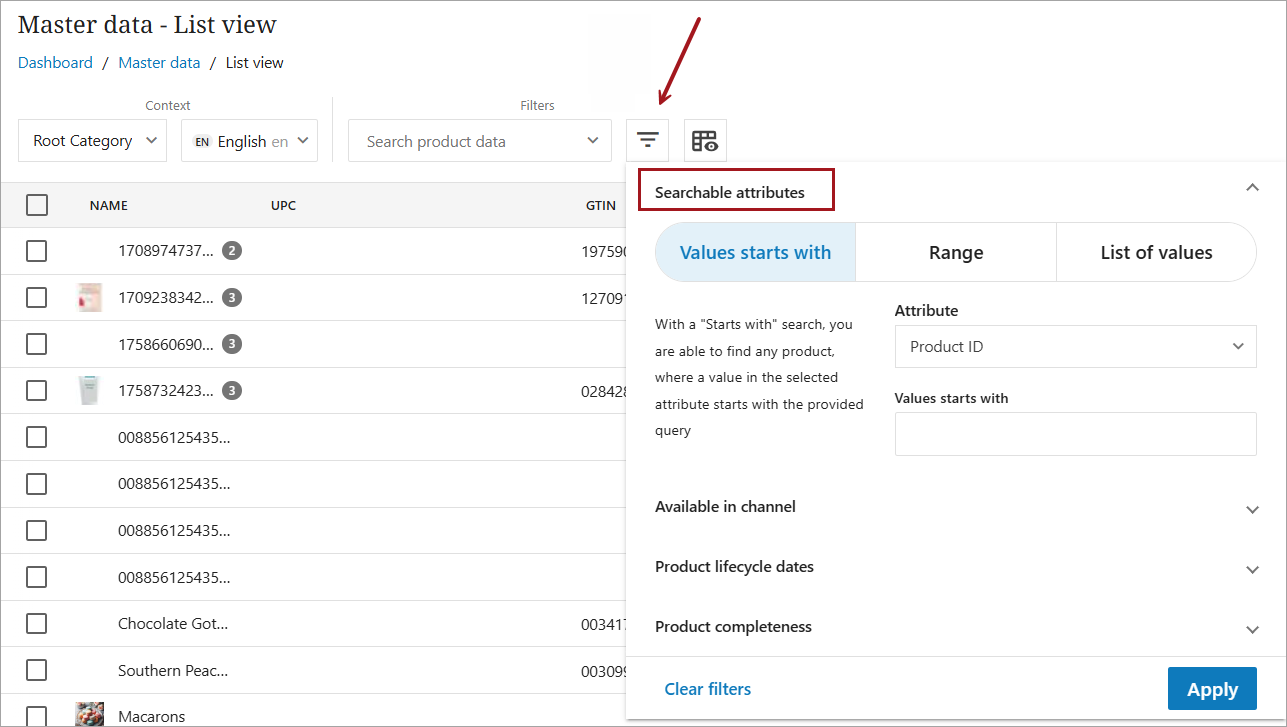
Clicking the filter icon ( ) will open the filter menu. Users are presented with the option to use a free text search for a product or utilize the search tools available in one of the 'Searchable attributes' tabs.
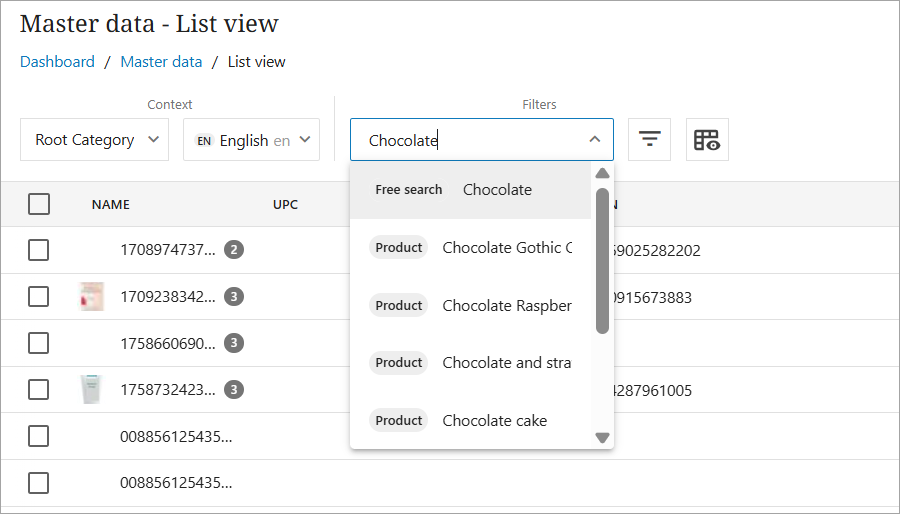
The below images uses the 'Search product data' option to find all products containing the value 'chocolate.'
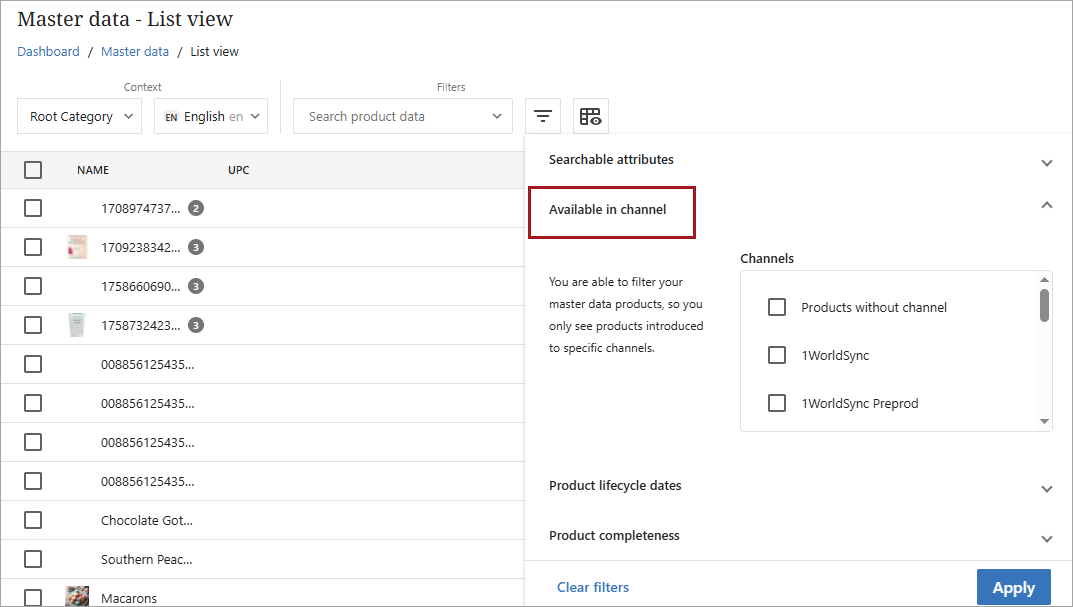
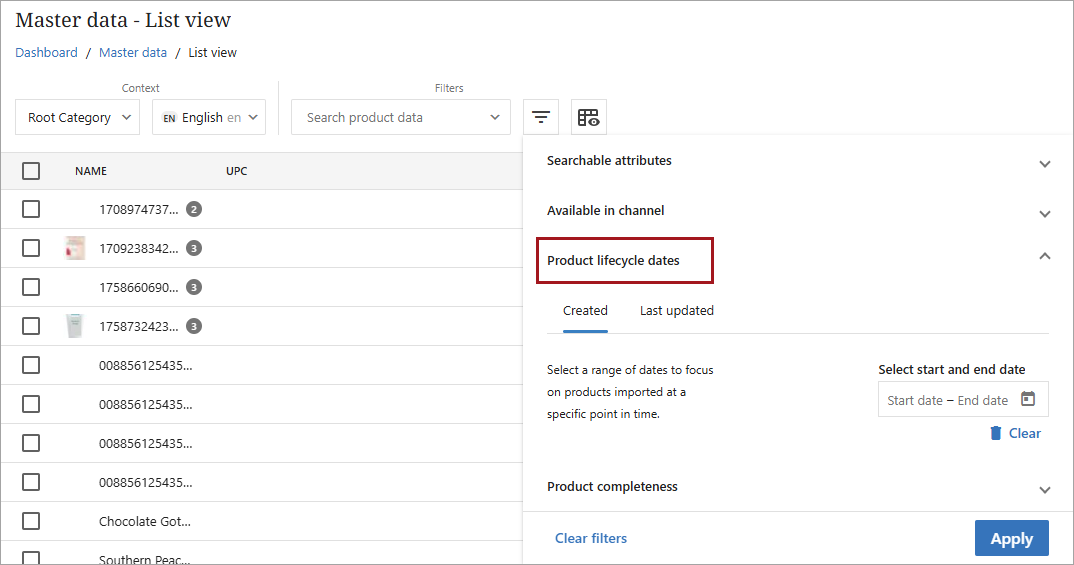
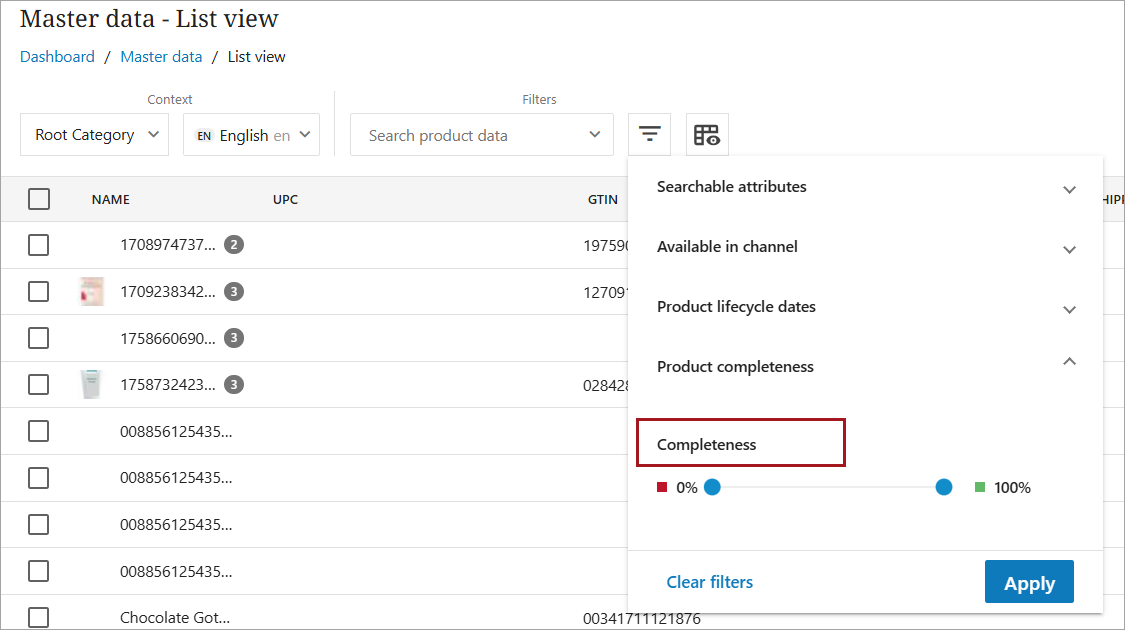
All search tabs have the following additional filters available to the user, which can be used to create a combined search across multiple criteria. Using any of these filters is optional.
-
Available in channel
-
Product lifecycle dates
-
Product completeness
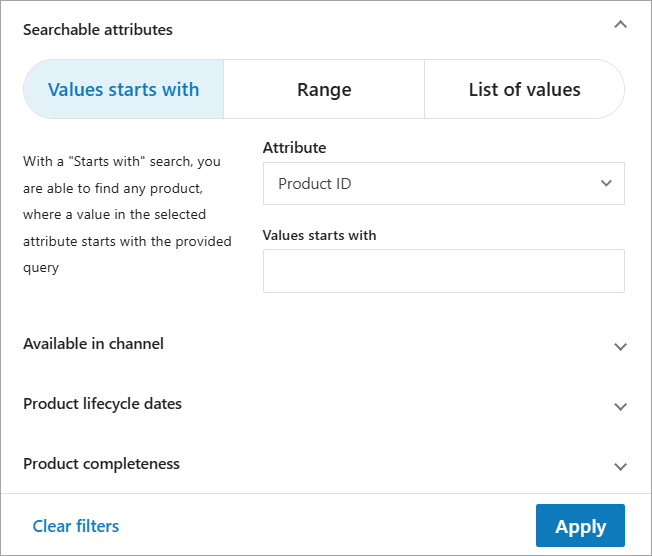
Values Starts with Tab
The Values starts with tab provides an attribute search using the start of the value associated with the attribute.
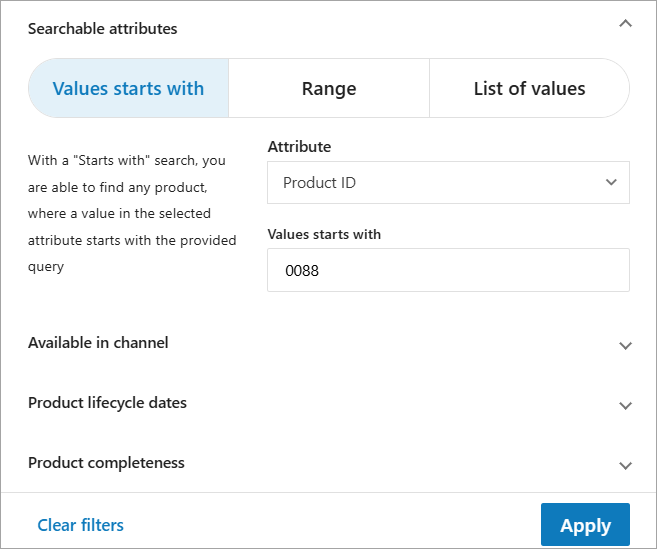
The example below uses the attribute Product ID and a starting value of 0088.
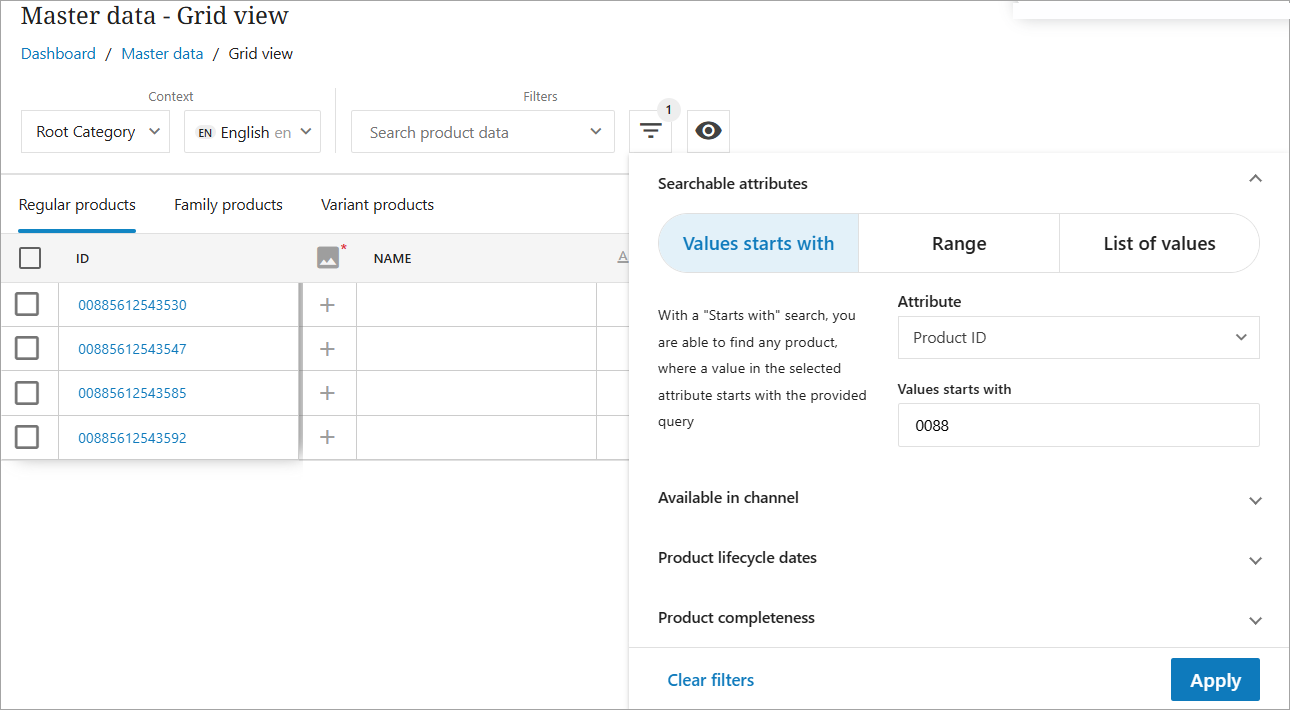
Four products containing 0088 at the beginning of the Product ID attribute were found in the search.
Note: Searches are case sensitive for values containing letters.
Range Tab
The Range tab uses a lexicographic (alphabetical) search within a range of both numbers and letters.
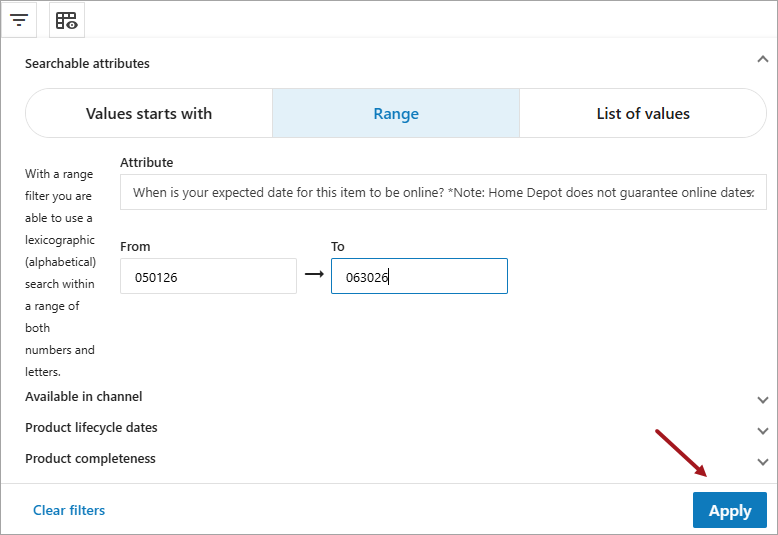
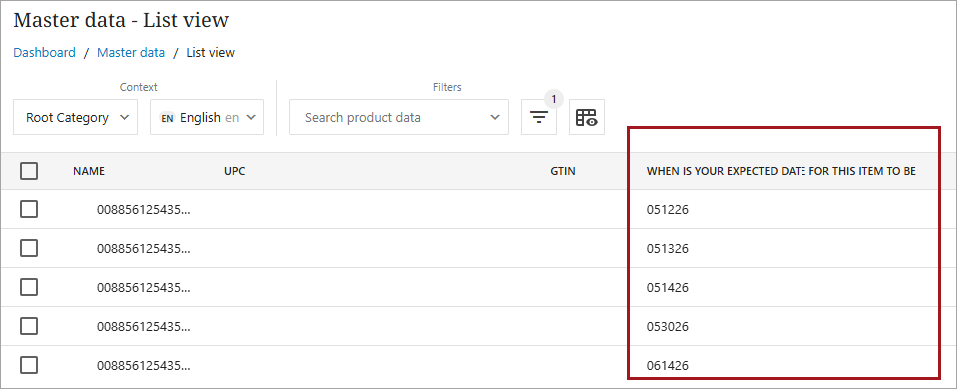
The example below used the attribute When is your expected date for this item to be online. The date range was 050126→063026. The search found five products within this range.
List of Values
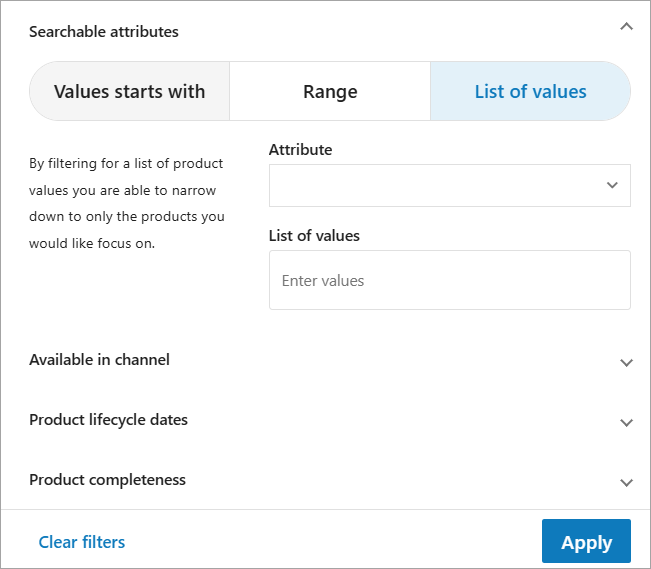
Filtering for a list of product values allows users to narrow results to only the products they want to focus on.
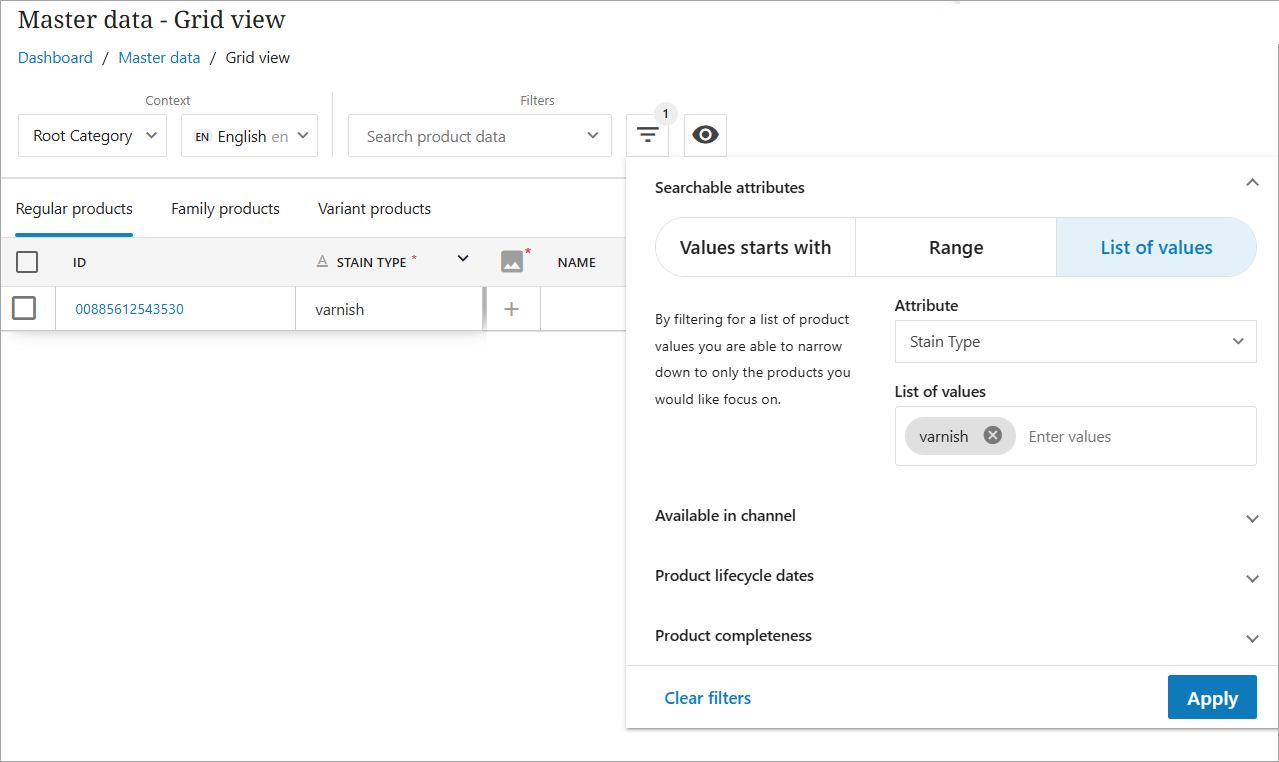
The example below uses the attribute Stain Type and a value of 'varnish.'
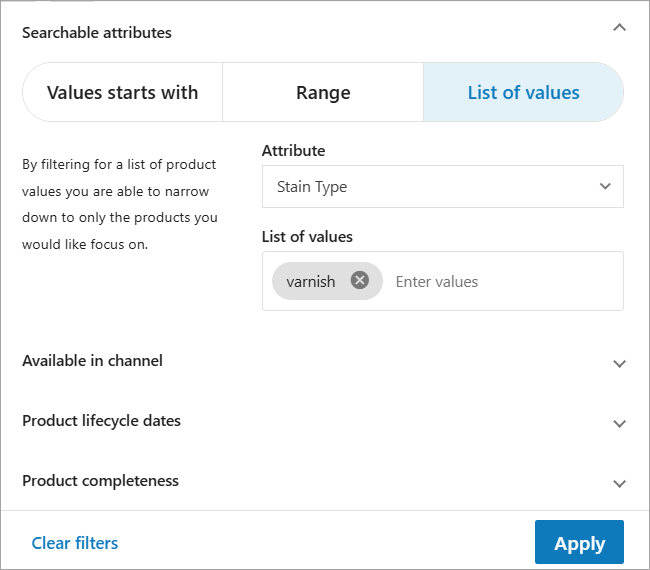
One product with a value of 'varnish' was found in the search.
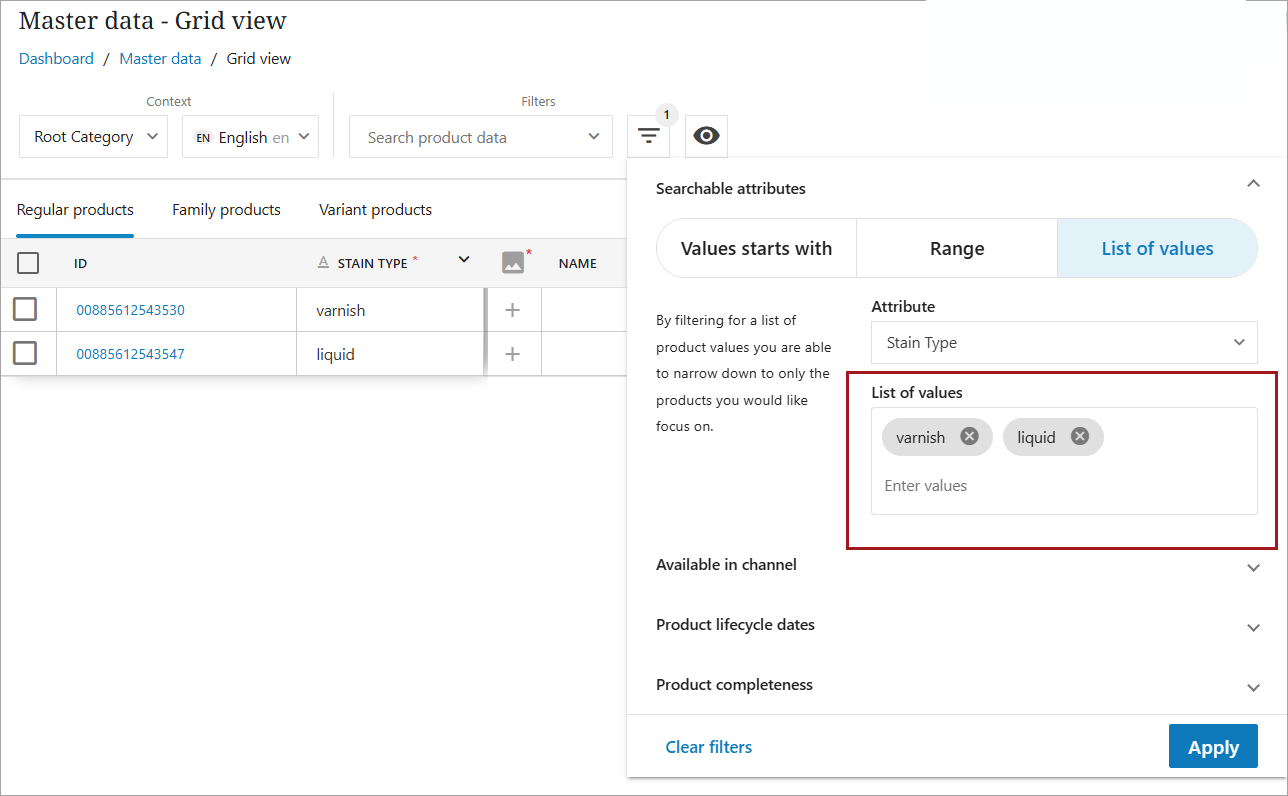
Multiple search terms can be used in the List of Values (LOV) search.
Menu Icon Options
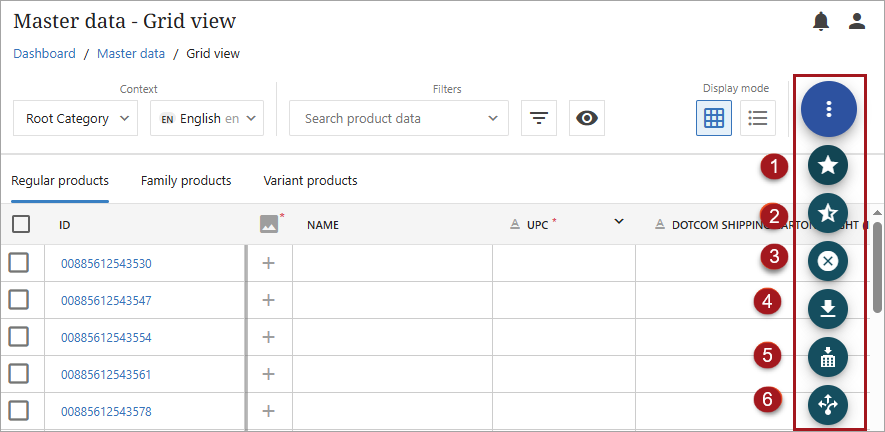
A kebab menu ( ) located in the top-right side of the Master Data screen provides users with available actions. The kebab menu is available in both Grid and List views. However, actions for Family products and Variant products are only active in the Grid view.
-
Group into family: Select products and click to group those products into a family. This action moves the products into the family and variant tabs.
-
Ungroup family: Select family and click to ungroup the products from a family. This action moves the products from the family and variant tabs into the regular tab.
-
Delete: Select products and click to remove from Master data. This action deletes the products from master data and removes from any channels where added. This action cannot be reversed, and the product can no longer be updated in any channel target systems.
-
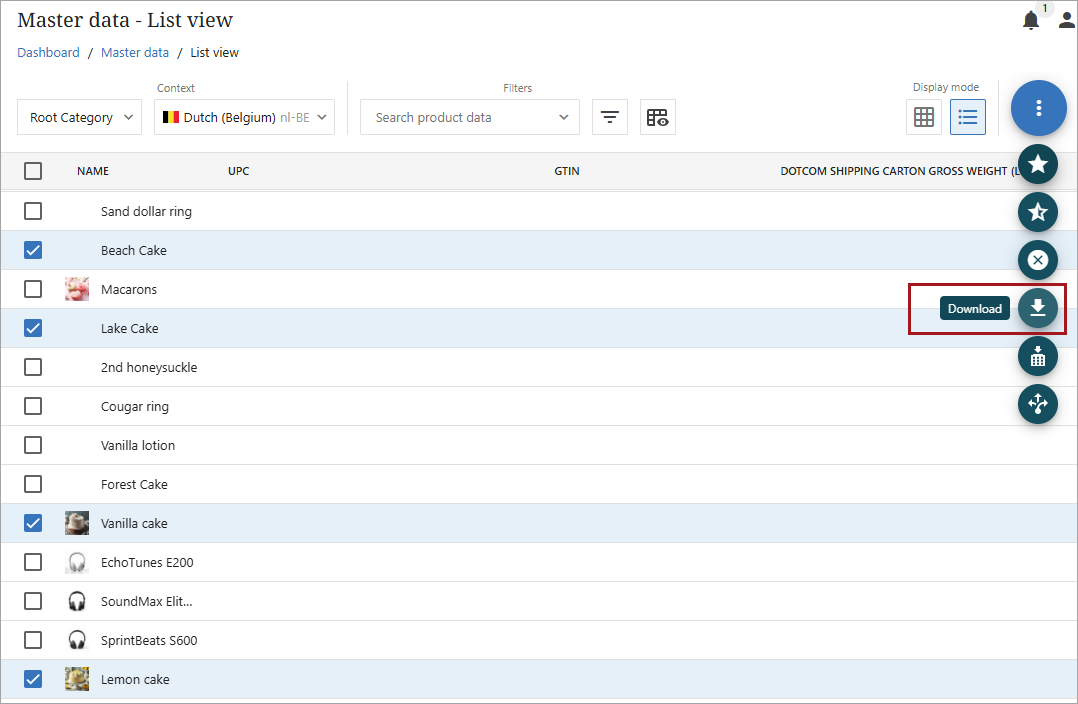
Download:
-
Select products and click to download.
-
Click the bell icon (
 ) in the top-right corner to open notifications. Download the spreadsheet, which will contain the products and their attributes.
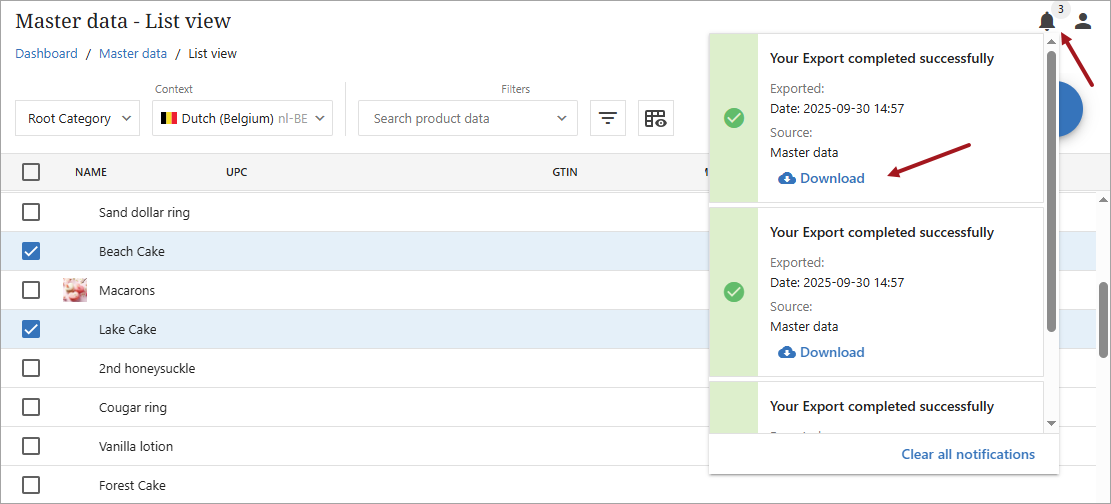
-
The spreadsheet will open in Excel.

Note: Product download content is only available in English. Even if another language is selected for the Context, the downloaded content will be in English.
-
-
Add to channel: Select products and click to add to a channel. For more information on adding products to a channel manually, refer to the Adding Products to a Channel Manually topic.
-
Run rules: Select products and click to run auto-categorization rules that have been set up in a channel. For more information on auto-categorization, refer to the Adding Products Using Auto-categorization topic.
Product Details Page
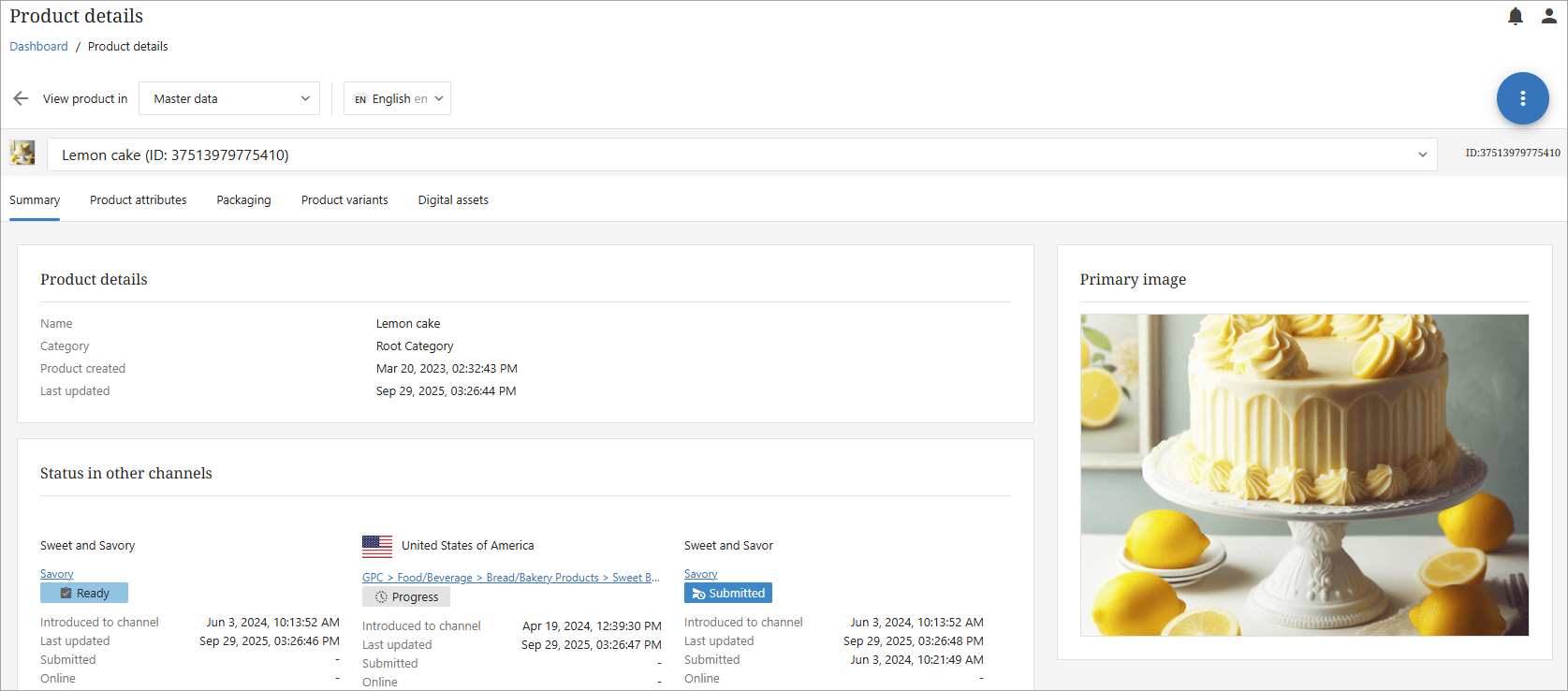
Clicking directly on a product from either the grid or the list view will take the user to the Product Details page. The Product Details page provides extended product details and status in other channels. Where applicable, the following information is included in separate tabs:
Summary
The Summary contains abbreviated details and product status in all channels where the product has been added.
Product attributes
-
For regular products, the Product attributes tab will open to the below screen. The 'Filter attributes' option will be available, and the 'Ungrouped attributes' will dropdown list will be available. Data can be added and/or changed in this view.
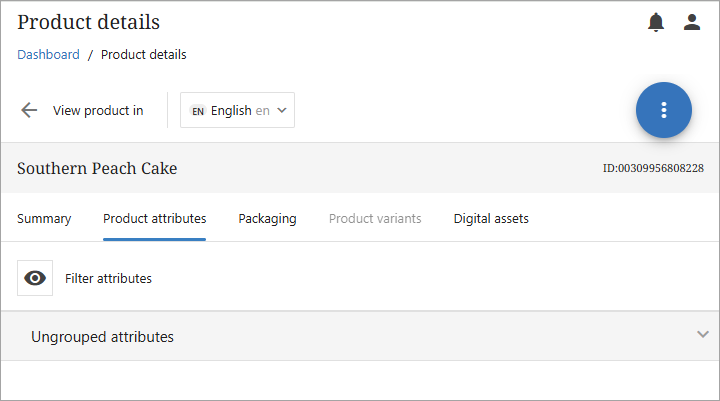
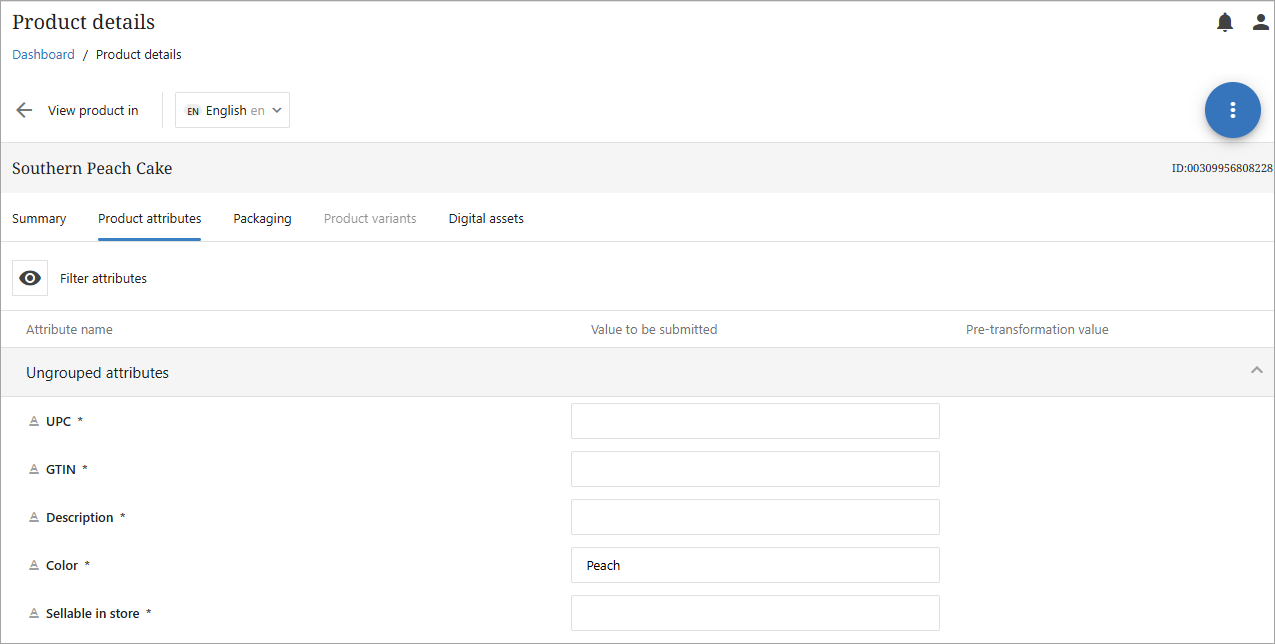
When opened, the 'Ungrouped attributes' option will show all attributes available in Master Data.
-
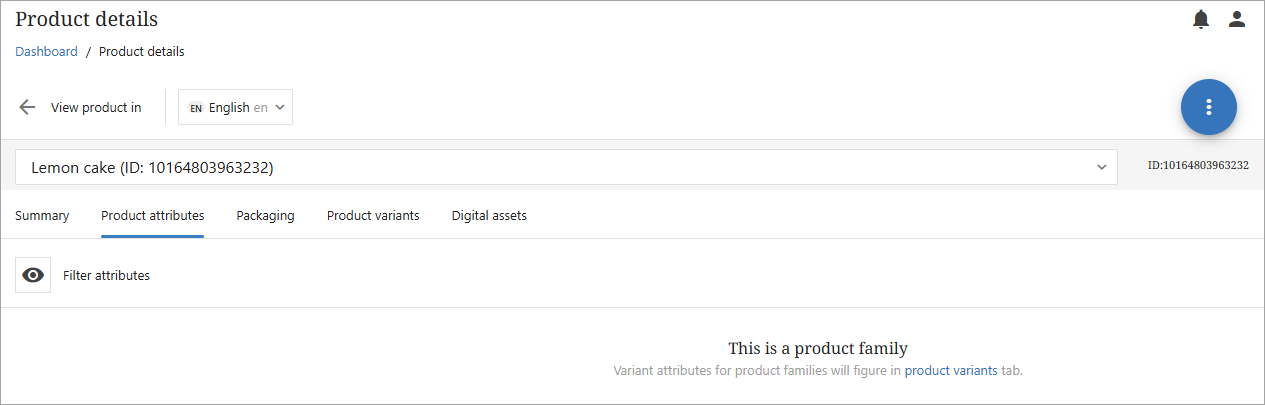
For family / variant products, the tab will open as in the below screenshot. Attribute information for family / variant products will appear in the 'Product variants' tab.
Packaging
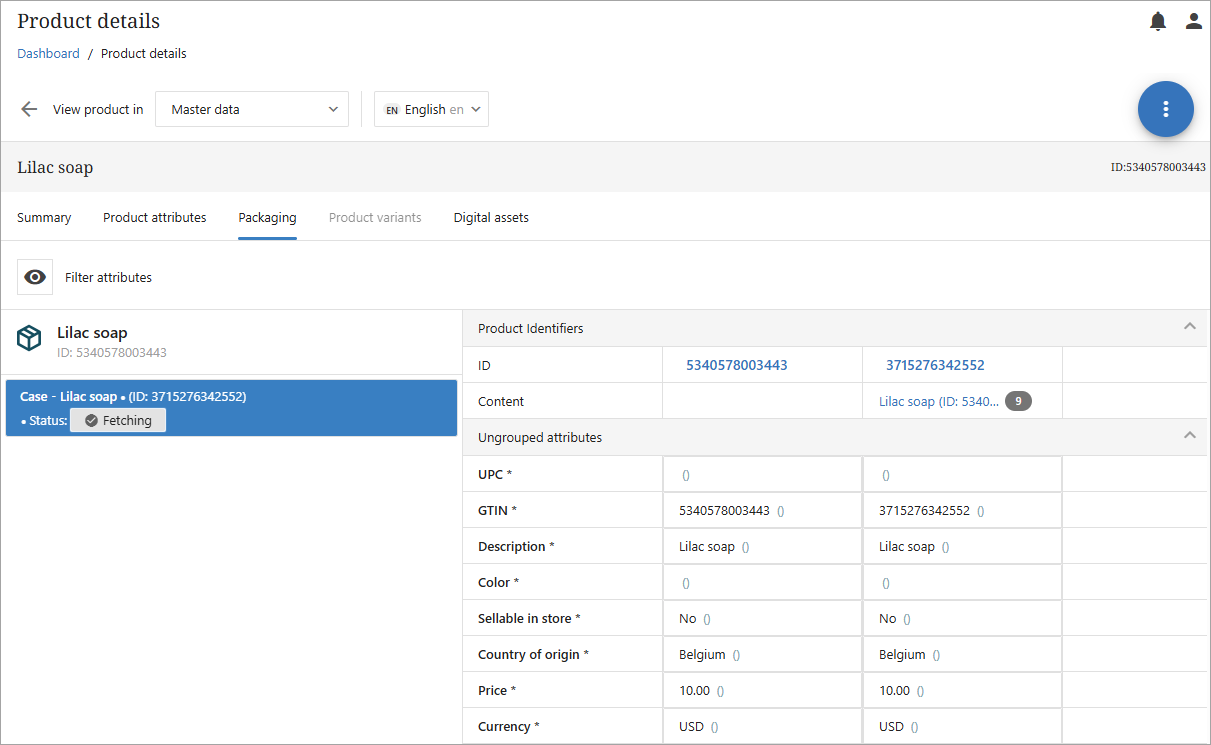
If packaging information is available for a product, it will appear as in the below screenshot. For more information about packaging, refer to the Packaging Configuration section in the General Tab Page topic.
Product Variants
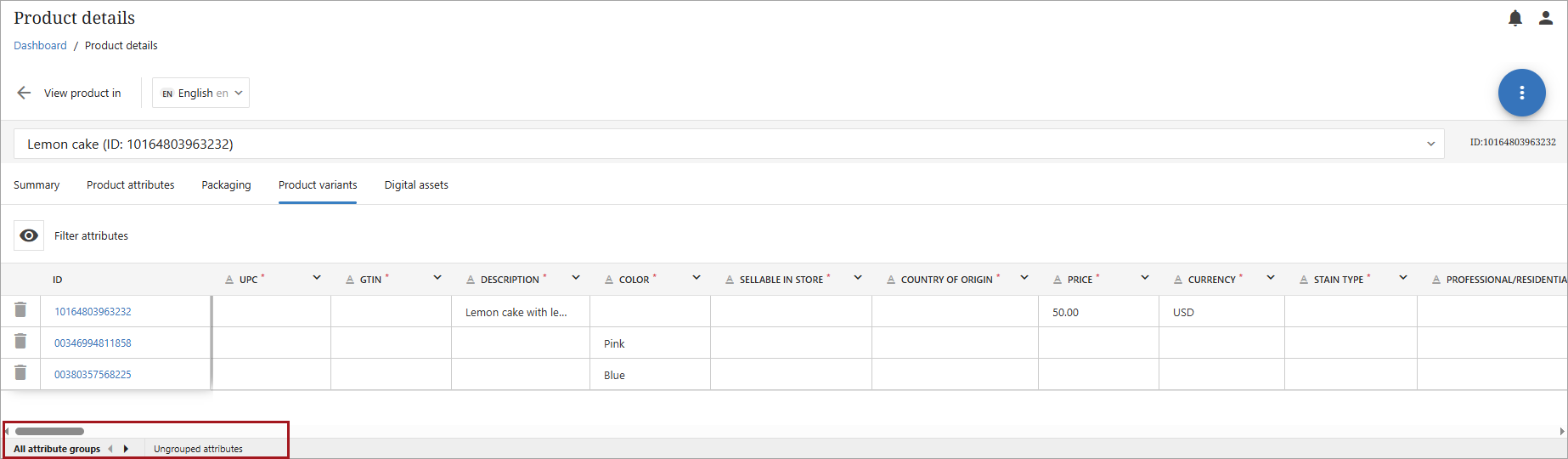
Attribute information for family / variant products can be found by clicking the 'Product variants' tab. Users can switch from all attribute groups to ungrouped attributes by using the attribute group tabs at the bottom of the screen.
Digital Assets
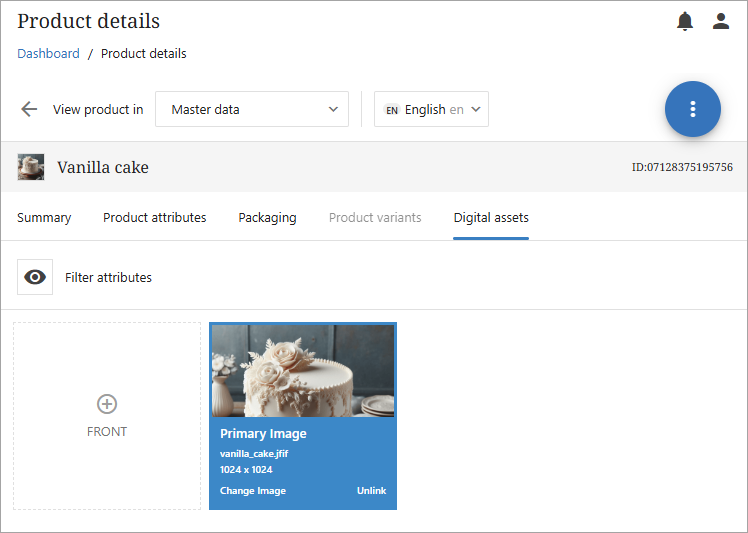
Clicking the Digital assets tab will open a screen showing the Filter attributes option and all applicable images for the product.
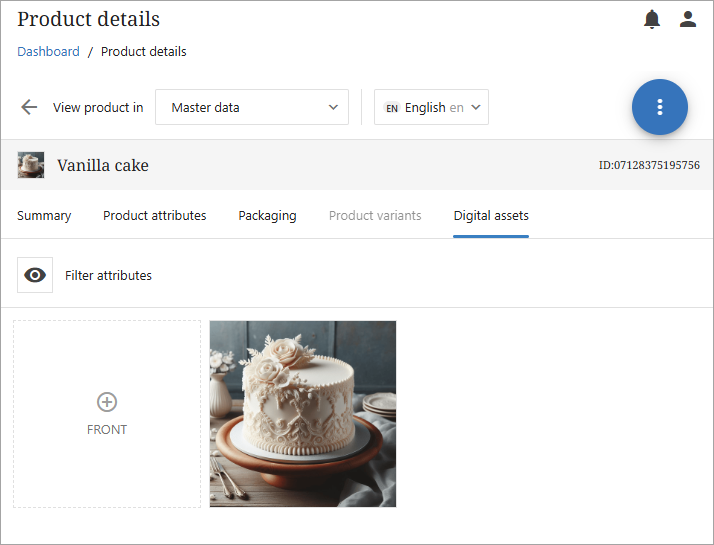
Hovering over the image will provide users with the option to change or unlink the image.