In Step 8, click the Add Sorting Option button to define the sorting of the information in the Top or Bottom Pivotal Values area and/or information in the Left or Right Common Values areas.
The sorting mechanism is similar to that of the Table Sorting Options, except that instead of specifying the sort criteria by row / column type or attribute, instead you specify the column number in the Left or Right Common values, or by row number for the columns that are in the Compacted Values area.
Example 1, sorting via the Left Common Values area:
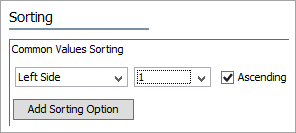
The above setup specifies to sort the 'body' rows of the table (i.e., the non-header rows) according to the values in the second column in the Left Common Values Area, and in descending order. In the Table Guide example the second column is the 'Length'. With this setup, if you have a table that matches the sample Table Guide, it would look like this:
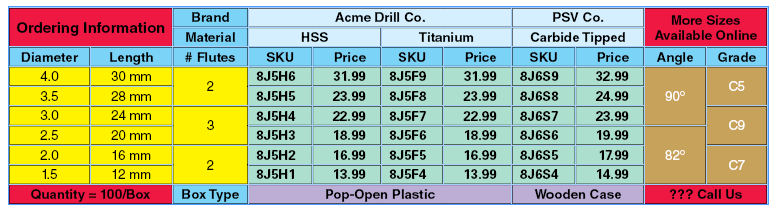
Note that the rows are now sorted according to the descending values of the Length.
Example 2, adding more sort criteria :
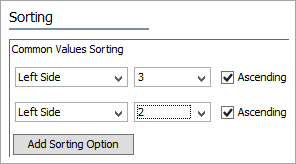
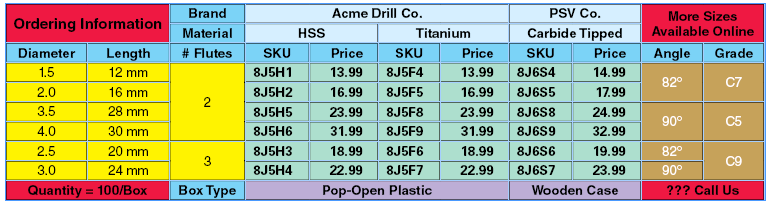
The above setup specifies to sort the 'body' rows, first according to the values in the third column in the Left Common Values Area, then second according to the values in the second column. Both are sorted by ascending values. The third column is '# Flutes', and the second column is the 'Length'. With this setup a table that matches the Table Guide would look like this.
You may also sort on the Right Side Common Values area, instead of selecting 'Left Side' in the dropdown you would select 'Right Side'. You may specify the desired sorting of the body rows by combining left side and right side sorting options respectively
Common Values Sorting
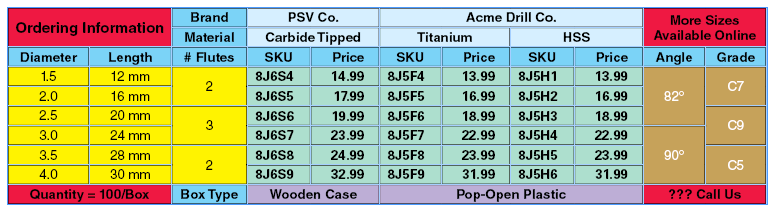
The Common Values Sorting setup in essence specifies the order in which the rows are displayed in the pivoted table. To also specify the order that the columns are displayed in the Compacted Area, use the 'Compacted Columns Sorting'. So if, for example, you wanted the columns that have the headings 'Acme Drill Co.' and 'PSV Co.' to display in reverse alphabetical order, and if you then wanted the columns 'HSS' and 'Titanium' to occur in reverse alphabetical order, then the setup would look like this:
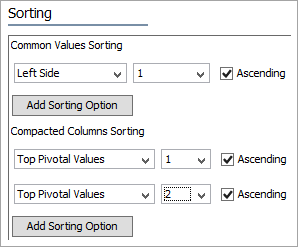
And the resultant table that matches the Table Guide would look like this:
You may also sort on the Bottom Pivotal Values in a similar manner to sorting on the Top Pivotal Values. Instead of selecting 'Top Pivotal Values' in the dropdown you would select 'Bottom Pivotal Values'.
The above examples used only the ascending and descending option (Alphabetic). But you also may also sort on Numeric, and Fraction, thus:
