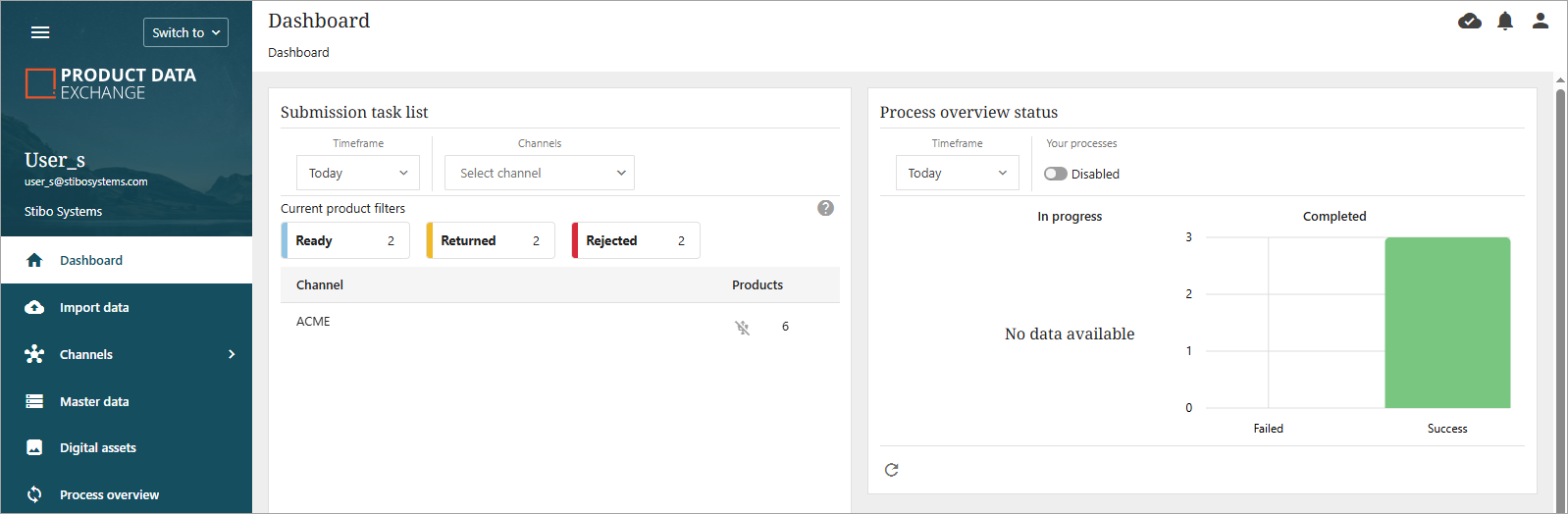
The Dashboard is the landing page for PDX. The Dashboard features streamlined issue resolution within PDX by providing users with comprehensive insights into active processes and pinpointing specific areas that require focus and intervention.
Widgets
The Dashboard contains two widgets:
-
Submission task list: provides an overview of products, with some requiring user action.
-
Process overview status: offers a snapshot of recent large actions performed within PDX, both for in-progress processes and completed processes.
Below, each widget is described in more detail.
Submission Task List Widget
The purpose of the Submission task list widget is to make it possible for users to navigate to products that need attention before they can be successfully submitted. These actions will typically include looking into data quality issues on products, correcting the issues, and initiating submissions.
The widget will only show products that have recently been changed or updated. How far back the widget will look for activity is set by the Timeframe filter:
-
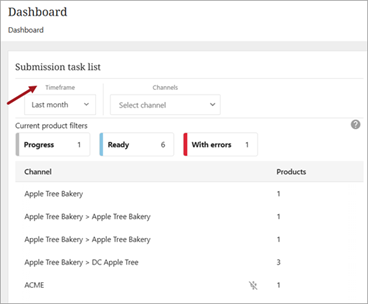
Timeframe: The Timeframe options available to choose from are: Today, Last week, Last month, or Custom.
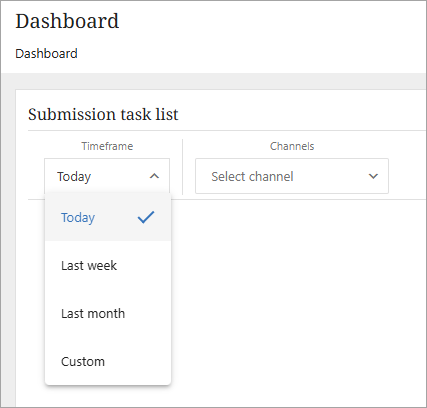
If a specific channel is not selected, the widget will show all channels that have had activity within the selected time frame. The Timeframe will be used to reduce the list to only count and show products that have been updated in the selected timeframe.
The channels available for selection are determined by the user's channel access. Therefore, the list of available channels will differ by user.
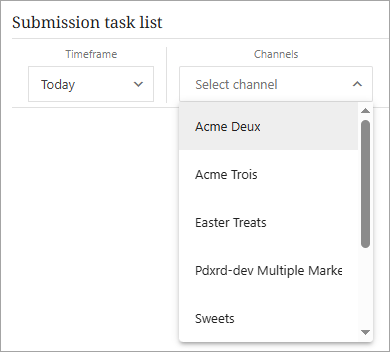
This field does not have to be set if the user wishes to see an overview of all submission tasks in the selected timeframe.
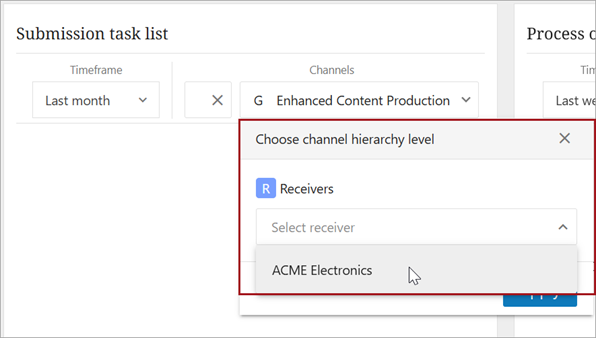
If a channel is selected that has more than one receiver, the user is able to further define the desired receiver.
Once the desired Timeframe and Channels dropdown are chosen, the 'Current product filters' section displays products in any of the following statuses: In Progress, Ready, Returned, or Rejected. Users can apply filters to focus on specific statuses and identify which channels are affected. Users can also apply filters to focus on products with Products are also displayed with the flags Updated or With Errors.
The selections in the Submission task list widget can be viewed as shortcuts to the standard filter capabilities. Below is an example of filter selections.
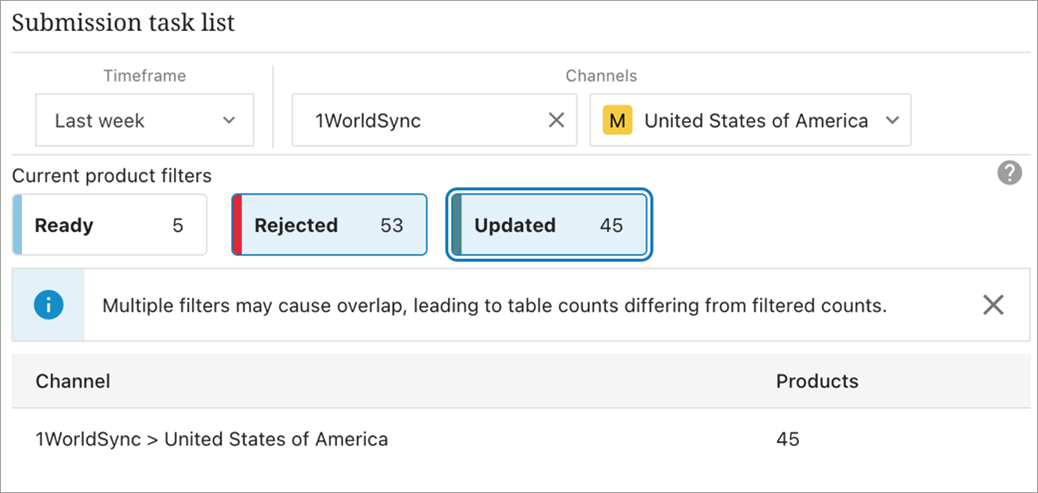
Note: If a filter does not apply to any of the products listed in the 'Current product filters' section, it will not display as an option to be selected.
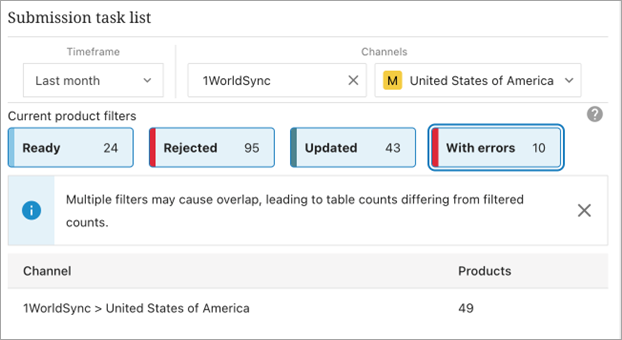
In the example above, the widget will look for updates made to products in the last week in the 1WorldSync channel. The filters applied in the widget are products with status Rejected and with the Updated flag. is the selected status. If a user clicks on the 1WorldSync > USA row, the user will be sent to a list of 45 products in 1WorldSync > USA.
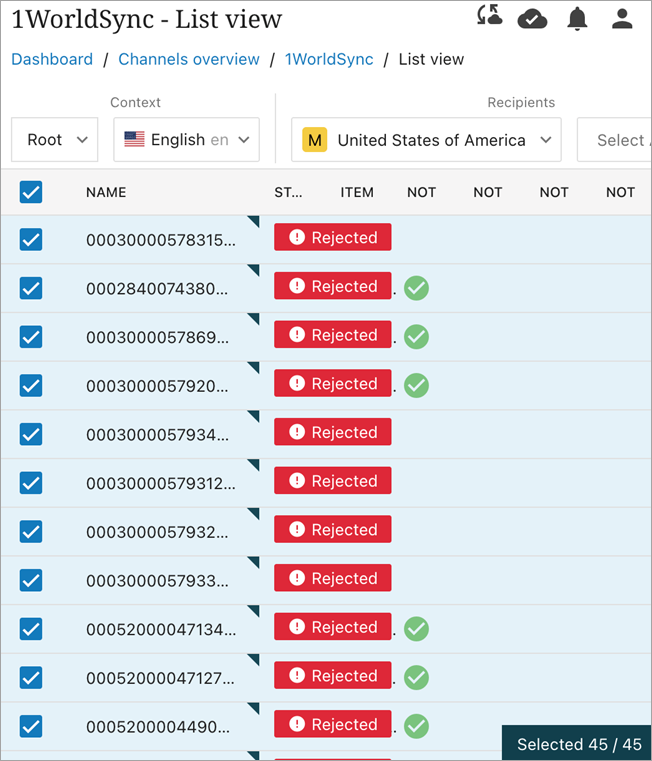
In this example, the following combination of filters is enabled:
-
Updated in Channel
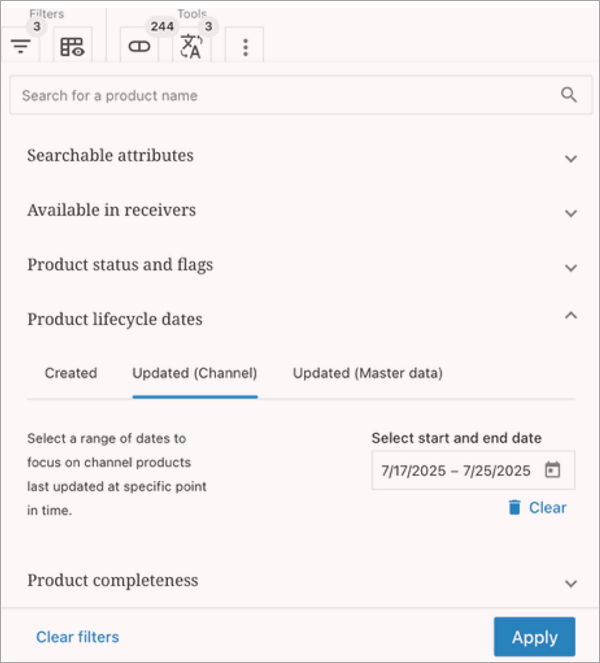
-
Status and Flags
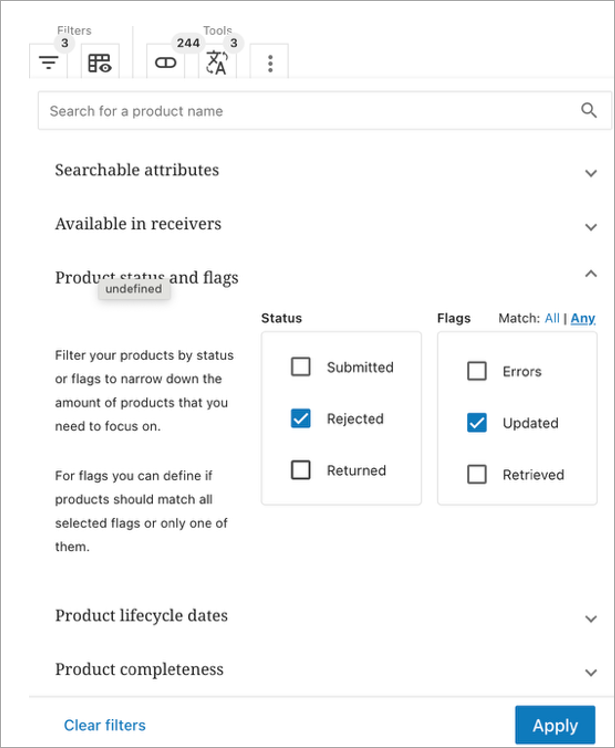
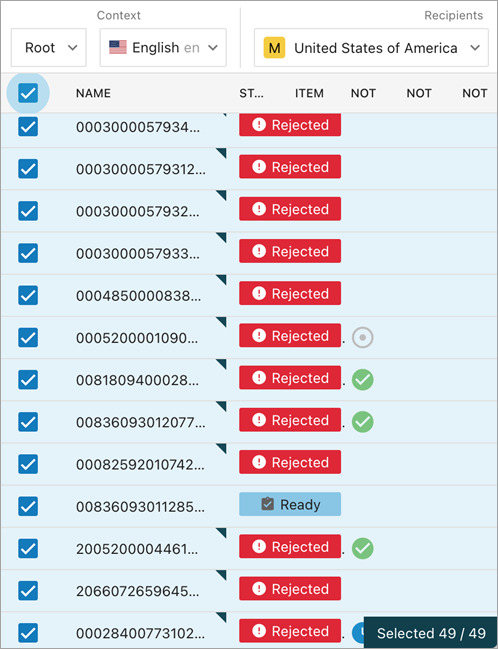
Therefore, the example in the screenshot below will provide a mix of products.
The mix will include both Rejected and Ready products.
The updated product results are also filtered by a specific date range.
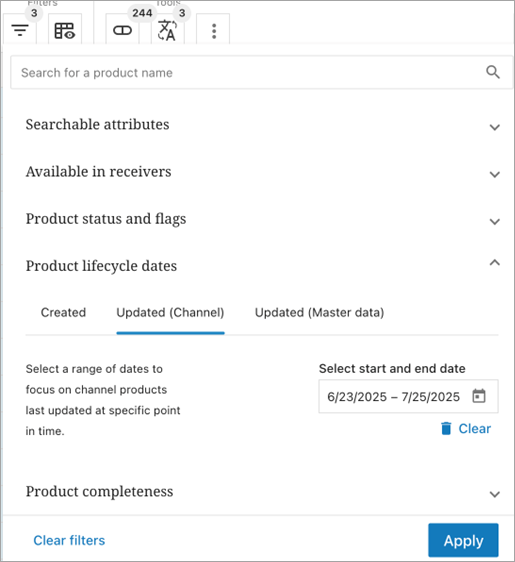
The below screenshot shows the status / filter combinations for the example.
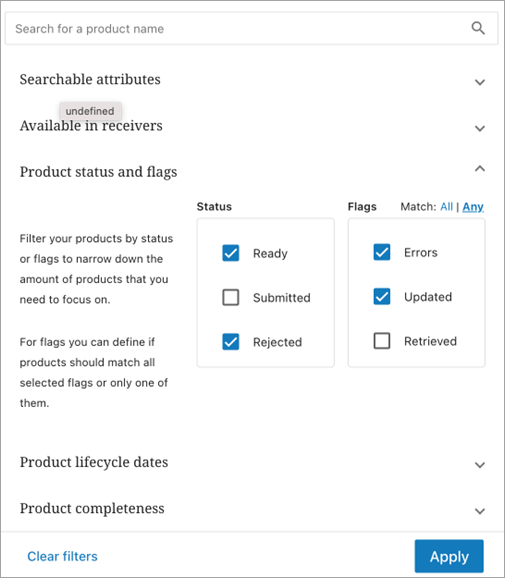
The combinations shown above can be translated into the following:
• Ready and Error
OR
• Ready and Updated
OR
• Rejected and Error
OR
• Rejected and Updated
The combination in the example, therefore, is not a simple combination of different filters. Instead, it is a mix of selecting products (with one or more statuses) and then filtering by flags (Updated or Error). This is why the numbers may not sum correctly and why the system displays a warning when status filters and flag filters are combined. For example, a combination of 24 Ready products, 95 Rejected products, 43 Updated products, and 10 products with errors might return only 49 products—a result that is not immediately obvious.
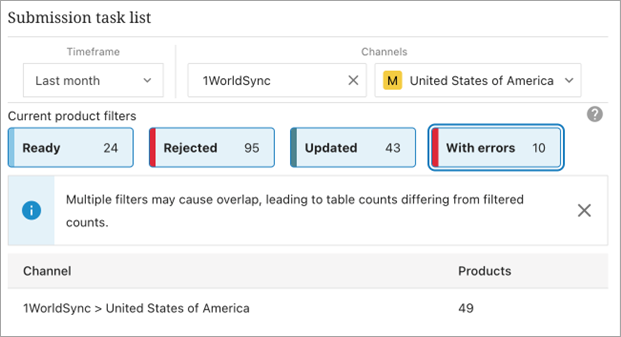
Note: Applying multiple filters may cause overlap, leading to table counts differing from filtered counts.
The channels shown in the list are clickable and when clicked bring the user to the list view for that channel. Users can also click on one or more of the 'Current product filters' to view channels with only those products that meet the chosen filter(s). This enables users to address issues and resubmit products.
Detailed information on the channel view is available in the Channel Overview topic.
A user can click on the information icon ( ) for status definitions.
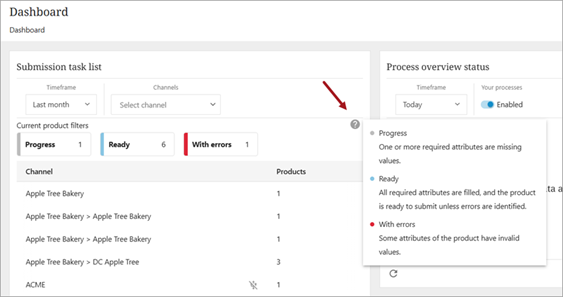
Process Overview Status Widget
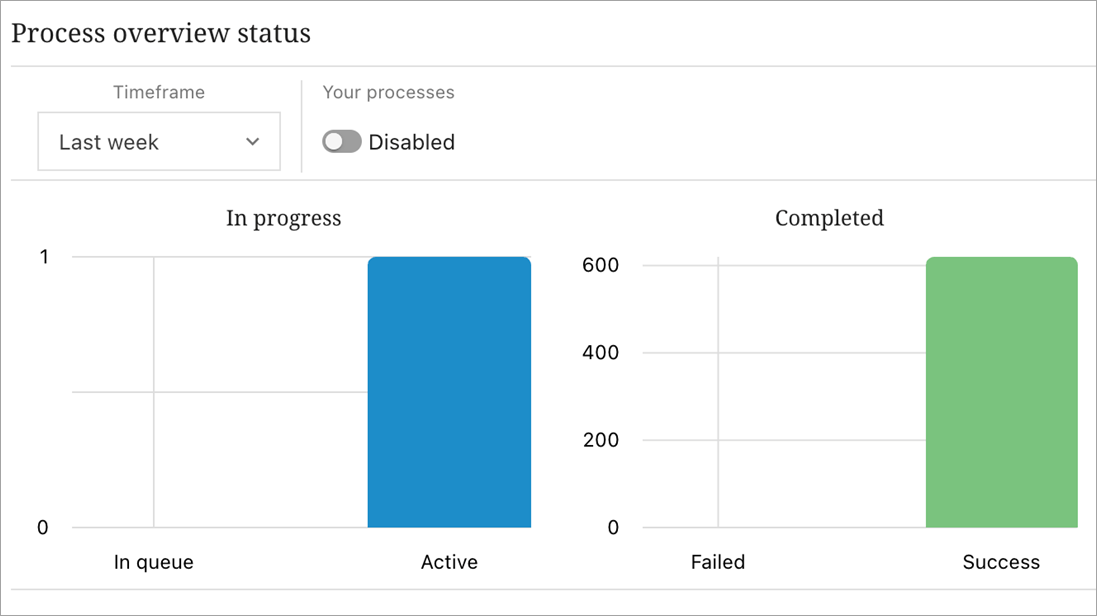
This widget offers a snapshot of ongoing or recent actions within PDX. Users can see both in-progress processes and completed processes.
This is useful for users who perform tasks that are large and do not complete immediately. Examples are large import jobs or actions like adding thousands or tens of thousands of products to a channel.
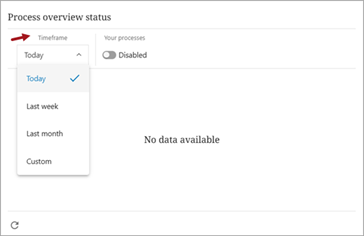
Users can click on columns within the widget to navigate directly to the full process overview for advanced analysis capabilities. The widget includes a timeframe picker, allowing users to view statuses from today, last week, last month, or a custom range.
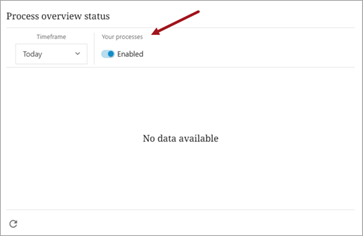
Additionally, there is a toggle to display only the processes initiated by the user.
Clicking an available column will take the user to the Process Overview section of PDX. Detailed information for this section is available in the Process Overview topic.