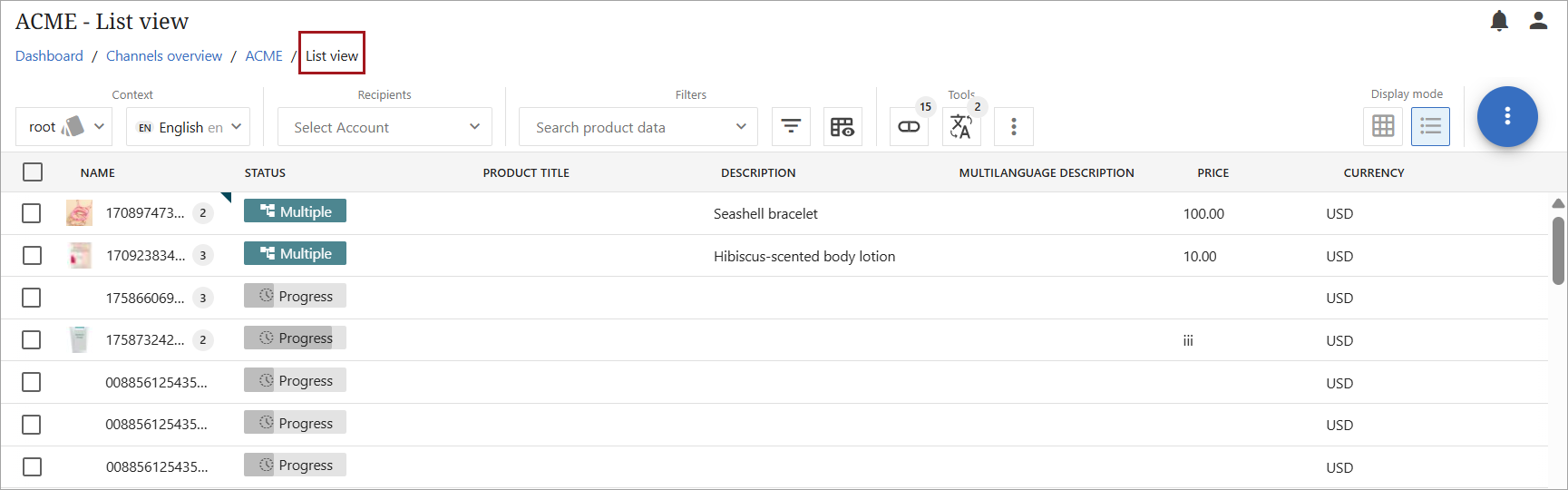
This topic provides an overview of navigation within a channel.
Click on the Channels overview menu item under Channels for the list of available channels.
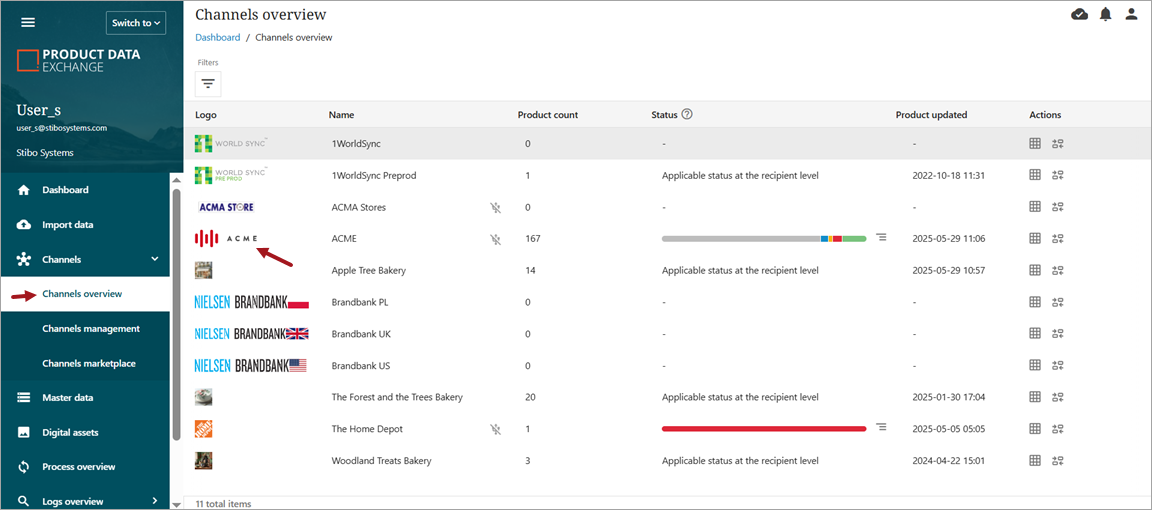
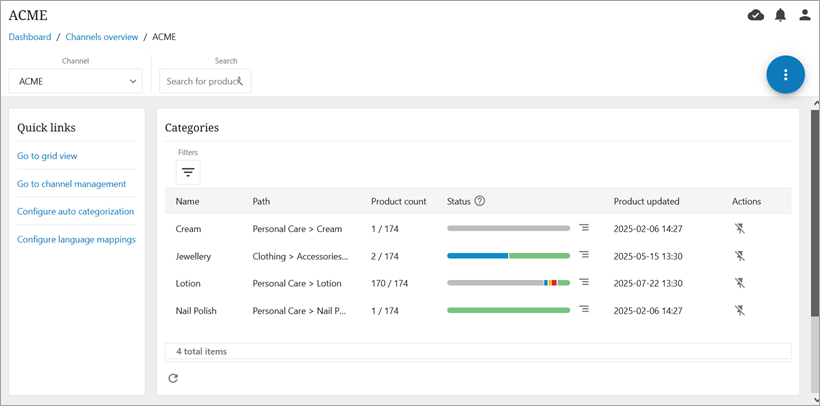
Then click the channel logo to open the channel's overview page. From this page, a user can search for a product, navigate within the Quick links, or open one of the channel's categories. The below screenshot is an example for a user with preferences set to open grid view as default.
-
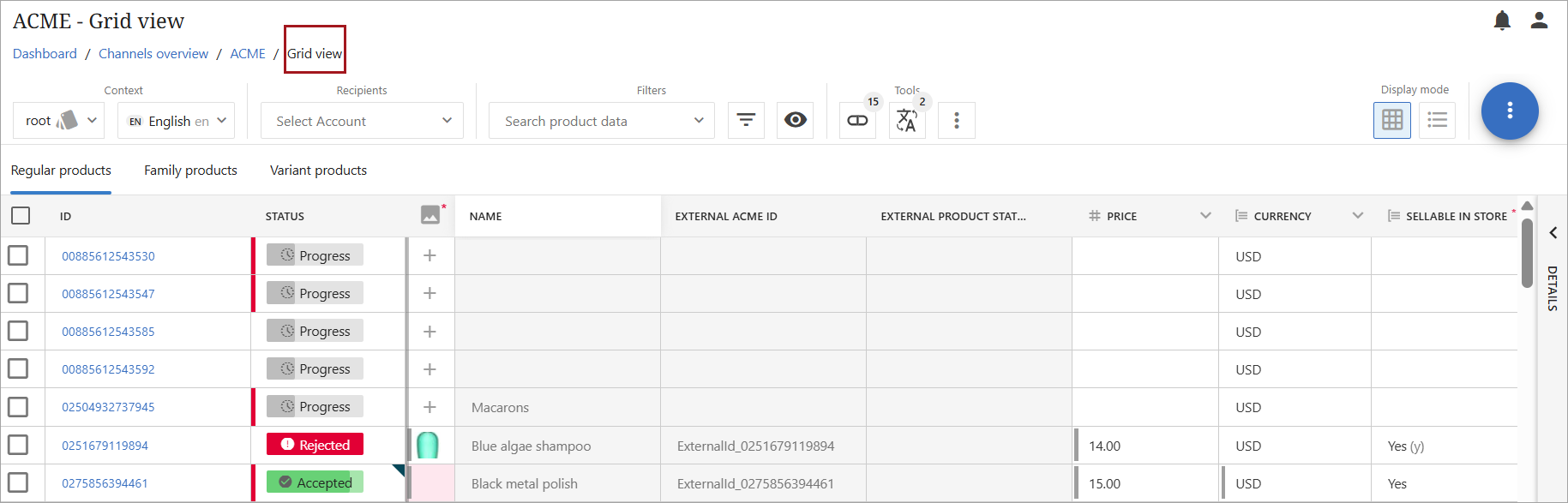
Go to grid view: Clicking this link will navigate the user to the list of all products in a channel in the grid view.
-
Go to channel management: Clicking this link will return the user to the Channels management section.
-
Configure auto categorization: Clicking this link will open the auto categorization setup screen. For more information on using auto categorization, refer to the Adding Products Using Auto-categorization topic.
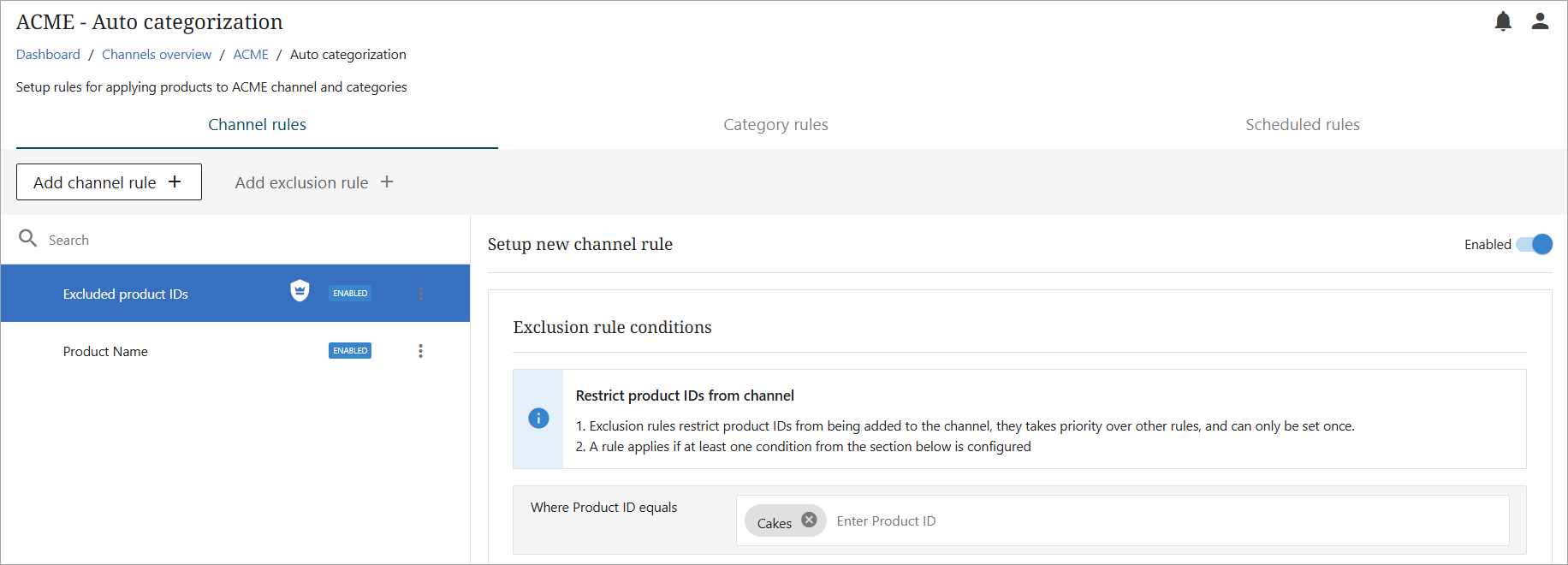
-
Configure language mappings: Clicking this link will open the Language mappings screen for the channel.
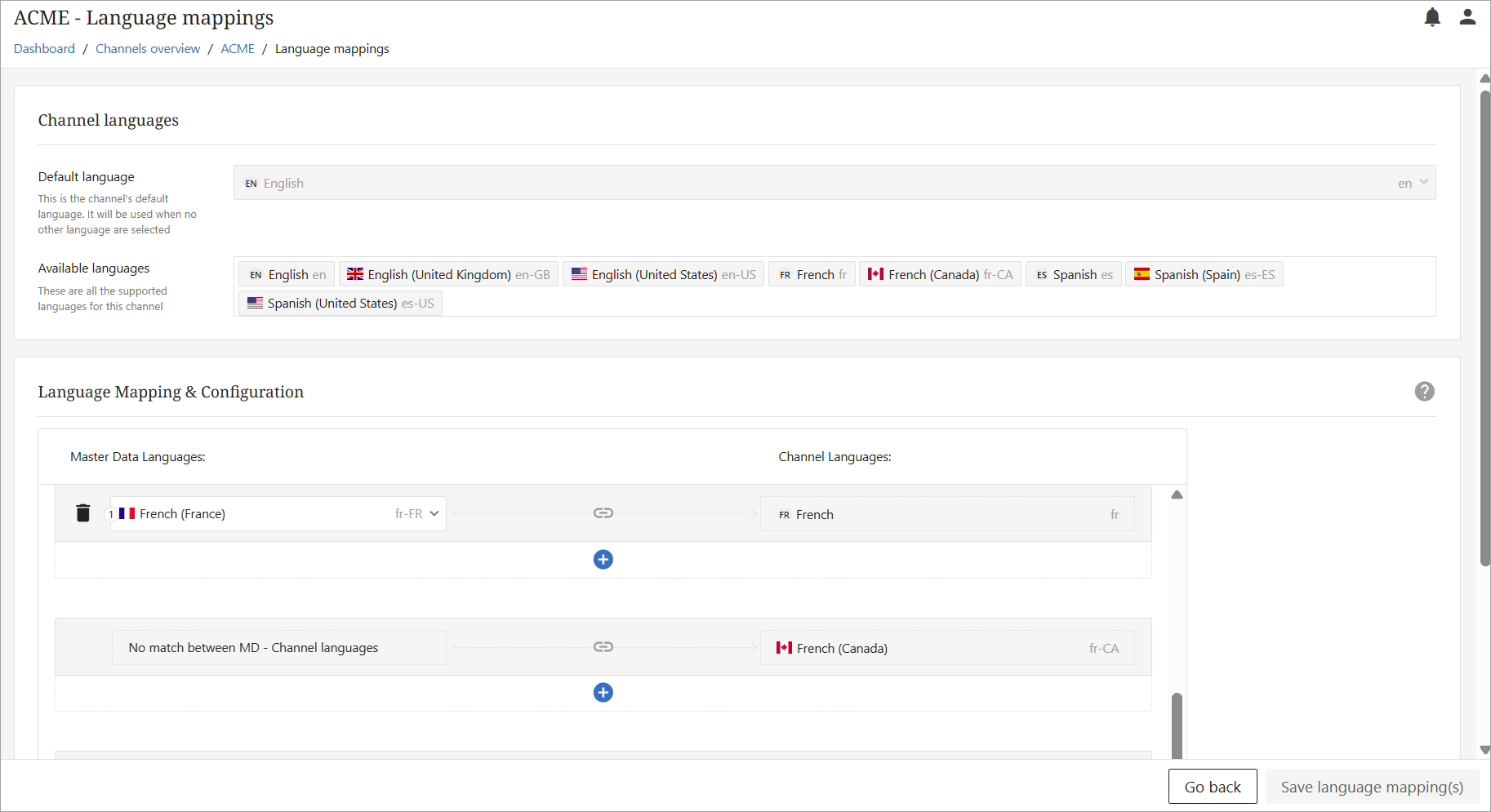
The below screenshot is an example for a user with preferences set to list view as default.
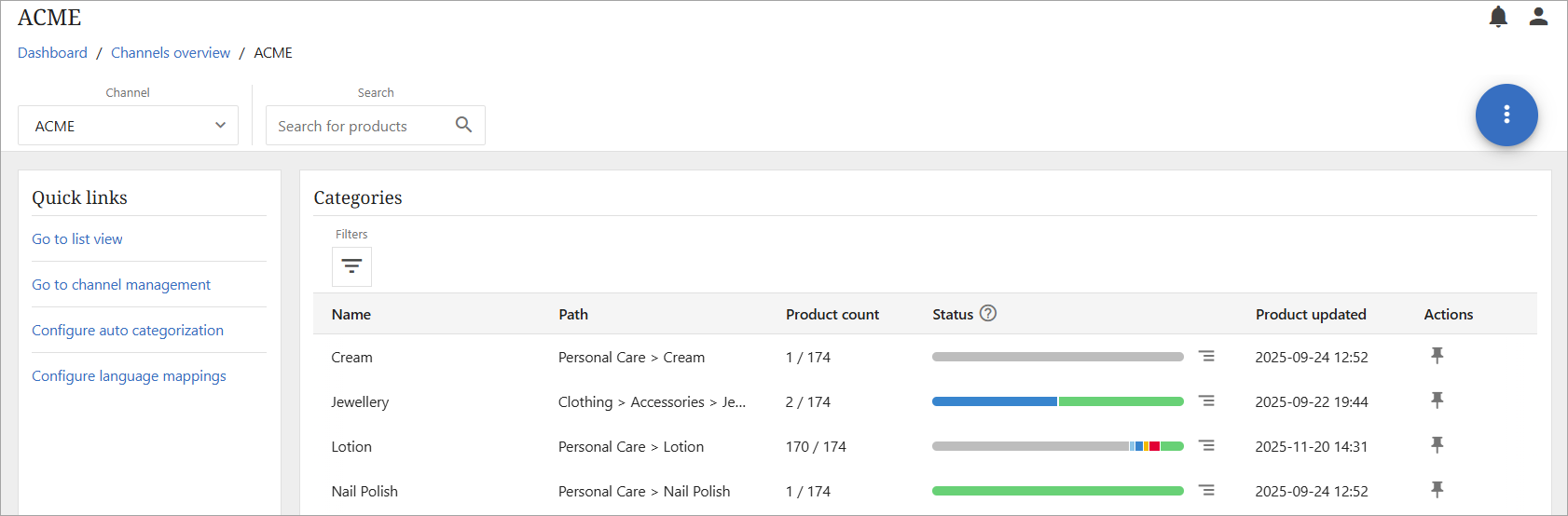
The only difference between these overviews is that in the above screenshot, the option offered will be to click 'Go to list view,' and the channel's list of products will open in list view.