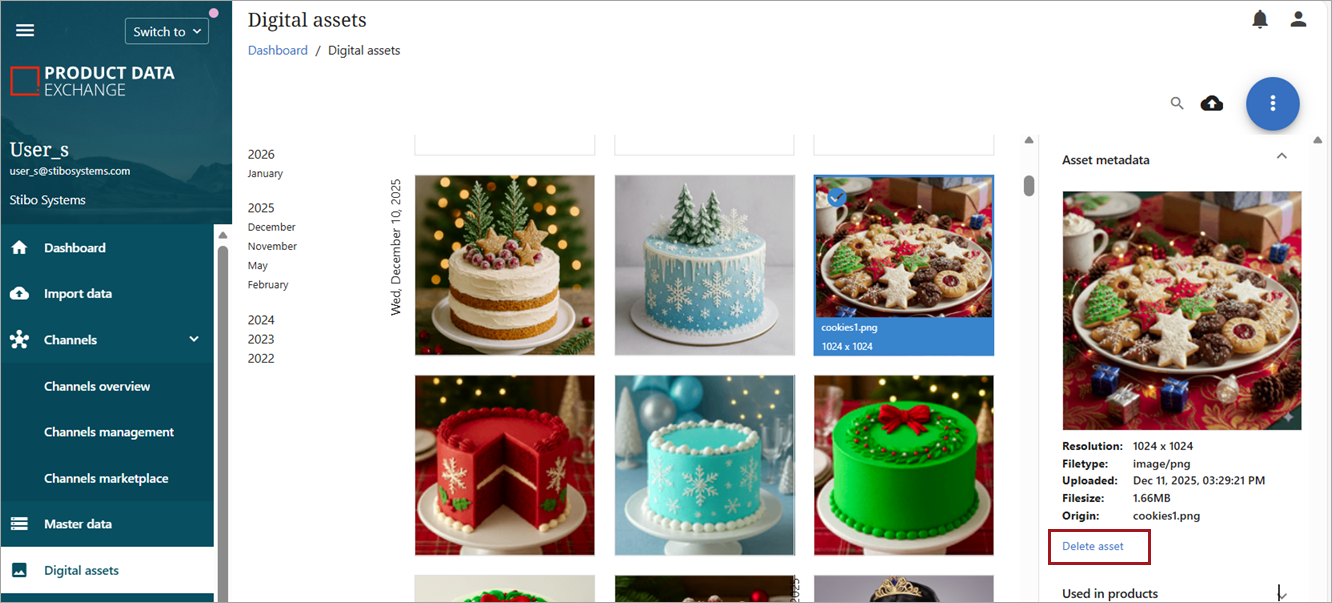
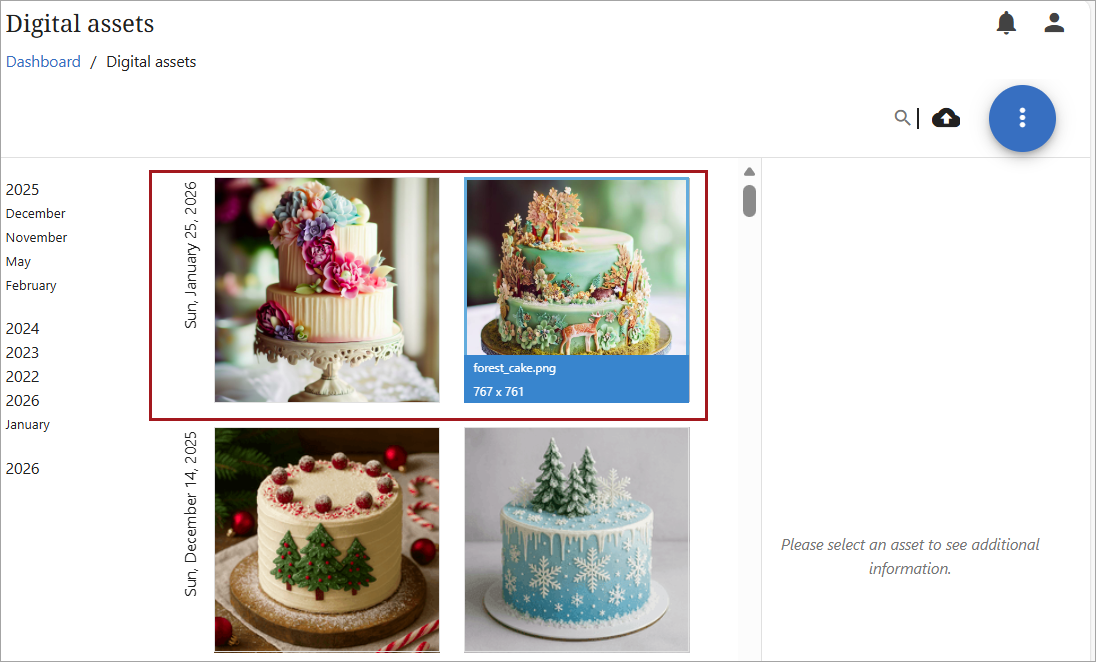
The digital assets screen shows images and other digital assets that have been loaded into PDX.
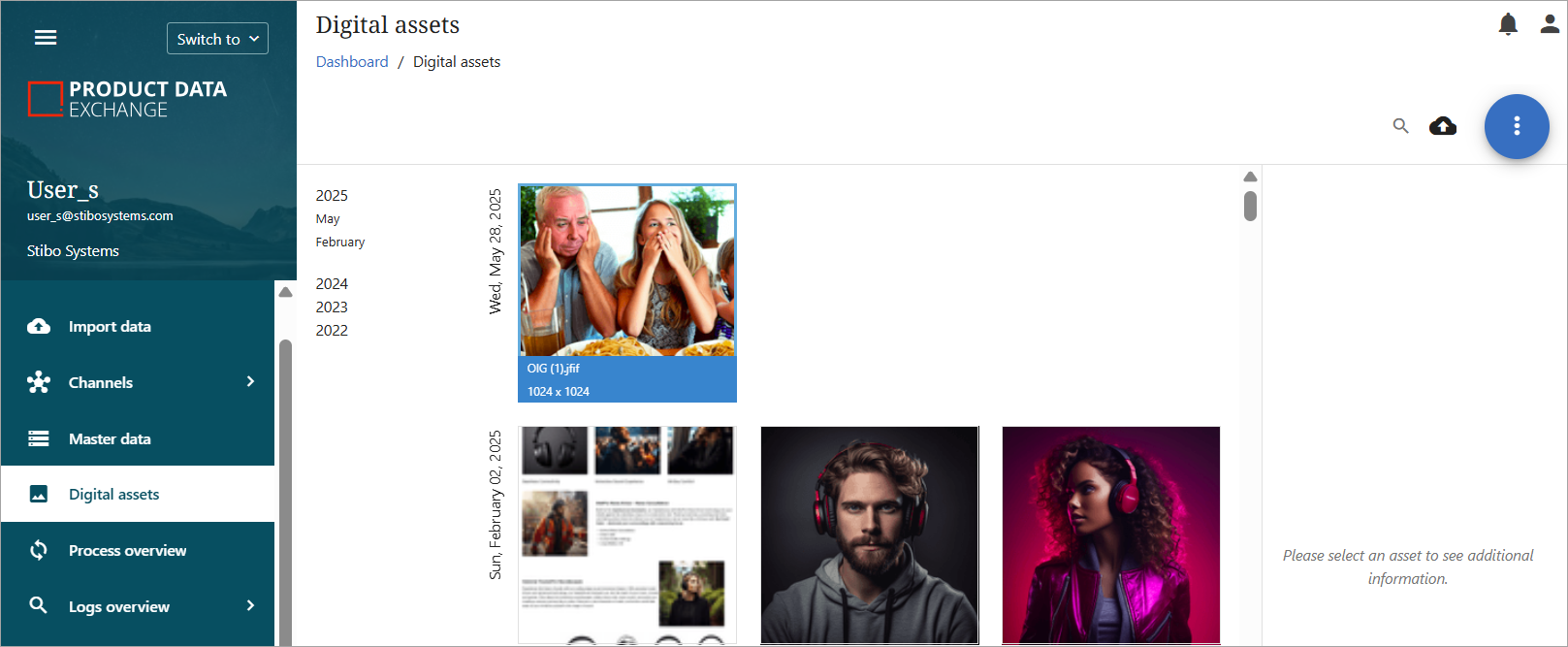
Images, which are asset attributes, are typically part of the import from a PMDM or PIM application. Images can also be imported through the spreadsheet method. Because images are considered assets, they can also be added, updated, or removed directly within PDX, as well as linked to or detached from a product or products.
File Types Supported
The following file formats are currently supported for upload to PDX:
-
Photos: .tga, .pbm, .jpg, .jpeg, .svg, .gif, .webp, .bmp, .png, .avif, .tiff
-
Videos: .wmv, .avi, .mov, .mpeg, .m4v, .mp4
-
Audio: .wav, .mp3
-
Documents: .xlsx, .xlsm, .xls, .xml, .indd, .pptx, .docx, .ppt, .pdf, .doc, .xsl, .csv, .txt, .html, .xhtml, .rtf
-
Compressed: .rar, .zip, .bz2
-
Design: .psd, .sldprt
Note: For all file types, the maximum file size for upload is 300 MB.
Digital Asset Information
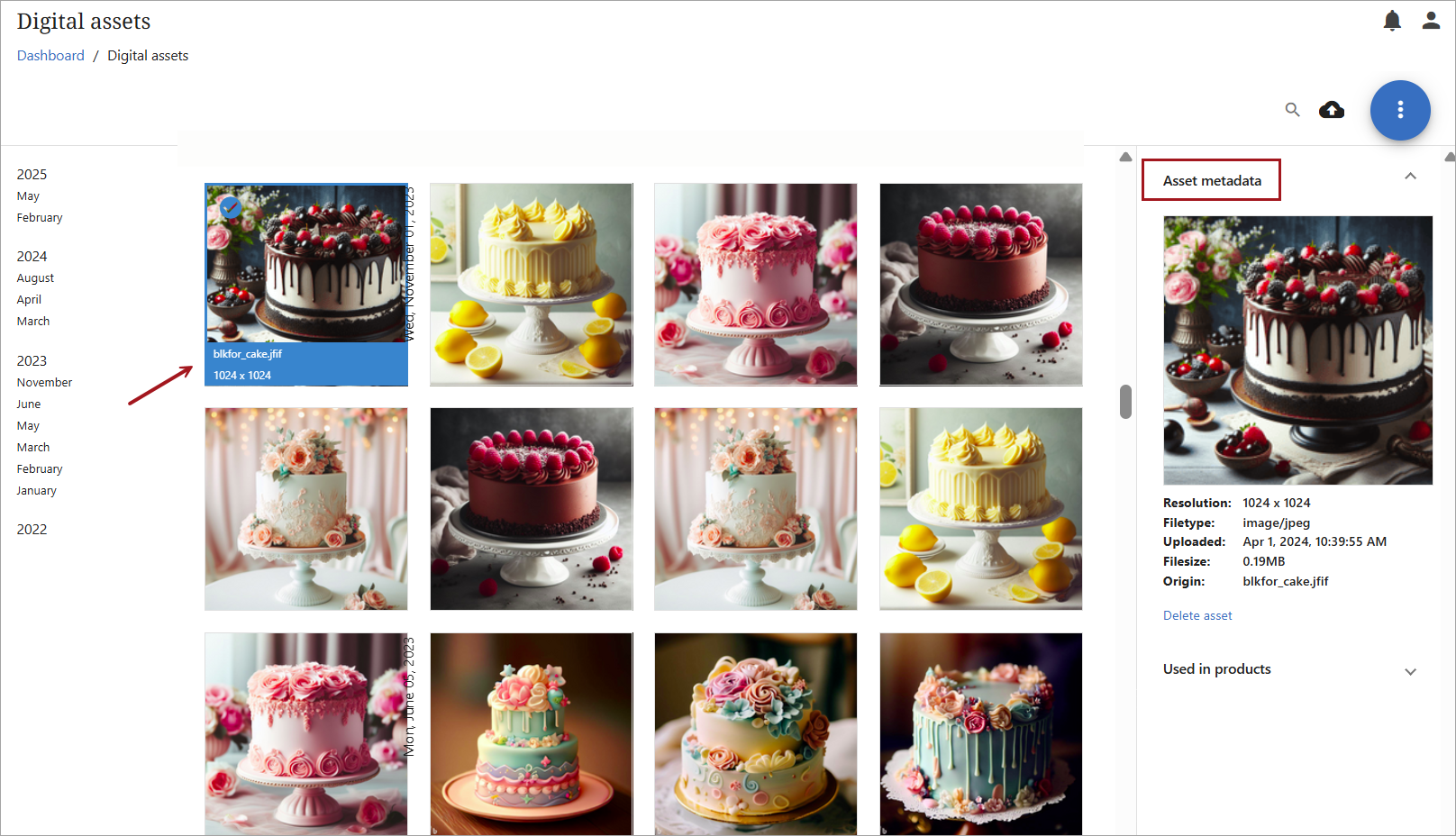
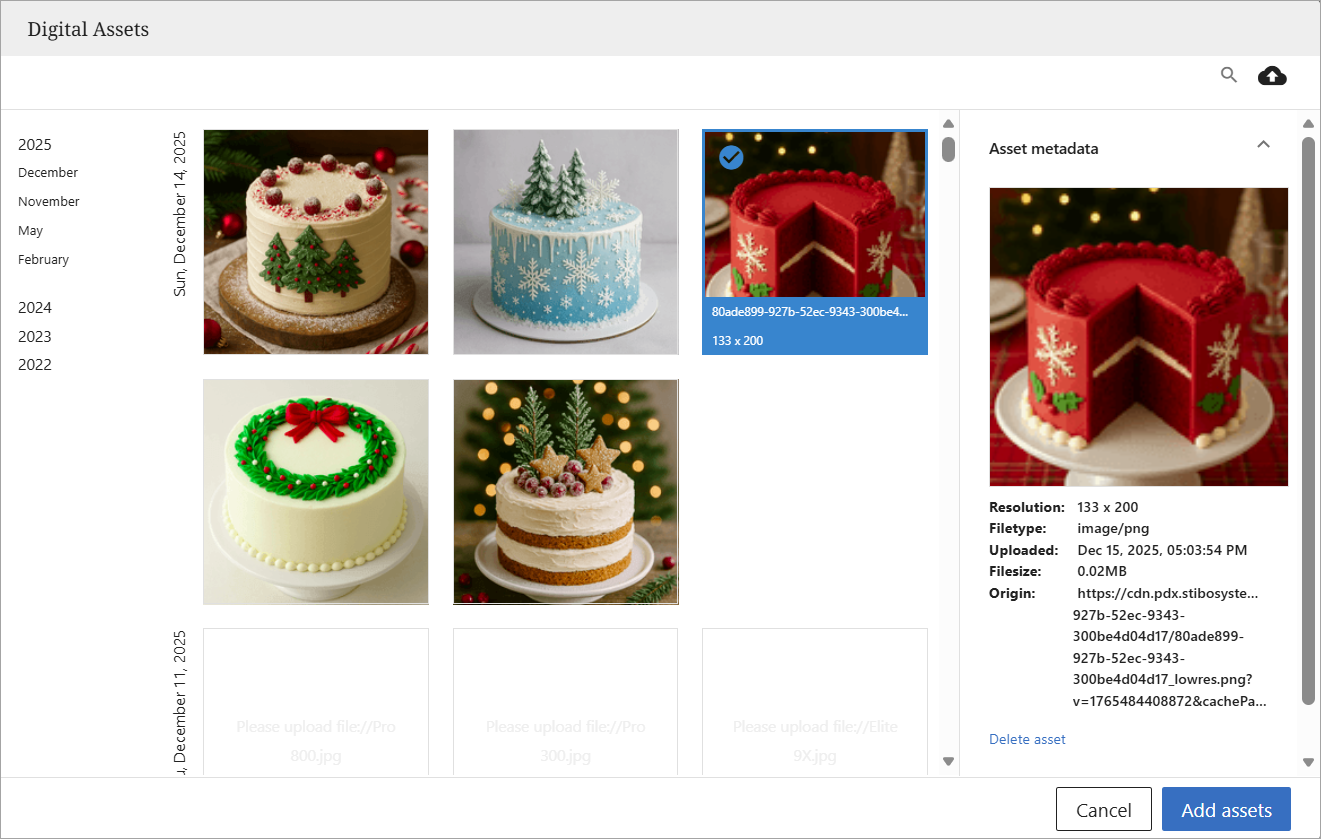
The digital assets library can be opened directly from the 'Digital assets' screen. Clicking on an asset will provide additional information about that asset, such as the asset metadata.
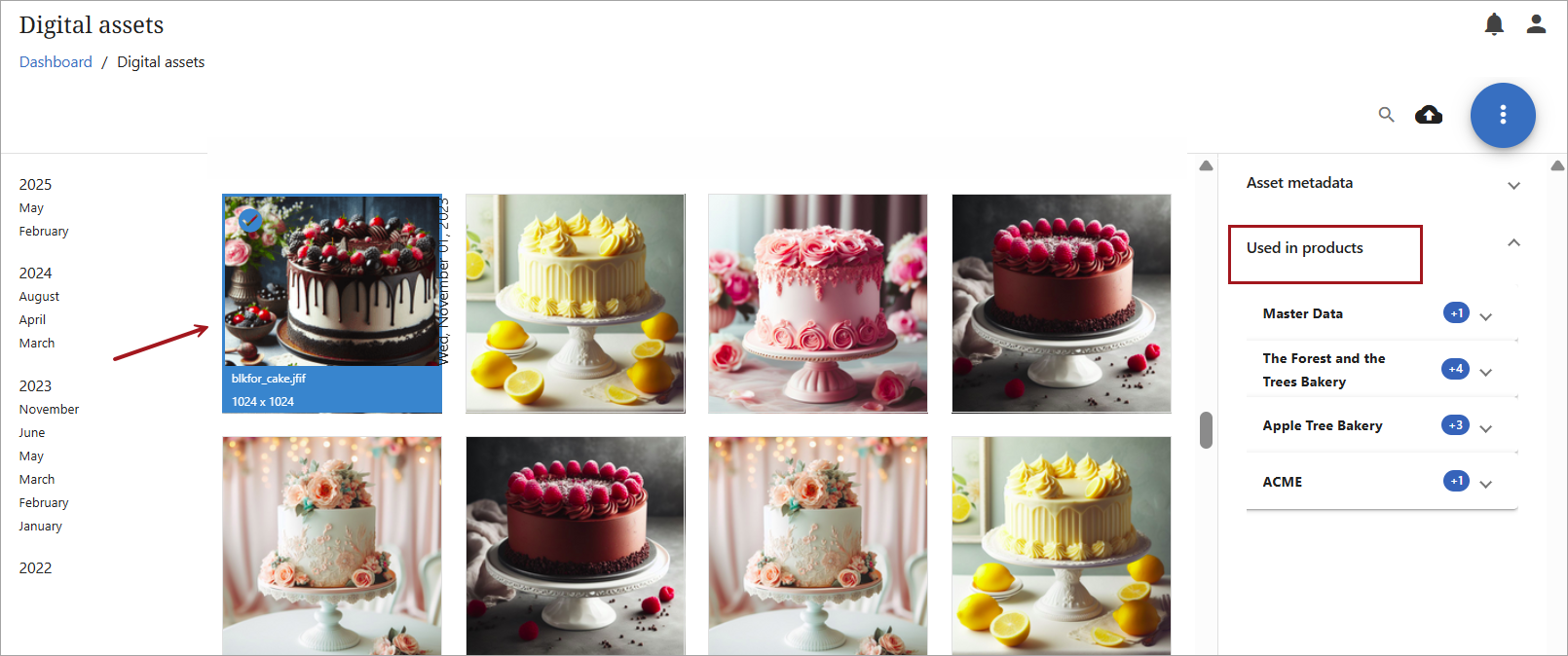
The 'Used in products' information will identify to which channels and products an asset is linked or identify if the asset is not currently linked to any product.
Digital assets and information can also be accessed from the product list in master data or a channel. Both the list view and the grid view of products in master data or a channel will also show a linked product image — or the absence of an image for a product.
List View
To access information about a product image in the list view, click any product attribute to open the information panel for that asset. Hovering over the image will manifest clickable links to change the image. If no image has been previously linked, clicking on  in the empty primary image area will open the digital assets library.
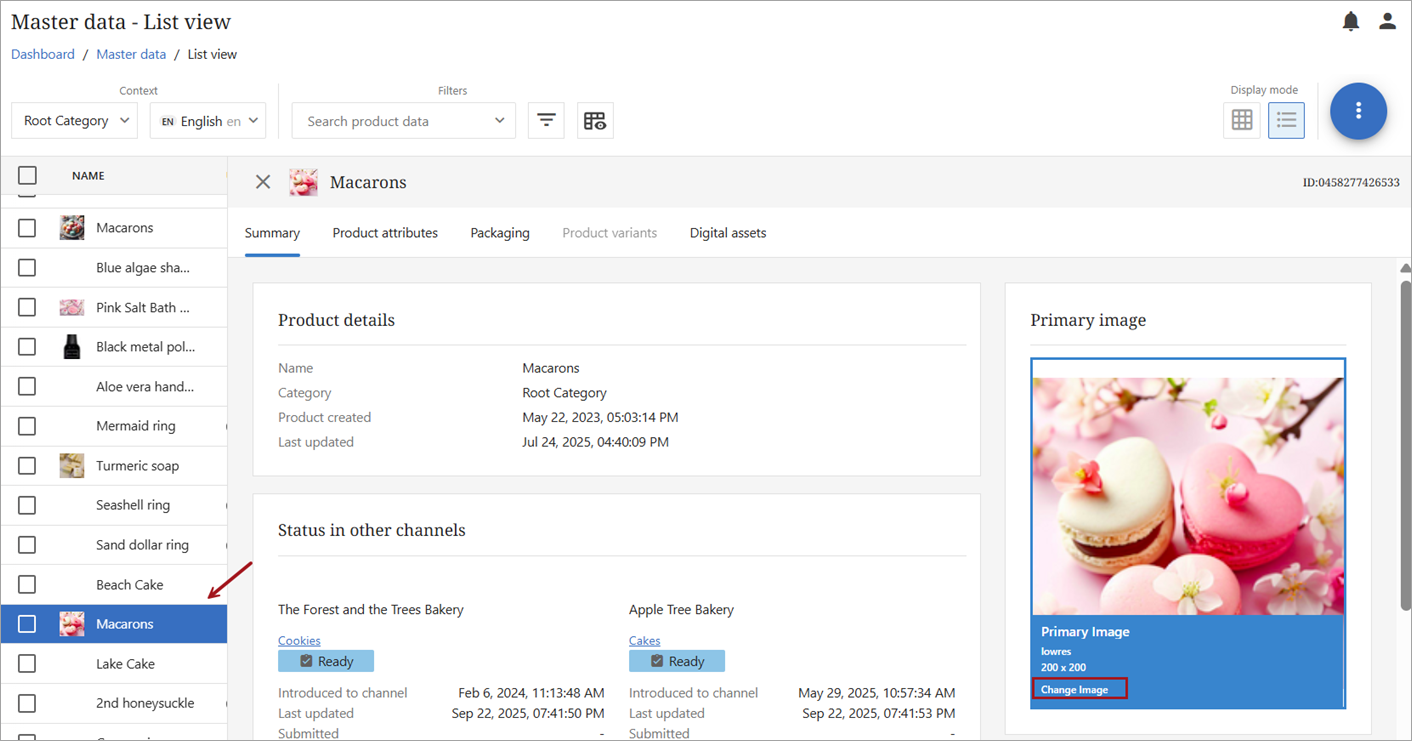
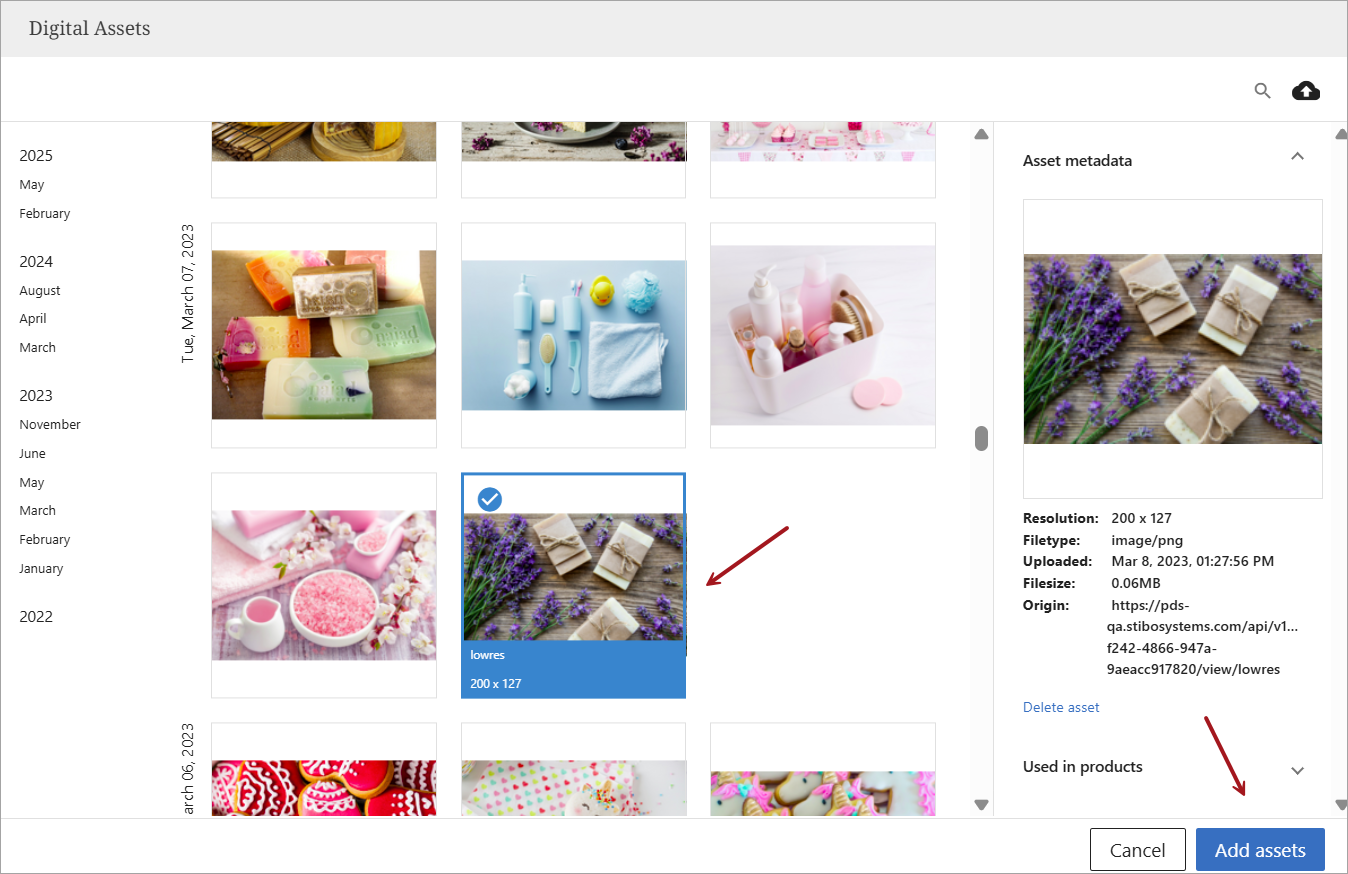
If 'Change Image' is clicked, the image library will open, providing multiple image options to the user, including the option to view asset metadata for the image, see the image's use in products, or delete the image entirely.
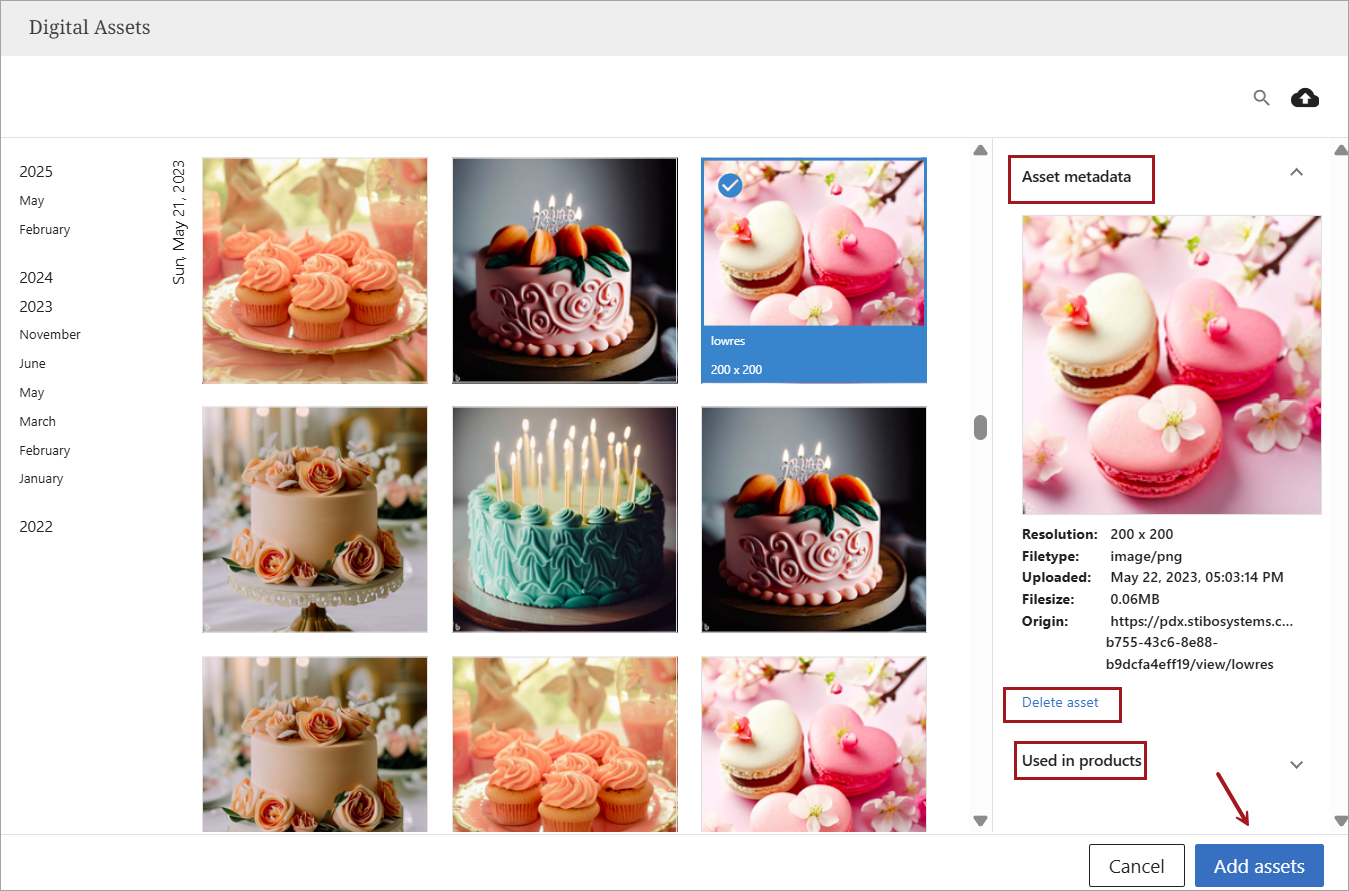
Important: Selecting 'Delete asset' from this view will delete the image from both the product and the image library itself. Unlinking from a product without deleting is covered later in this topic.
Clicking the  button allows the user to select a different image to link to the product.
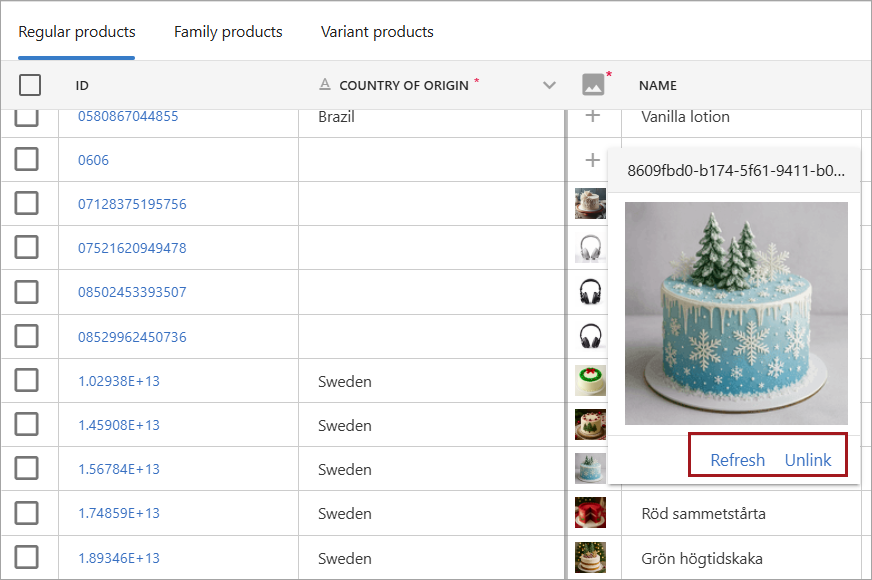
To unlink an image from a product without deleting it from the image library, click on the 'Digital assets' tab. Hovering over the image will provide the image with the option to change the image (same process as described above) or unlink the image without deleting.
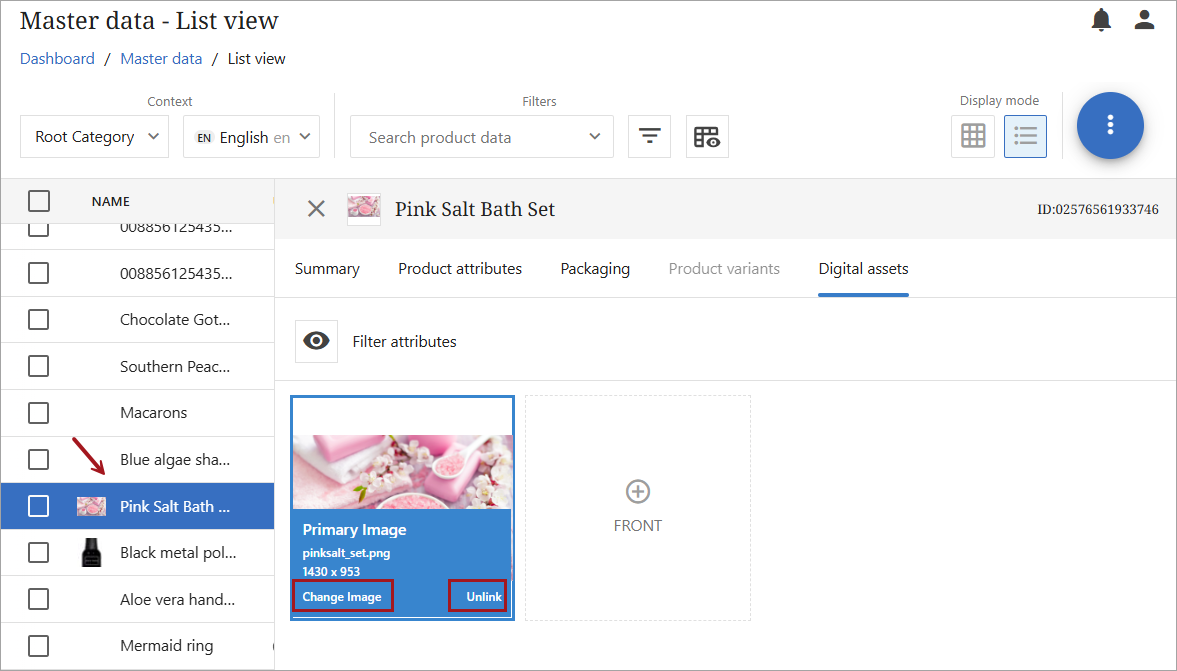
Clicking 'Unlink' will detach the image from the product, but the image will remain in the image library.
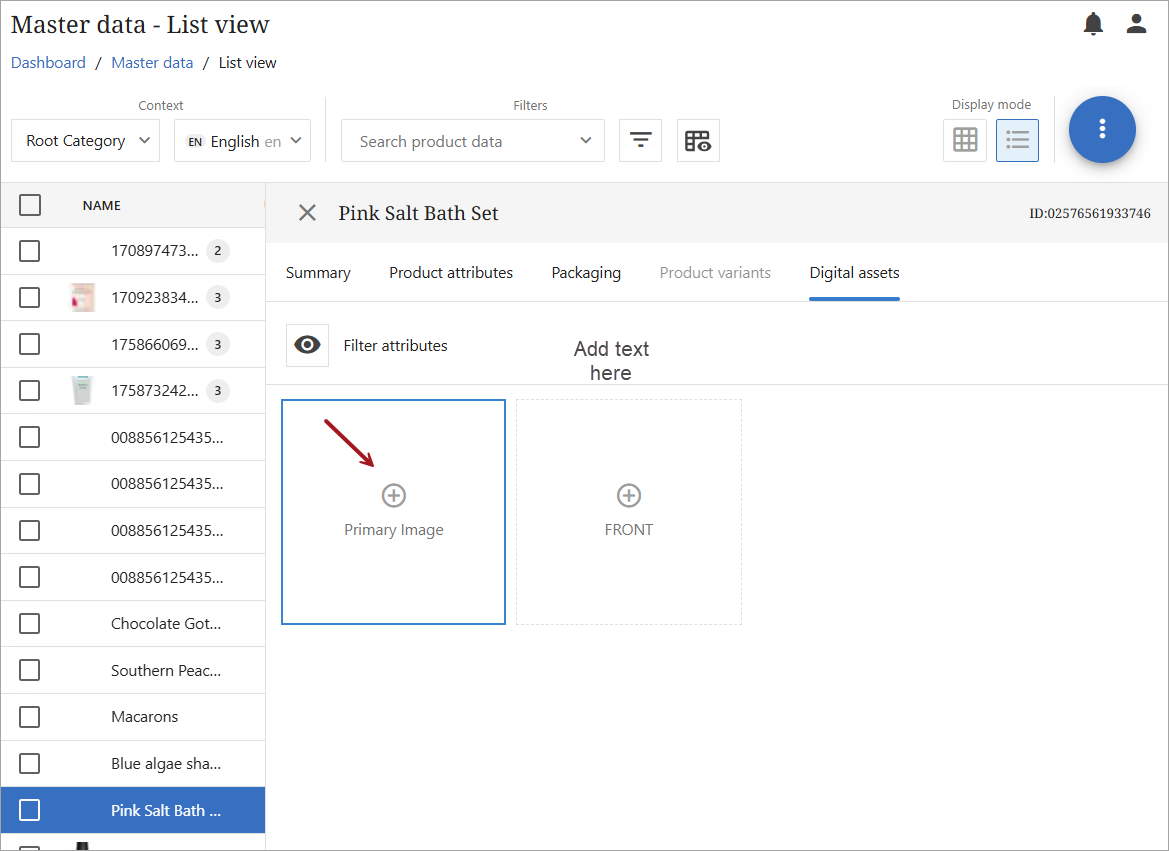
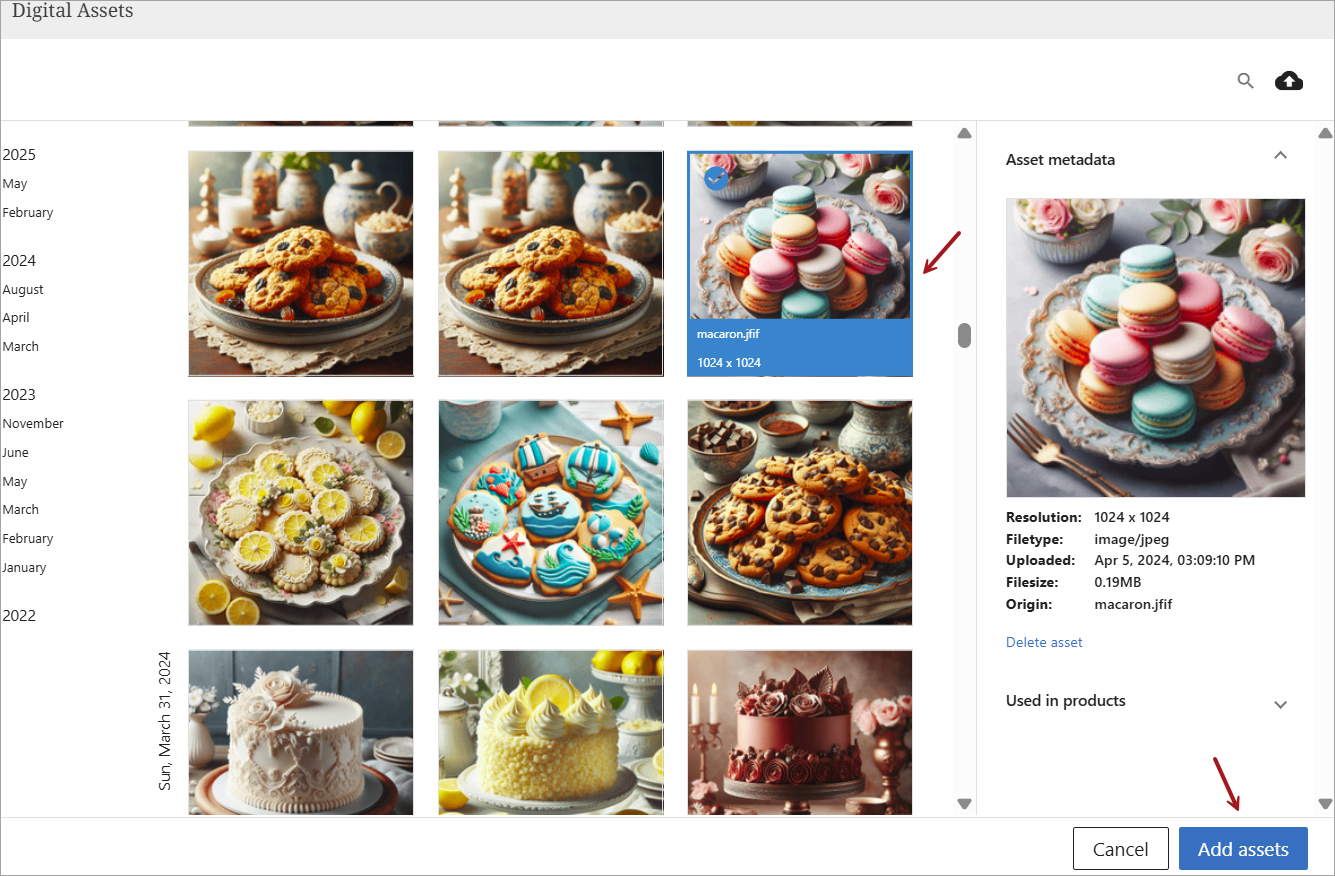
To link a new image to the product, click on in the empty primary image to open the digital assets library. Select an image and click 'Add assets.'
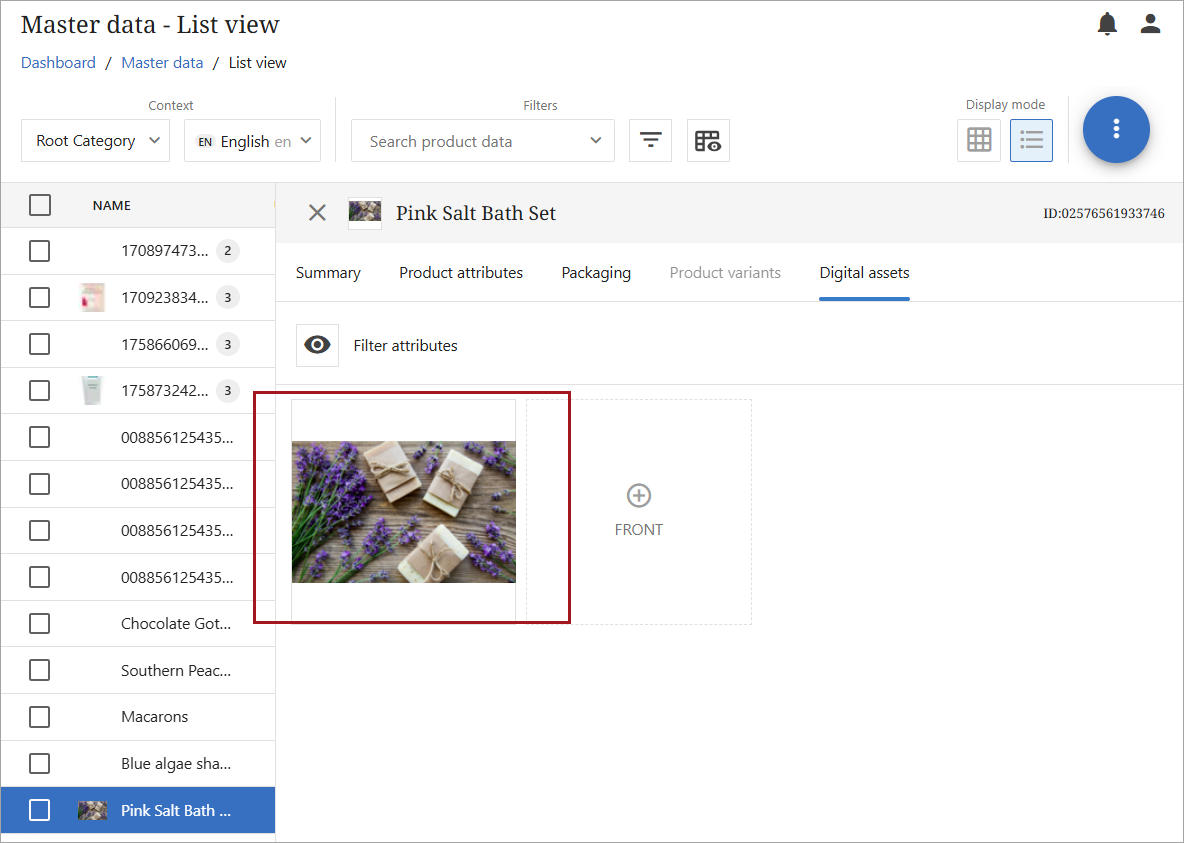
The new image will now be linked to the product.
Grid View
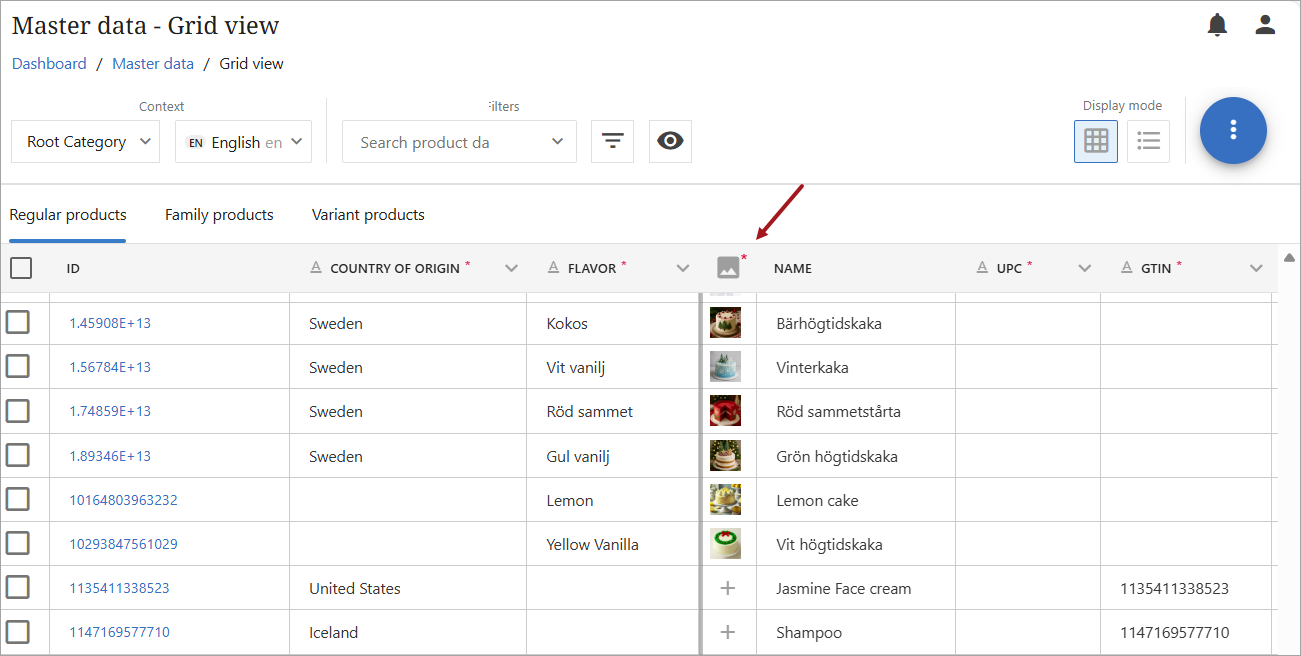
In the grid view, clicking on the  (if no image is linked) or the image thumbnail
  (if an image is linked) will open the digital assets library either with no image or with the linked image selected. The linking and unlinking processes follow the same structure as in the list view described above.
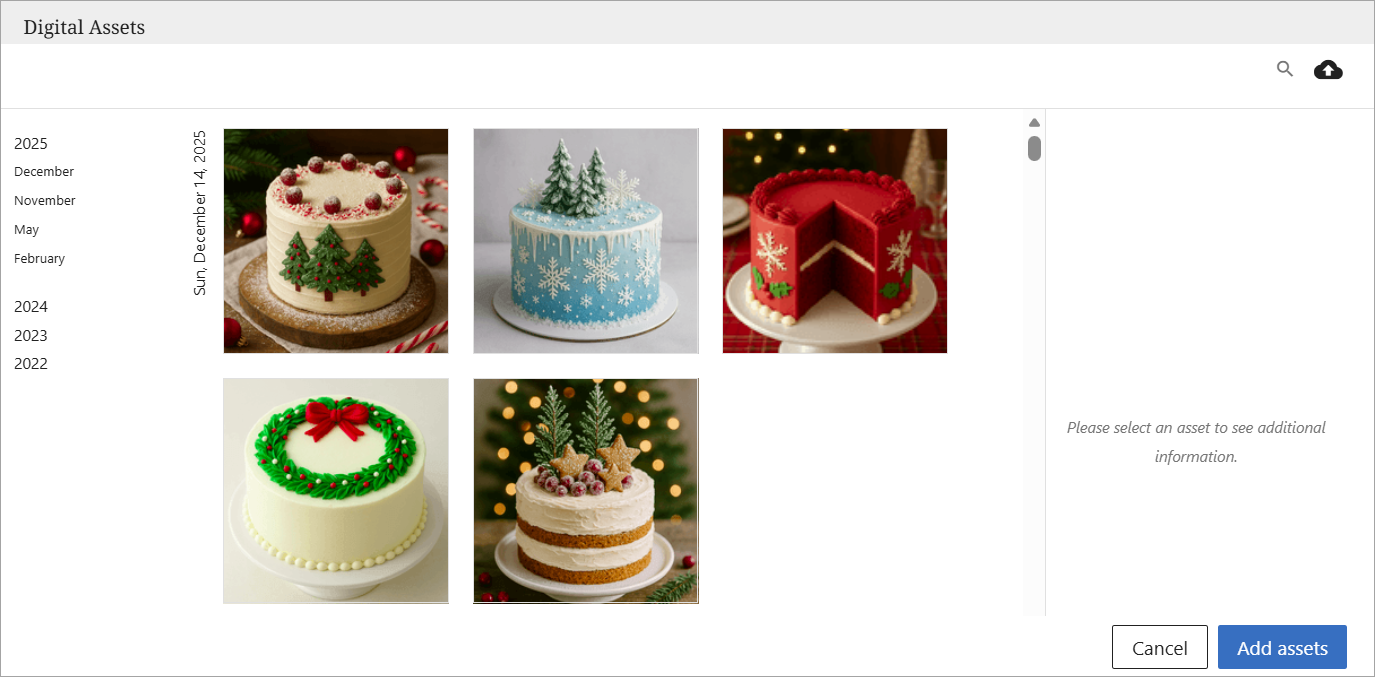
Below is a screenshot of the digital assets without a link to the product. While the image area will be empty, a user can link an image through this screen by clicking  .
.
Below is a screenshot of a linked digital asset. The  is not functional in this view, and clicking the button will simply return the user to the main grid view in master data.
Users will find a distinction between the 'hover over' action in the list view and the grid view. When a user hovers over an image in the grid view, the option to refresh or unlink the image will be immediately accessible.
Note: Linking an image in Master data will link the image to the product in both Master data and the product's location in any channel. However, linking an image in a channel will not link the image to the product in Master data or any other channel where the product might be located.
Uploading and Deleting
Digital assets can be uploaded, linked to a product, or deleted directly from the digital assets library.
Uploading
To upload one or more images, click on the  icon in the top right-hand corner and then select one or more images to upload.
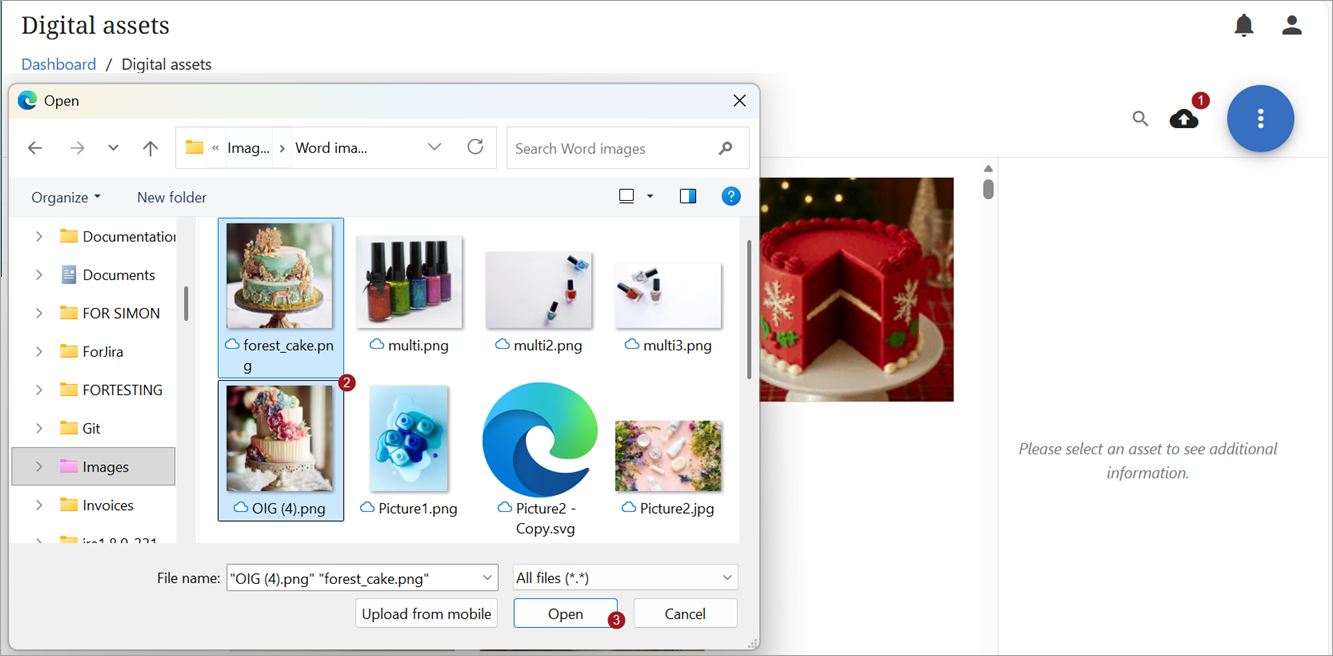
Once uploaded, the images will appear in the library.
Deleting
Viewing the image in the digital assets library from any location (directly, channel data grid view, or master data grid view) allows a user to delete the digital asset. If an image is linked to a product in either the master data, channel data, or both, the image will automatically be unlinked from the product in addition to being removed from the digital assets library upon deletion.